

Last updated: April 2026
GitKraken AI in GitKraken Desktop helps developers generate commit messages, explain commits and branches, draft pull request text, resolve merge conflicts, and customize AI providers and prompts. Use this page to understand which AI workflows are available, when to use them, and which features require a paid GitKraken subscription.
GitKraken AI requires a paid GitKraken subscription.
Requirements and limits
- Product: GitKraken Desktop with GitKraken AI enabled
- Plan: Paid GitKraken subscription required
- Setup location: Preferences > AI for provider, model, and prompt settings
- Preview feature on this page: AI Commit Composer
- Feature availability varies by workflow; review each section for feature-specific status and behavior
| Feature | What it generates or does | Status | Plan | Setup location |
|---|---|---|---|---|
| AI Commit Message | Commit message suggestions from staged changes | GA | Paid subscription | Commit Panel |
| AI Commit Composer | Compose or recompose commits into a cleaner history | Preview | Paid subscription | Commit Details Panel |
| AI Explain | Natural-language explanations of commits and branches | GA | Paid subscription | Commit Graph and context menus |
| AI Pull Request Description | Draft pull request summaries and descriptions | GA | Paid subscription | Pull request description field |
| AI provider and prompt settings | Model, provider, and prompt customization | GA | Paid subscription | Preferences > AI |
GitKraken On-Premise users: The default GitKraken-hosted AI provider is not available in Serverless or Self-Hosted Server deployments. To use GitKraken AI in an on-premises environment, you must configure a Custom URL that points to a private or internal AI service. See How to use a custom API endpoint for setup steps.
Quick Start
To generate a commit message:
- Stage your changes in the Commit Panel.
- Click the AI icon (sparkle) next to the commit message field.
- Review the suggested message and adjust as needed before committing.
To compose commits with AI from staged changes:
- Stage your changes, then click Compose Commit with AI in the Commit Details Panel.
- GitKraken AI proposes a set of commits. Reorder, squash, or edit messages in the resulting window.
- Click Create commits to apply, or Cancel to discard.
To recompose existing commits:
- Select a contiguous range of commits in the graph using Shift or Cmd/Ctrl.
- Right-click and choose Recompose Commits with AI, or click the button in the Commit Details Panel.
- Adjust the proposed structure and click Create commits.
To generate a pull request description:
- When creating a pull request, click the AI icon in the description field to generate a summary of your changes.
To use a custom AI provider or customize the prompts, go to Preferences > AI.
How to compose and recompose commits with AI (Preview)
Use AI to help organize your Git commits into clear, logical stories.
Use AI Commit Composer when: your staged changes or recent commits need to be reorganized into a clearer narrative before you share them. Don’t use it when: your commits are already atomic and you only need a quick manual message update.
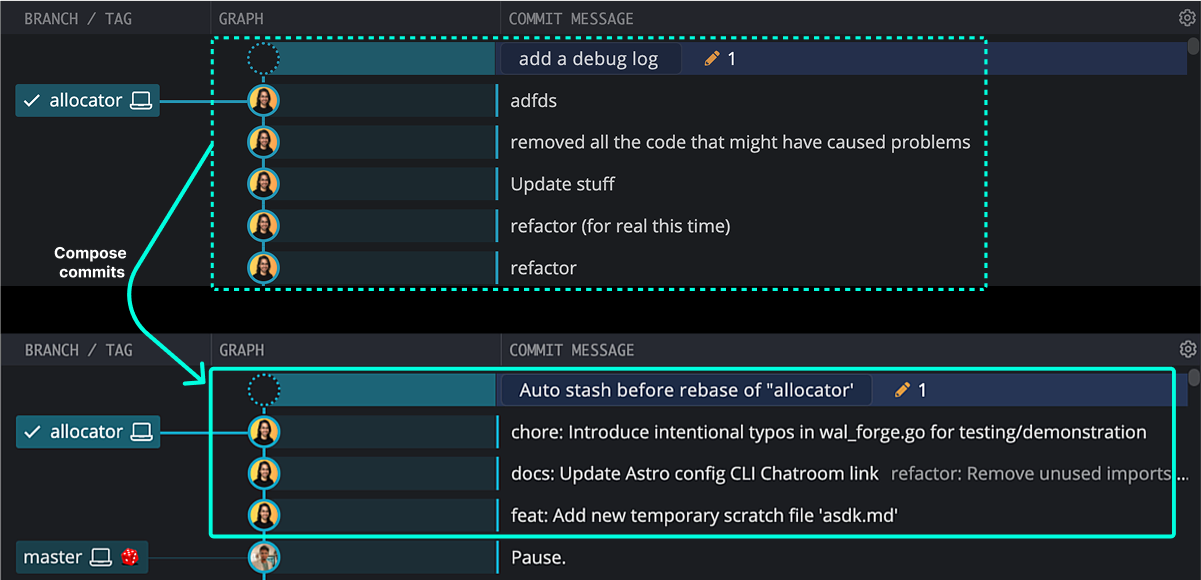
What AI Commit Composer does
The AI-powered Commit Composer can:
- Break up unstaged changes into meaningful commits.
- Recompose selected previous commits into a new structure.
- Reorder, squash, or edit commit messages before pushing.
How to use AI Commit Composer
To generate commits with AI:
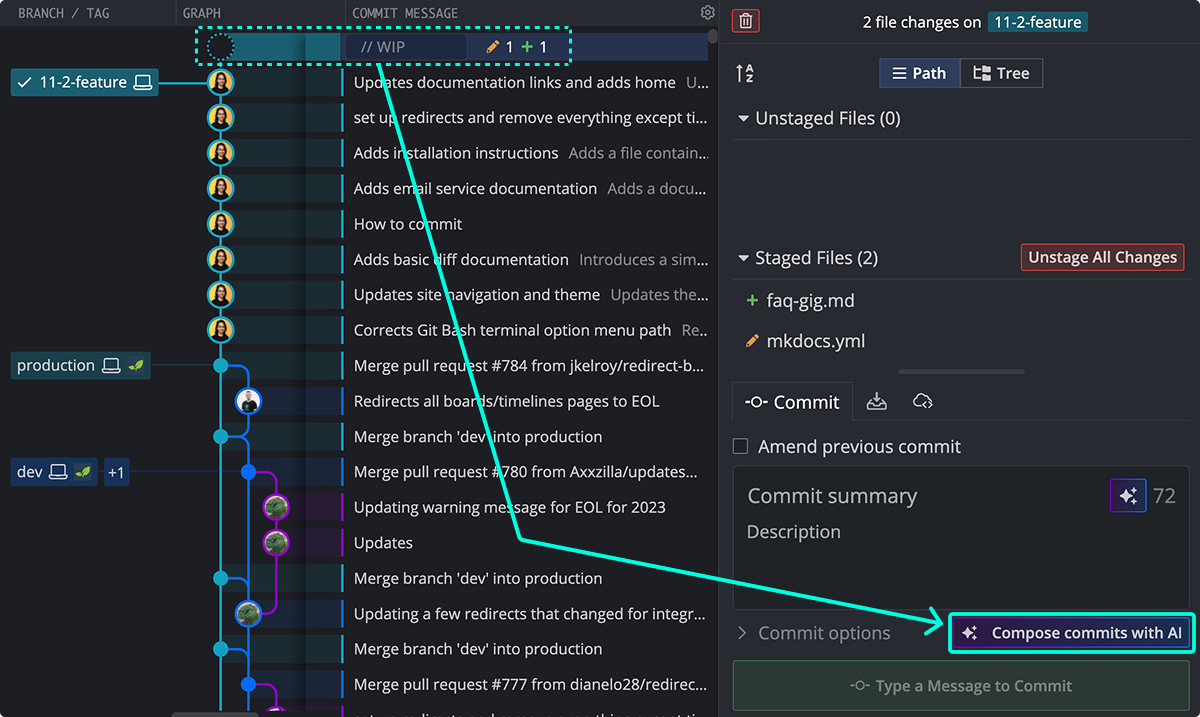
- For uncommitted changes:
- Stage your changes.
- In the Commit Details Panel, click Compose Commit with AI.
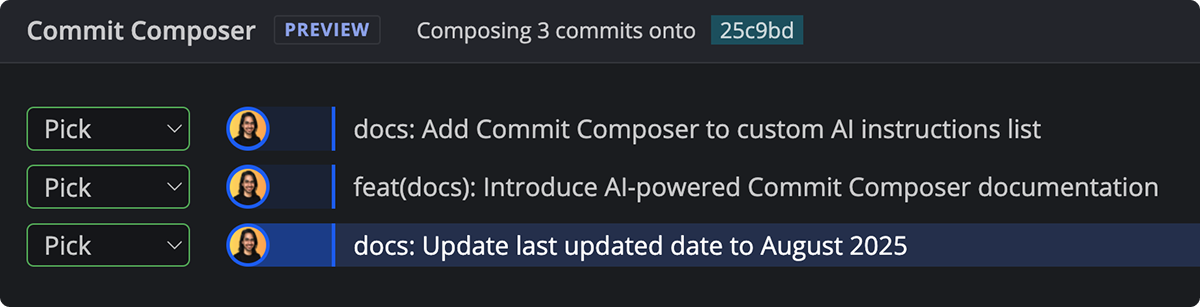
- GitKraken AI will take a moment to compose the new commits. A new window will appear with the results of the composition.
- You can reorder, squash, or edit the commit messages.
- The branch will not be updated until you click Create commits.
- To cancel the process, click Cancel.
- To undo any changes made during composition (such as reordering or squashing), click Reset.
- For existing committed changes:
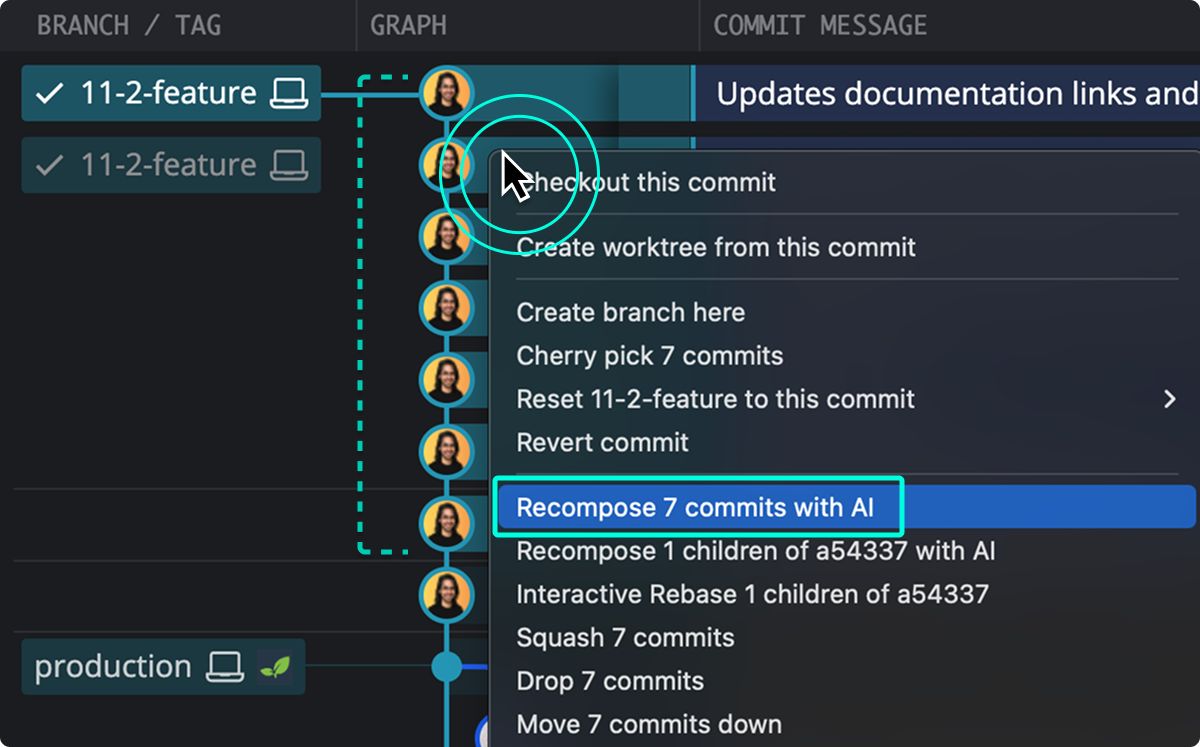
- In the Commit Graph, select a contiguous range of commits using Shift or Cmd/Ctrl.
- Do one of the following:
- Right-click the selection and choose Recompose Commits with AI from the context menu.
- Click Recompose Commits with AI in the Commit Details Panel.
- GitKraken AI will take a moment to compose the new commits. A new window will appear with the results of the composition.
- You can reorder, squash, or edit the commit messages.
- The branch will not be updated until you click Create commits.
- To cancel the process, click Cancel.
- To undo any changes made during composition (such as reordering or squashing), click Reset.
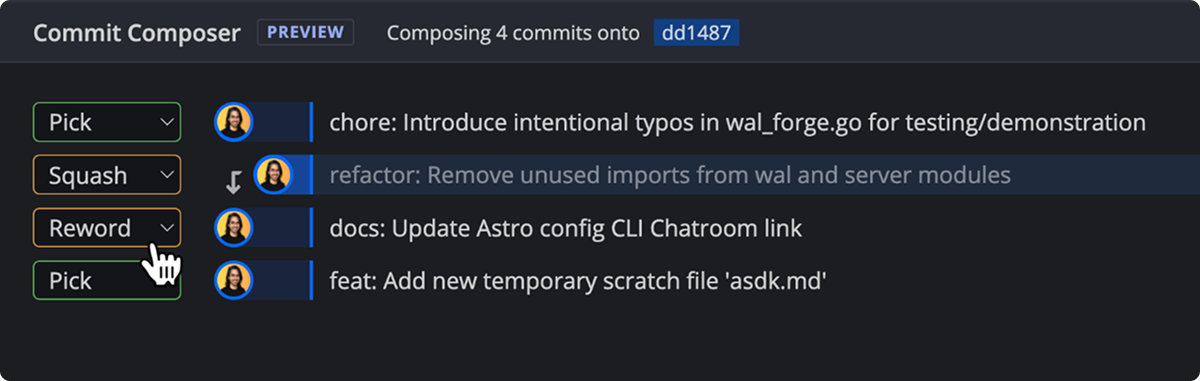
Commit selection rules for AI composition
- If composing from the WIP node, ensure it’s selected and use the WIP panel (top right).
- If composing from existing commits:
- Selected commits must be contiguous and part of the current branch.
- There must be no merge commits between (and including) the branch head commit and the parent of the oldest selected commit.
Tip: Need to reverse the composed commits? Use the Undo button in the toolbar to undo any AI Commit Compose or Recompose commits with AI action.
How to explain commits with AI
GitKraken can generate natural language explanations of your commits directly from the UI.
Use AI Explain when: you need a fast summary of what changed in one or more commits. Don’t use it when: you need authoritative implementation details that should come directly from reading the diff yourself.
How to use AI Commit Explain
- Open GitKraken Desktop and select one or more commits (Use Shift or Ctrl/Cmd).
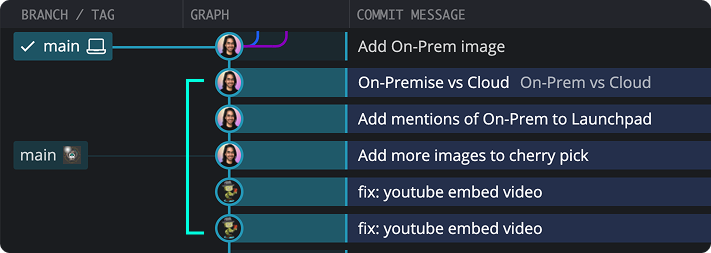
- Click the Explain button in the top-right corner of the Commit Panel.
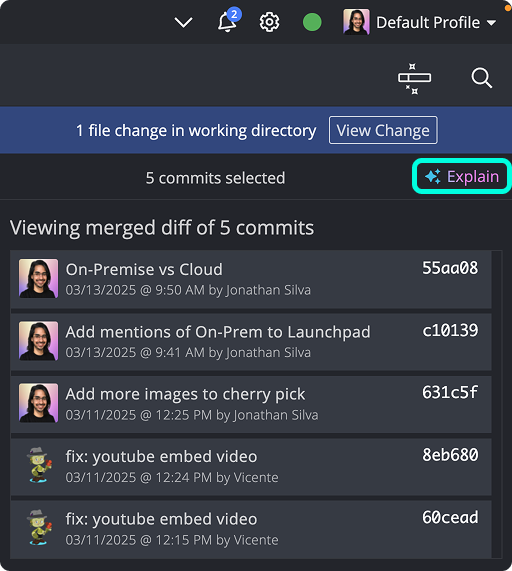
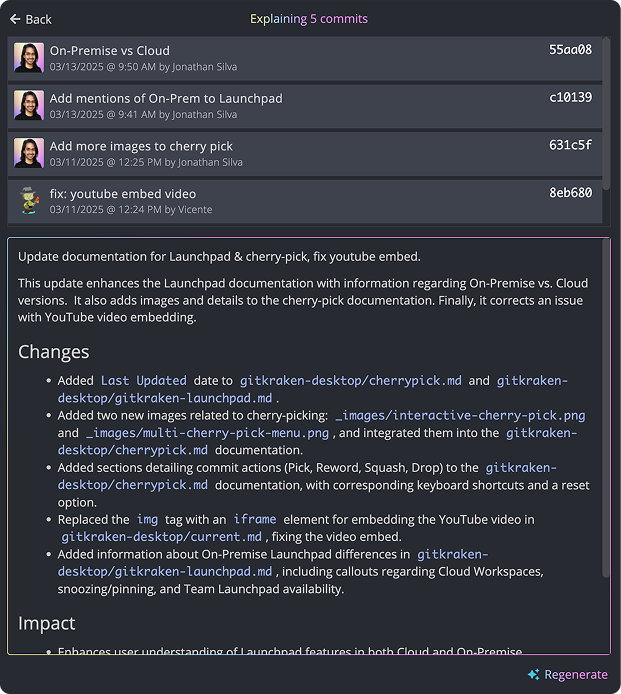
- GitKraken provides an AI-generated summary of what changed in that commit.
How to generate commit messages with AI
Generate clear, consistent commit messages based on your staged changes.
Use AI commit messages when: you want a strong starting point for summarizing staged changes. Don’t use them when: the exact wording carries team-specific meaning and you already know the final message you need to write.
How to generate an AI commit message
- Stage your changes.
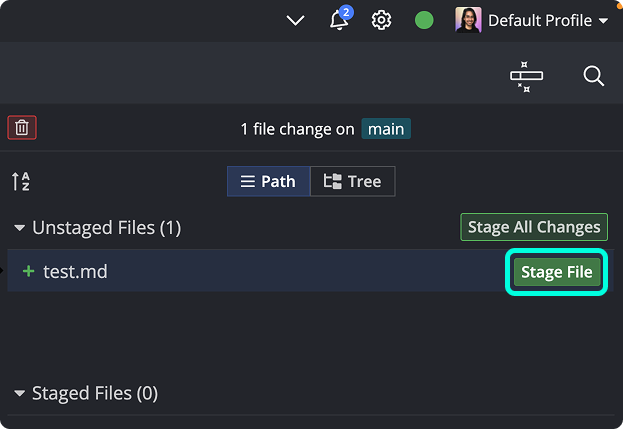
- Click the AI button near the commit message input.
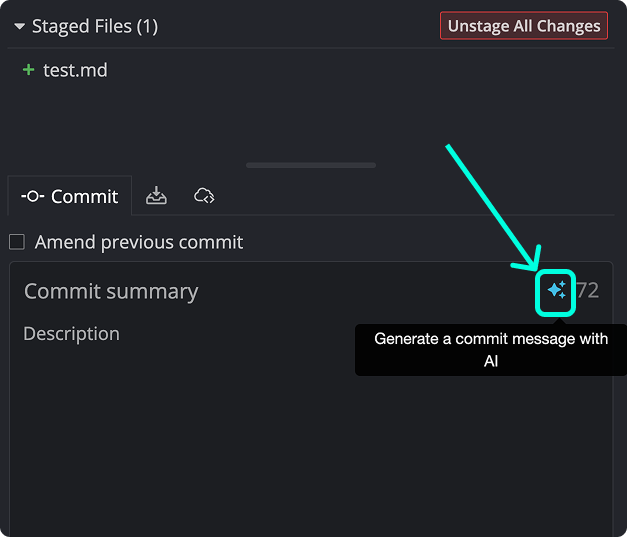
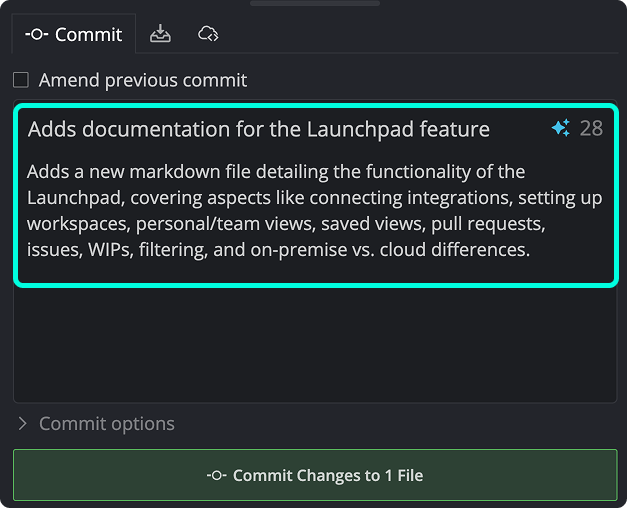
- GitKraken suggests a summary and description, which you can review and edit.
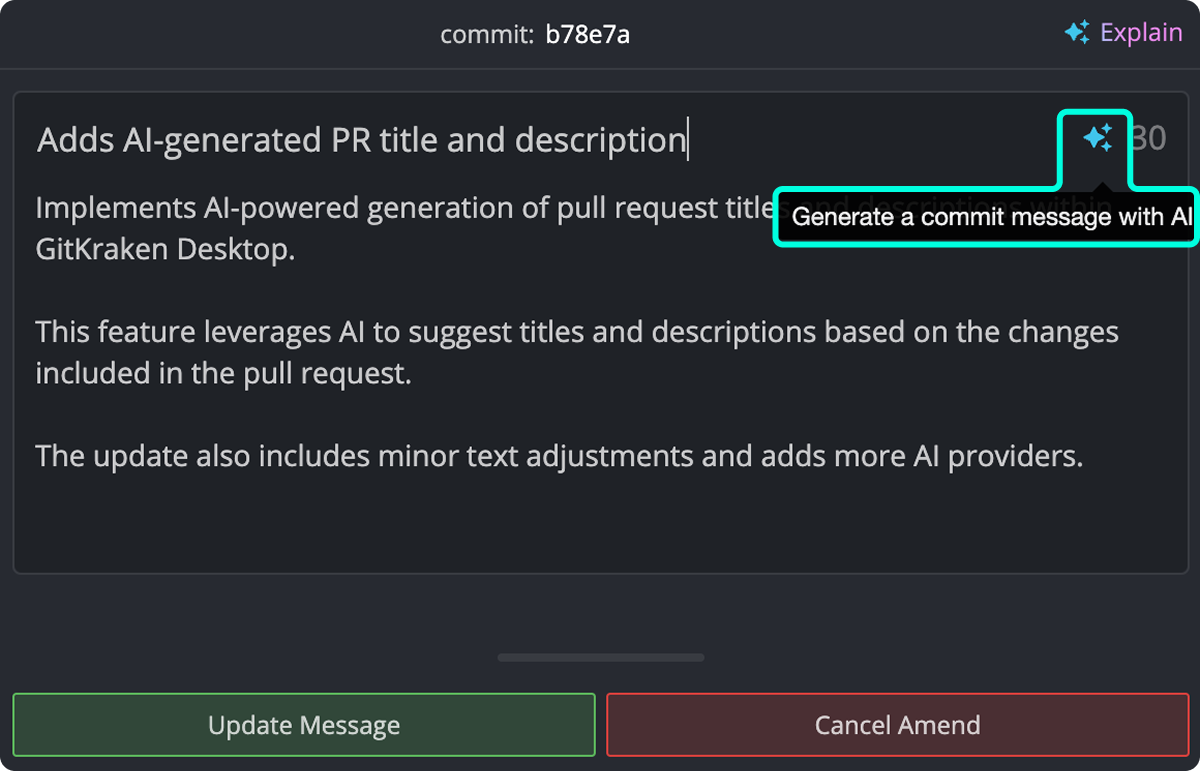
How to amend commit messages with AI
To amend the most recent commit message:
- Select the commit in the graph.
- Click into its message box in the Commit Panel.
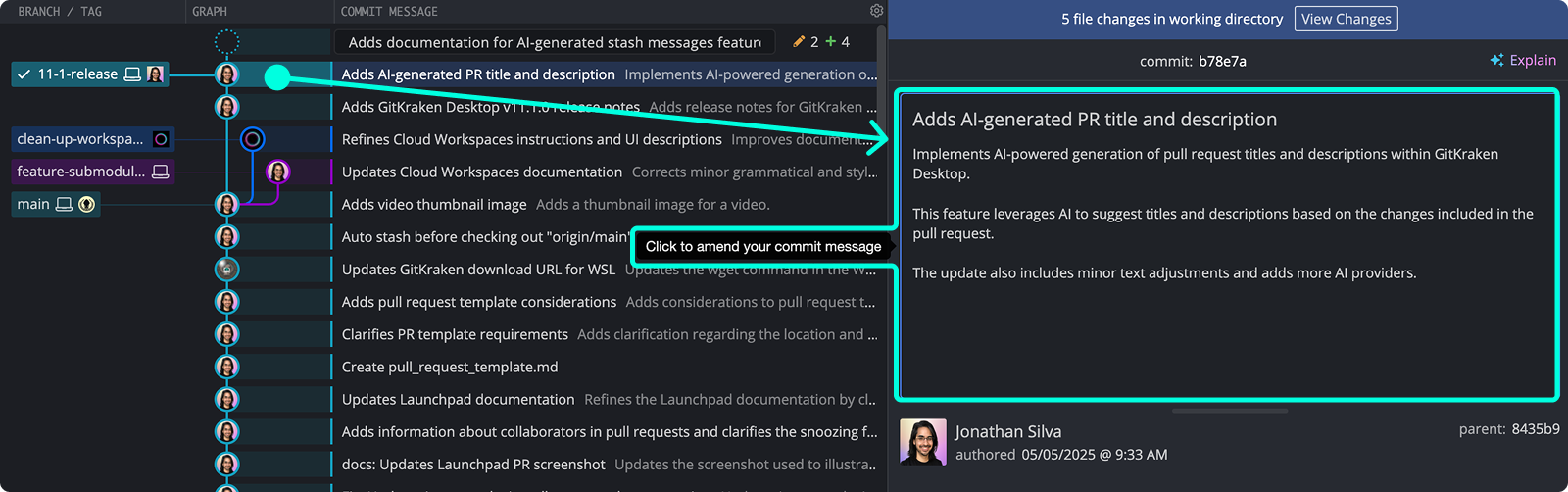
You can then use the AI button again to generate a revised commit message.
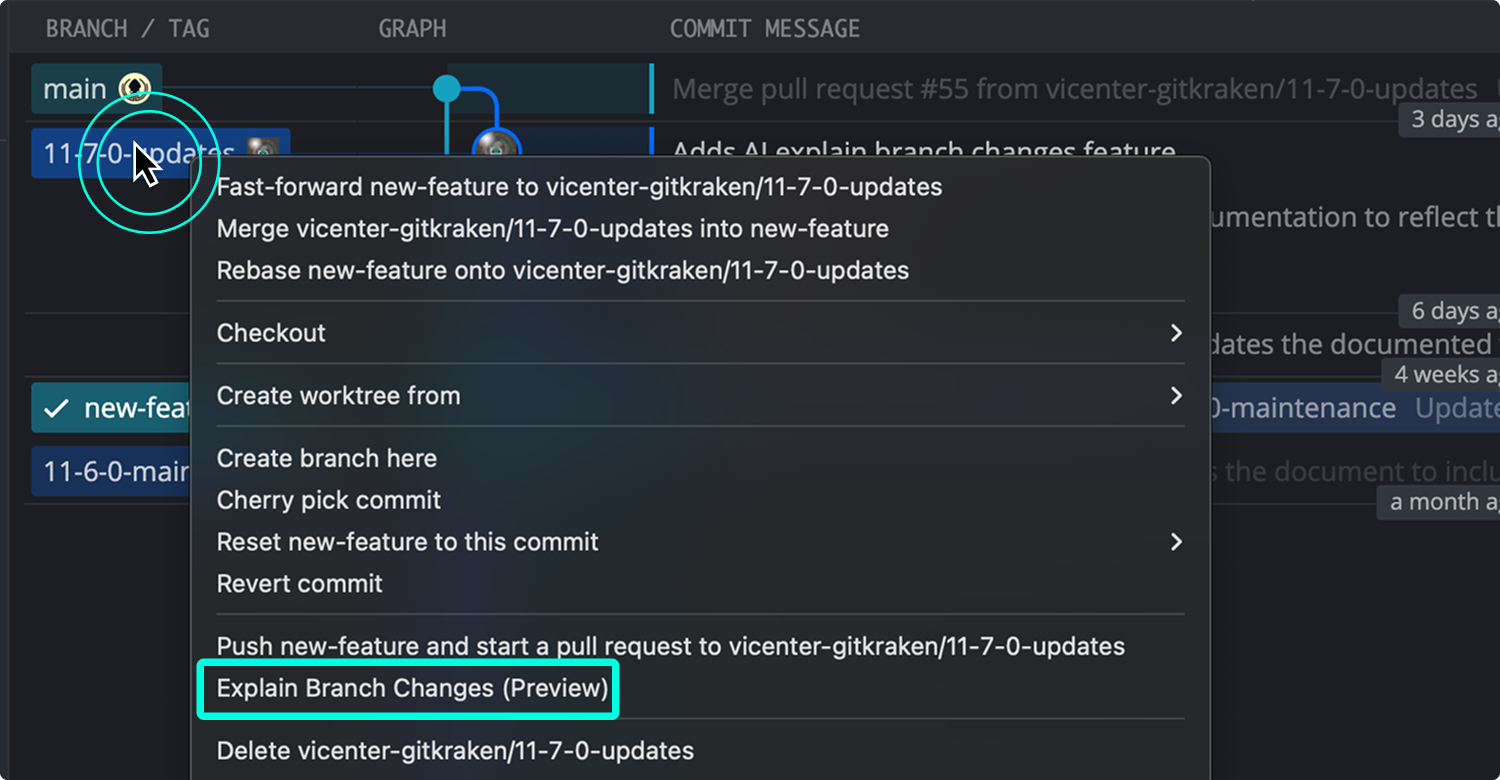
How to explain branch changes with AI
Right-click any branch or HEAD commit and select Explain Branch Changes to generate a summary of all changes introduced on that branch.
Use Explain Branch Changes when: you want a high-level summary before review, handoff, or pull request writing. Don’t use it when: you need to inspect exact file-level behavior instead of a summarized narrative.
GitKraken AI selects all commits on the branch and compares the base commit to the HEAD commit. It uses this diff to generate change and impact summaries.
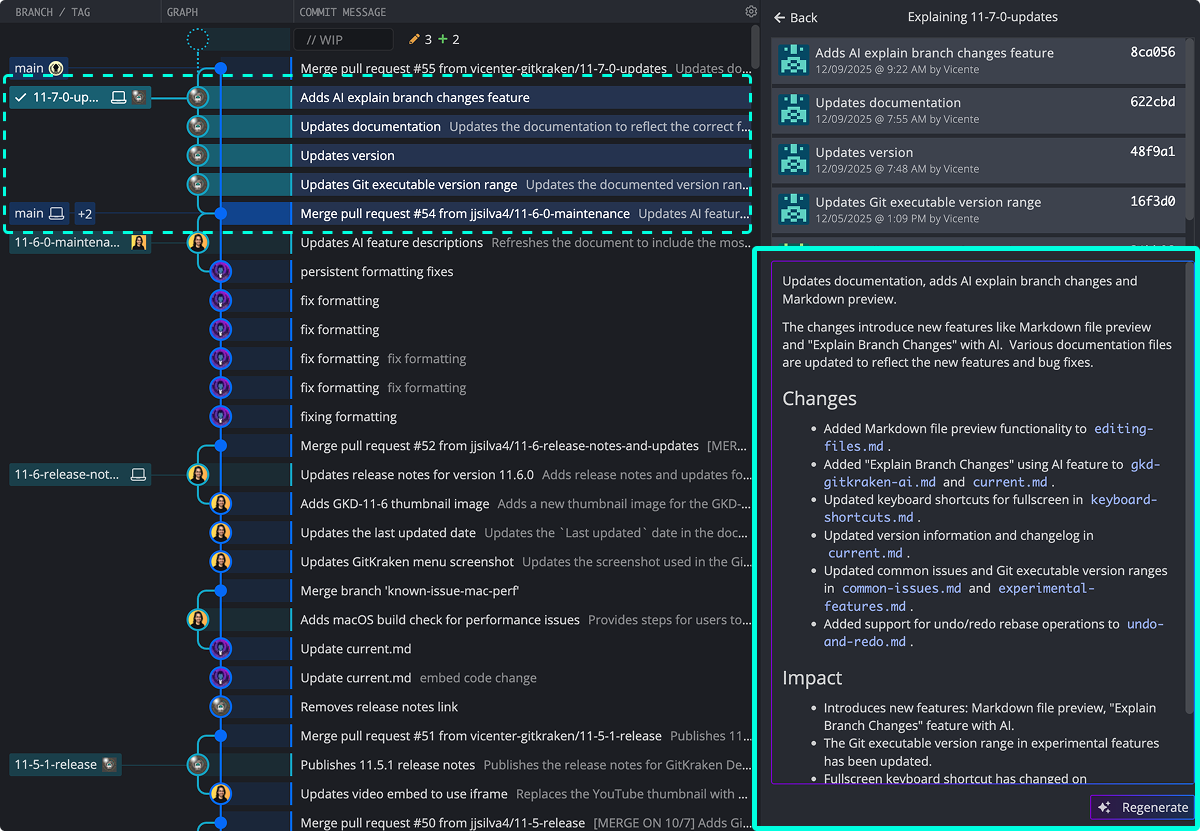
To customize how Explain Branch Changes works, go to Preferences > GitKraken AI > Explain Changes.
How to resolve merge conflicts with AI
Resolve merge conflicts faster with GitKraken AI.
Use AI conflict resolution when: you want a suggested starting point for resolving a conflict and plan to review the result carefully. Don’t use it when: the conflict involves sensitive logic or policy decisions that require a fully manual resolution.
When you encounter a merge conflict, click into the conflicted file as usual. You’ll now see a new Auto-resolve with AI button that offers a context-aware resolution.
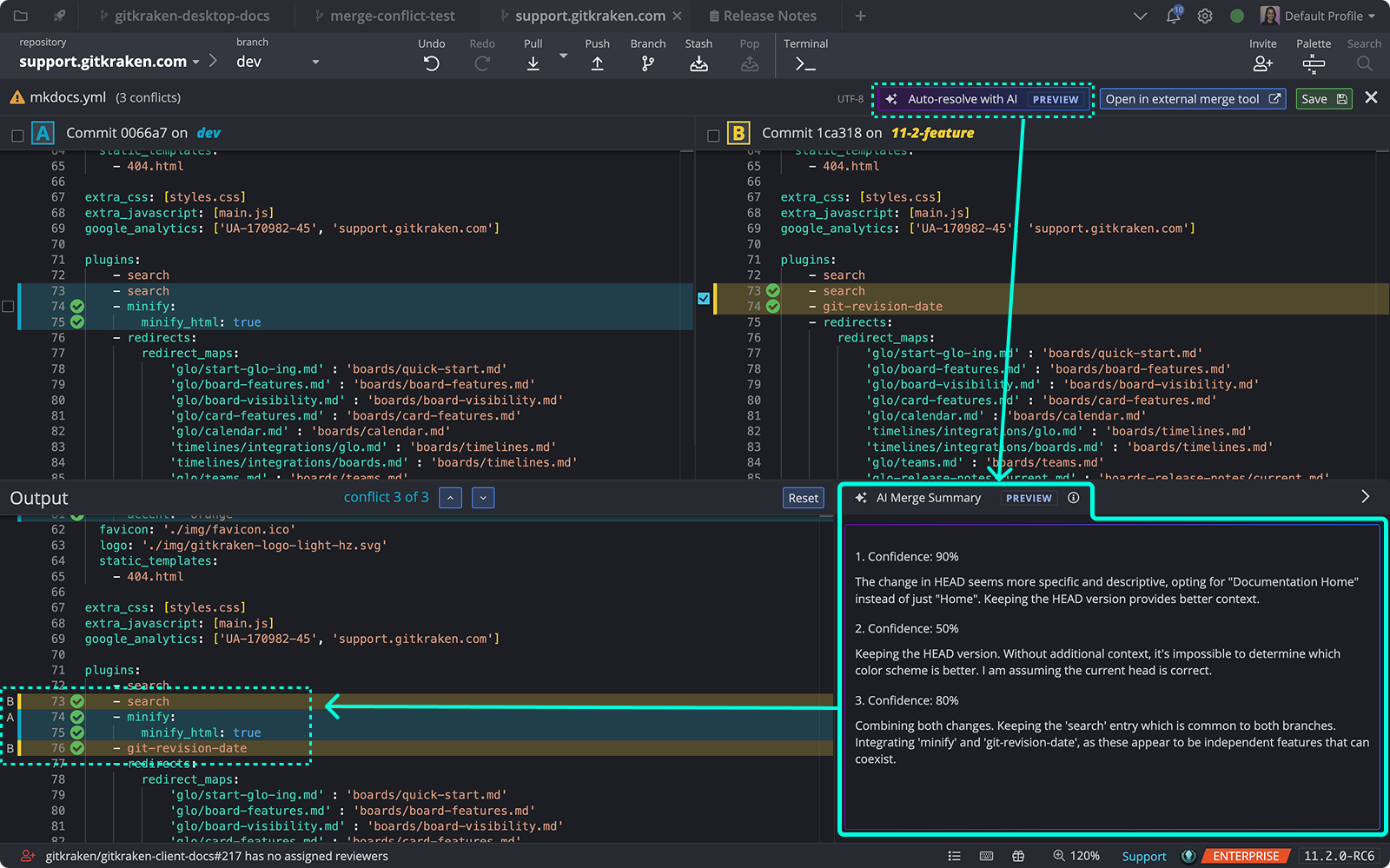
GitKraken AI analyzes the conflicting code and proposes a solution, complete with:
- A detailed explanation of the proposed resolution
- A confidence level for each conflicted hunk
You stay in control—review the AI output, make edits, or choose to accept or discard the changes. Use the confidence levels to decide which hunks might need more manual review.
How to customize conflict resolution prompts
Want to fine-tune how AI handles your merge conflicts? You can add your own instructions for conflict resolution behavior.
Go to: Preferences > GitKraken AI > Conflict Resolution
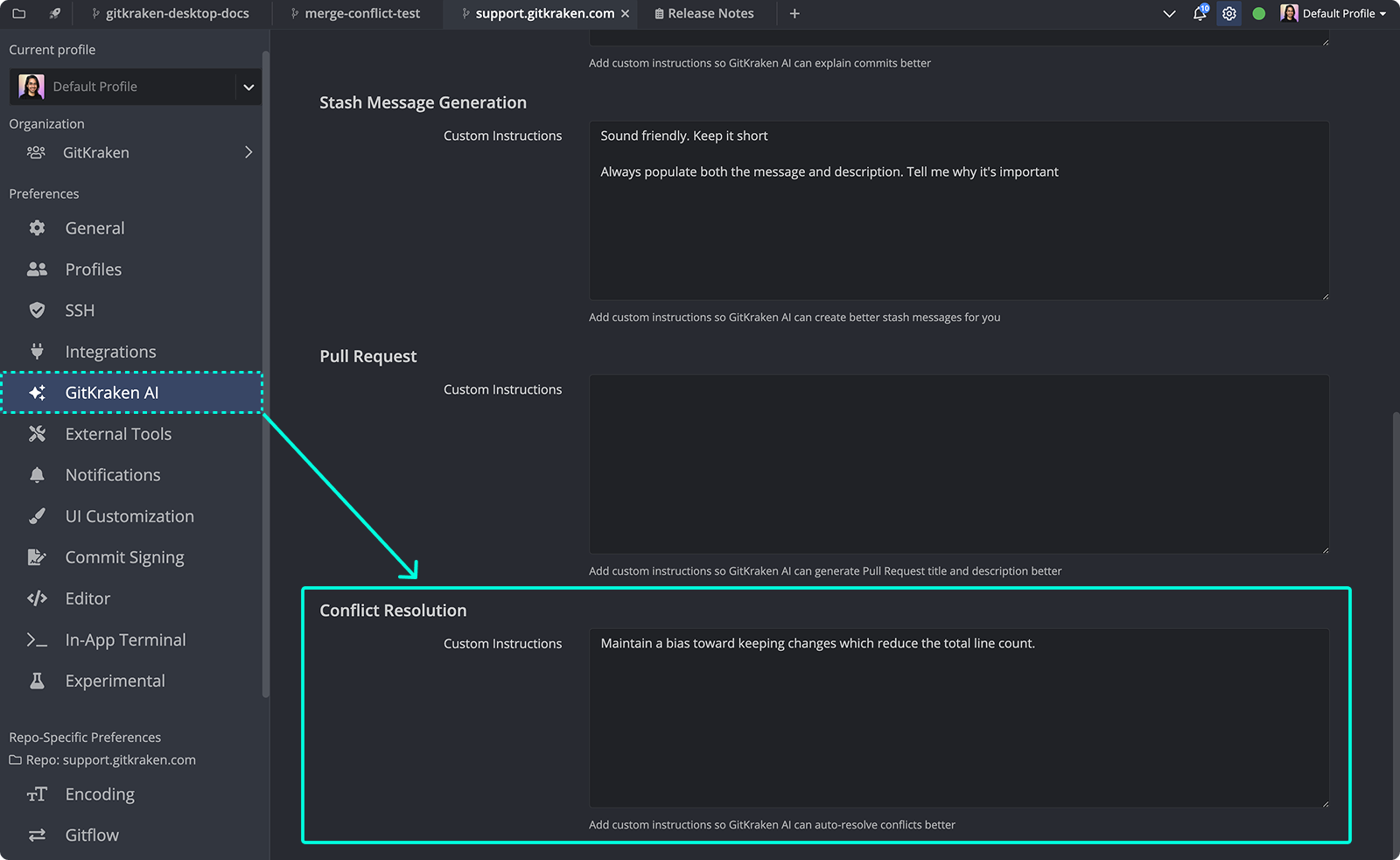
Preview status for AI conflict resolution
This feature is currently in Preview. It’s live and functional, but still evolving.
If GitKraken AI nails the merge, great! If it misses the mark, please share your experience or suggestions at feedback.gitkraken.com.
How to generate stash messages with AI
Similar to commit messages, you can generate stash messages based on staged changes.
How to generate an AI stash message
- Stage your changes.
- Click the stash icon next to the “Commit” tab and then click the AI button.
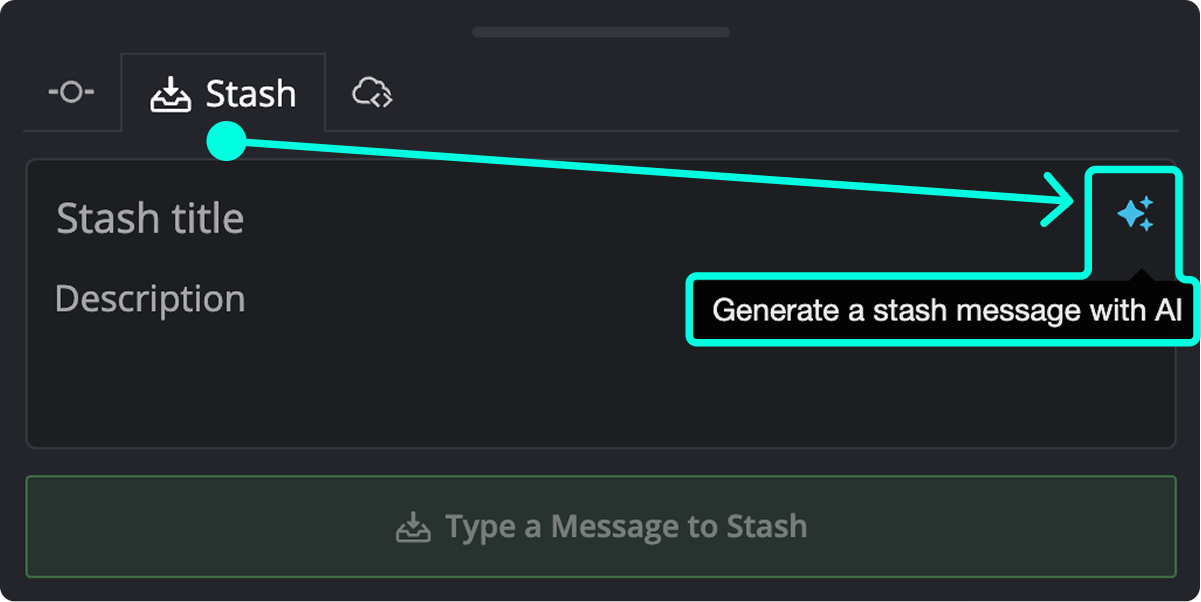
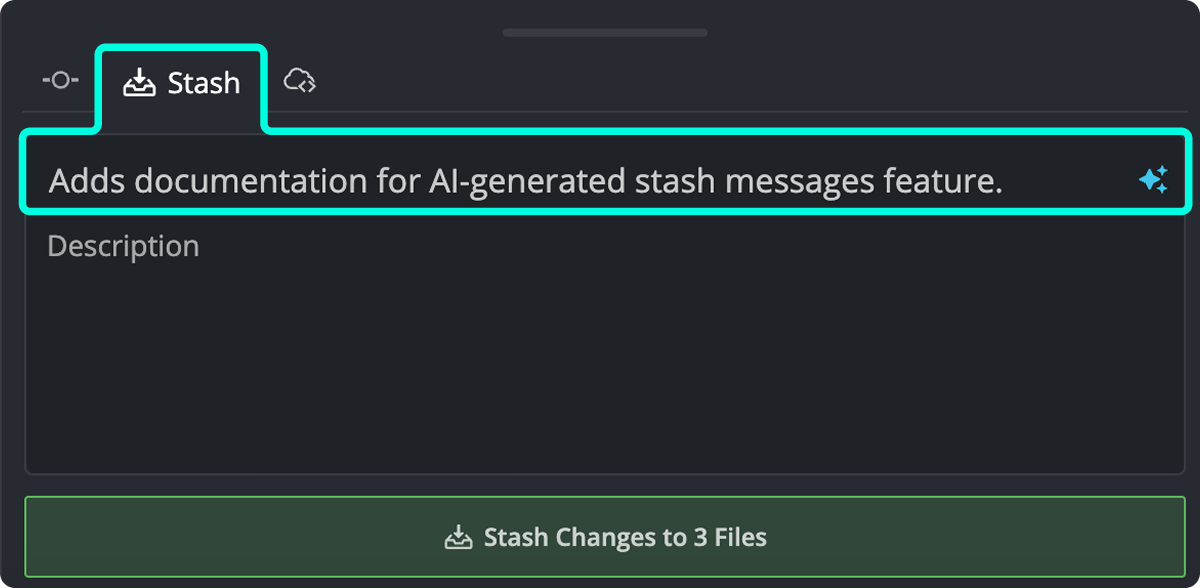
- GitKraken AI generates a stash message, which you can review and edit.
How to generate pull request titles and descriptions with AI
When connected to GitHub, GitLab, Bitbucket, or Azure DevOps, you can use GitKraken AI to create a pull request with a generated title and description based on the incoming changes.
How to generate an AI pull request title and description
- Create a pull request from the Left Panel or by drag-and-dropping a branch onto another.
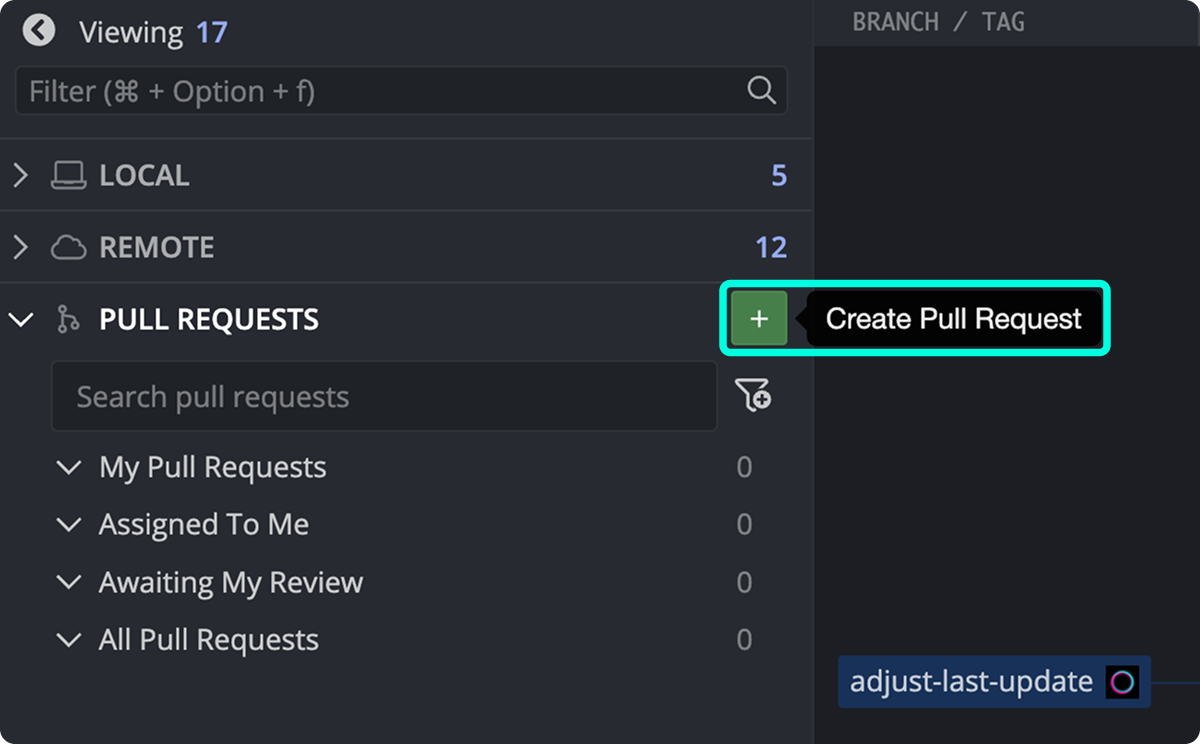
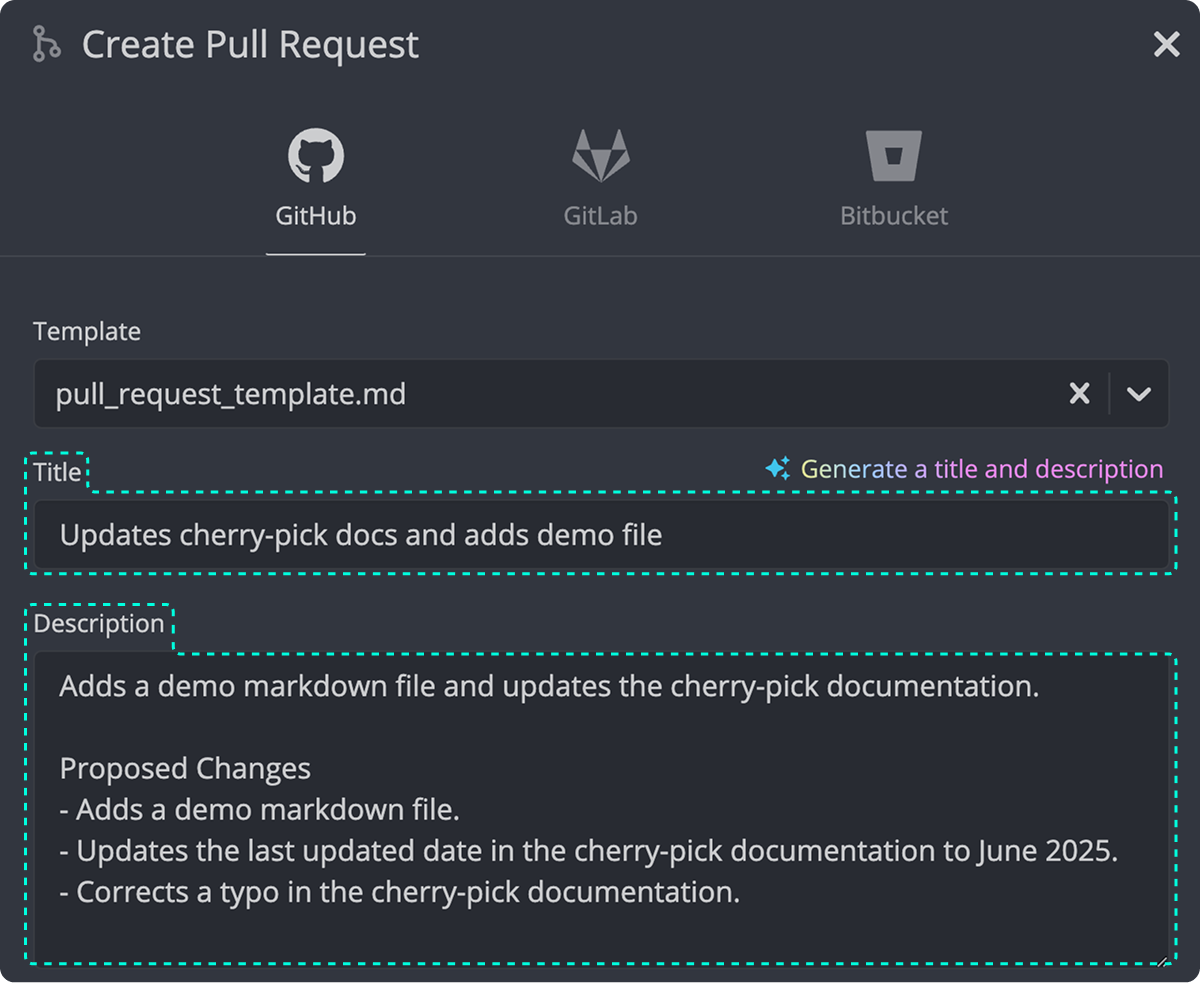
- Click Generate title and description. If using pull request templates, select the template first—GitKraken AI will apply it.
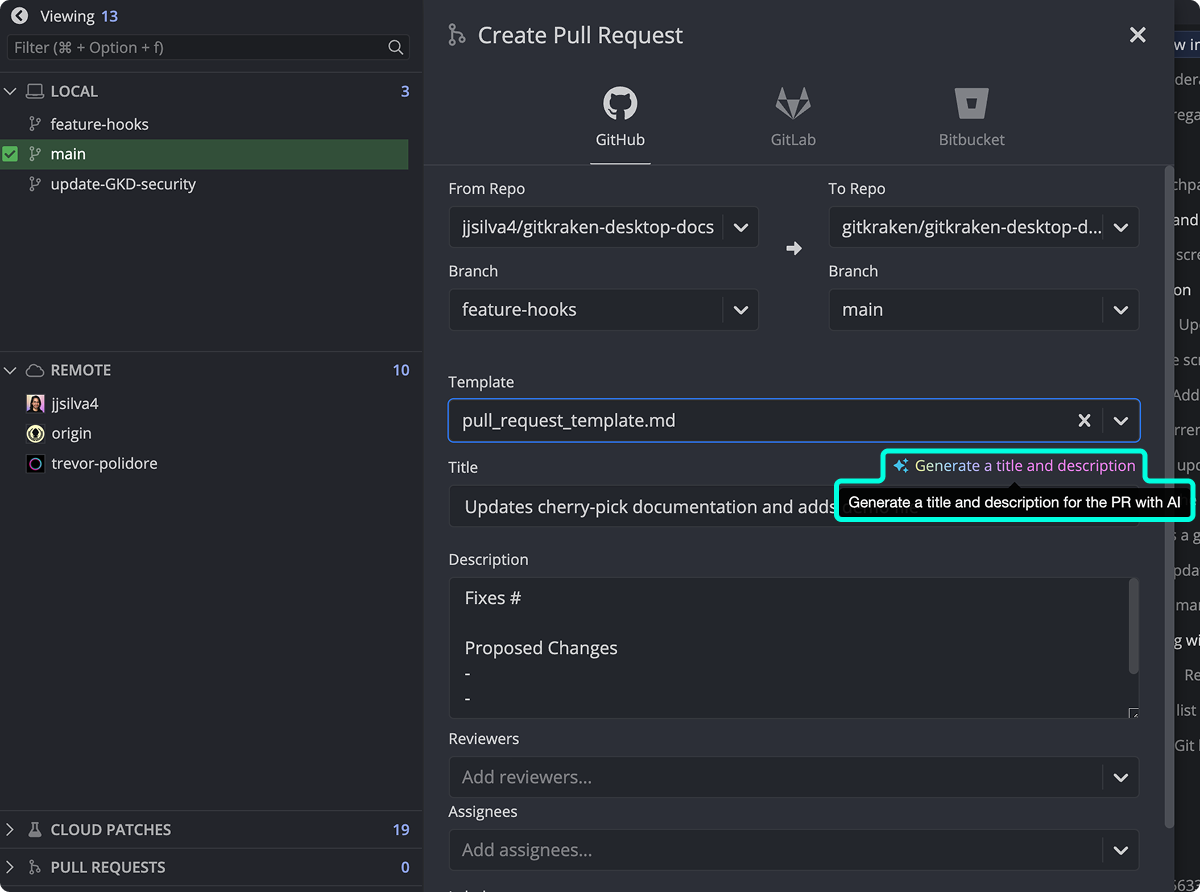
- GitKraken provides a suggested title and description for your PR.
How to use your own AI provider key
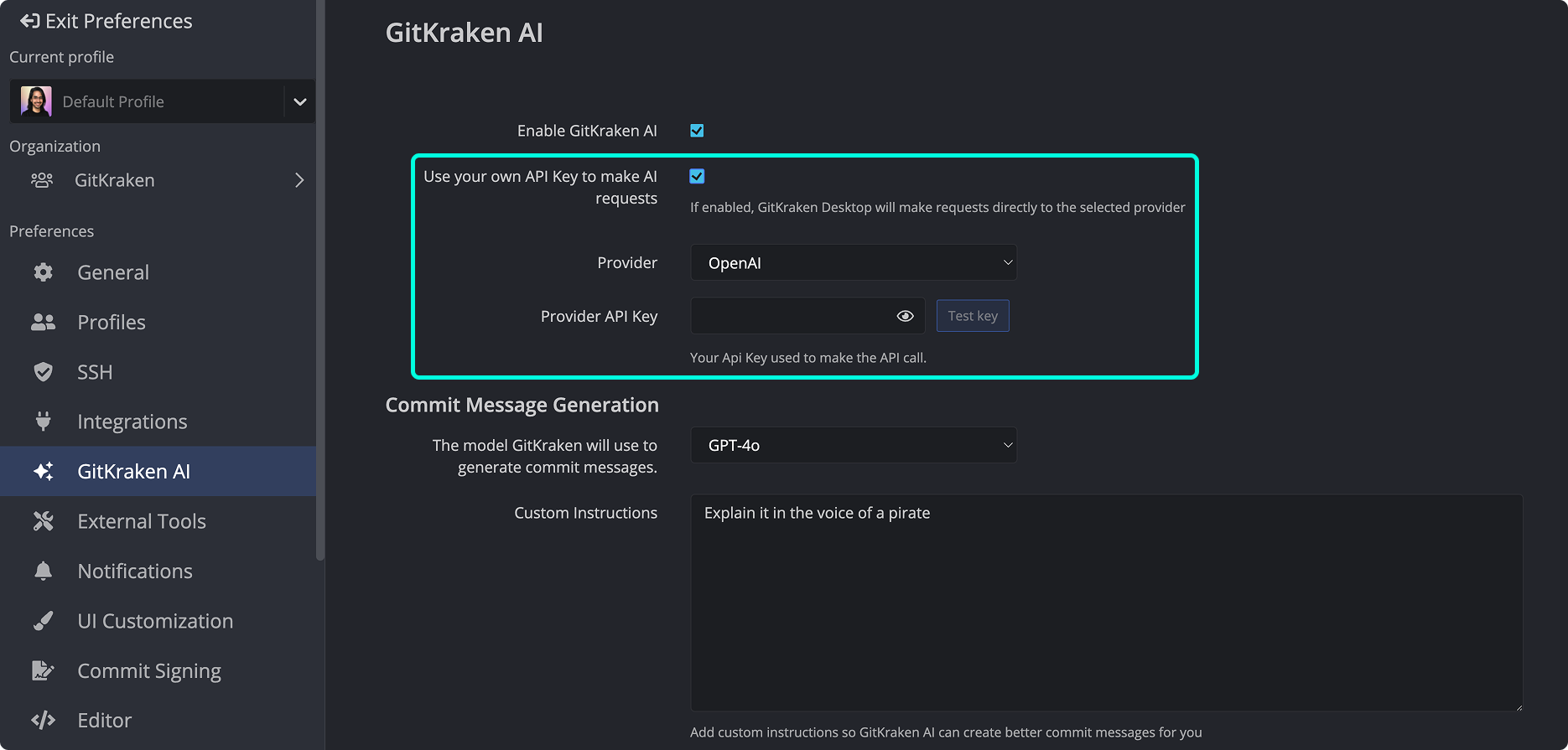
By default, GitKraken AI uses Google Gemini Models to power commit explanations and message generation. No API key is needed and usage is included with your GitKraken subscription.
What’s new in 11.10: The default model lineup has been updated to Google Gemini Models. Deprecated Gemini 1.5 and 2.0 models have been removed.
If you prefer using your own API key with OpenAI, Azure, Anthropic, Google Gemini, or a Custom URL, you can configure this in:
Preferences > GitKraken AI
How to use a custom API endpoint
For users with advanced security requirements, you may use a Custom URL to direct AI requests to a private or internal service.
GitKraken On-Premise users: If you are running GitKraken On-Premise Serverless or Self-Hosted Server, the default hosted provider is not reachable from your network. Custom URL is the only supported AI configuration in those environments.
This endpoint can handle:
- Commit explanations
- Commit and stash message generation
- Pull request title and description generation
- Conflict Resolution
- Commit Composer
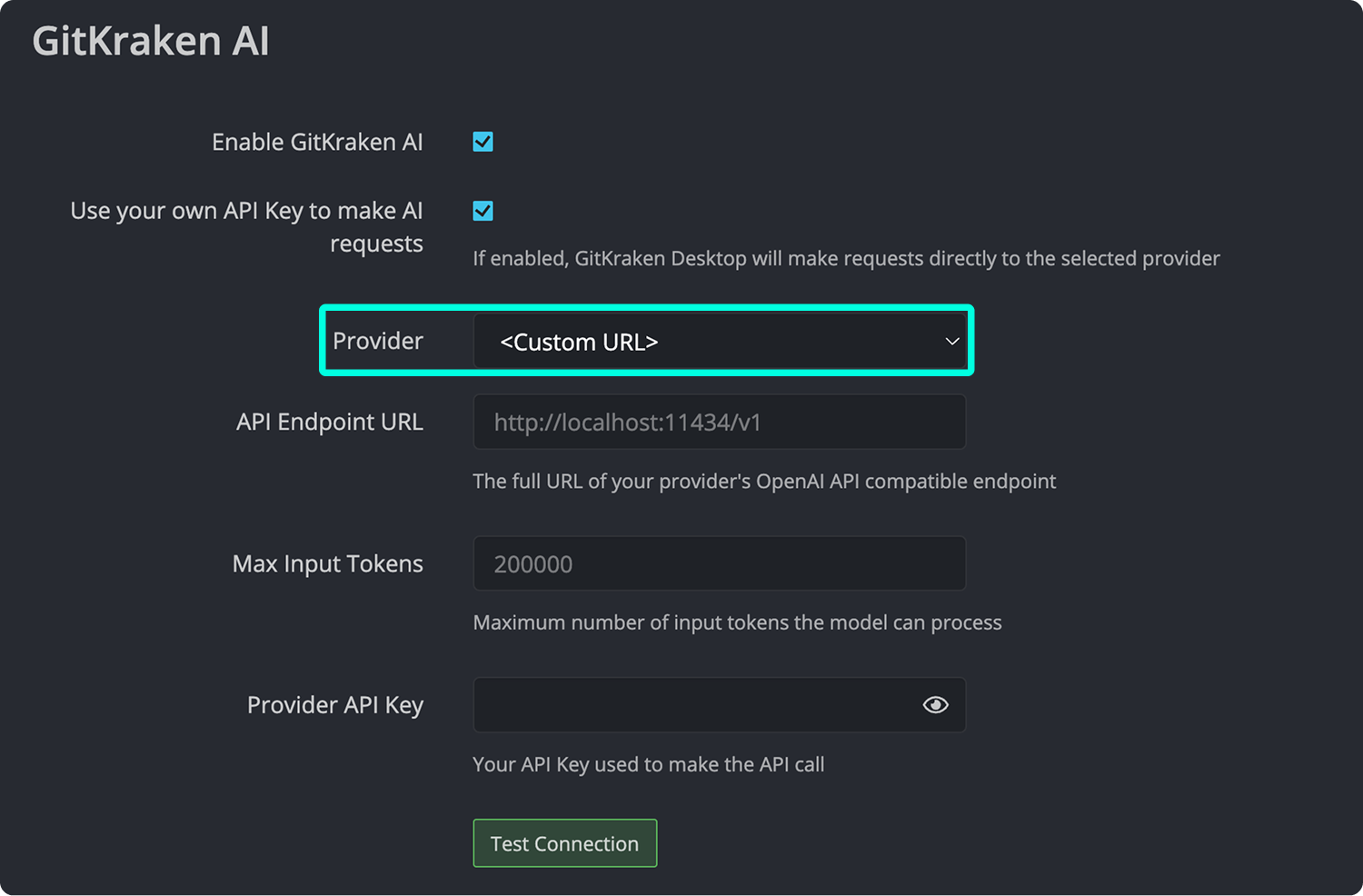
The Custom URL option is ideal for developers connecting to local AI models or private endpoints. For example, you might connect to models hosted with Ollama, Hugging Face, OpenRouter, or an OpenAI-compatible service like LM Studio.
However, GitKraken does not validate or debug third-party implementations. If the connection works, great, but if it doesn’t, we’re unable to troubleshoot issues with custom endpoints.
How to customize AI prompts
Guide how GitKraken AI responds for specific scenarios like:
- Global instructions
- Commit Message Generation
- Explain Changes
- Stash Message Generation
- Pull Request Title/Description
- Conflict Resolution
- Commit Composer
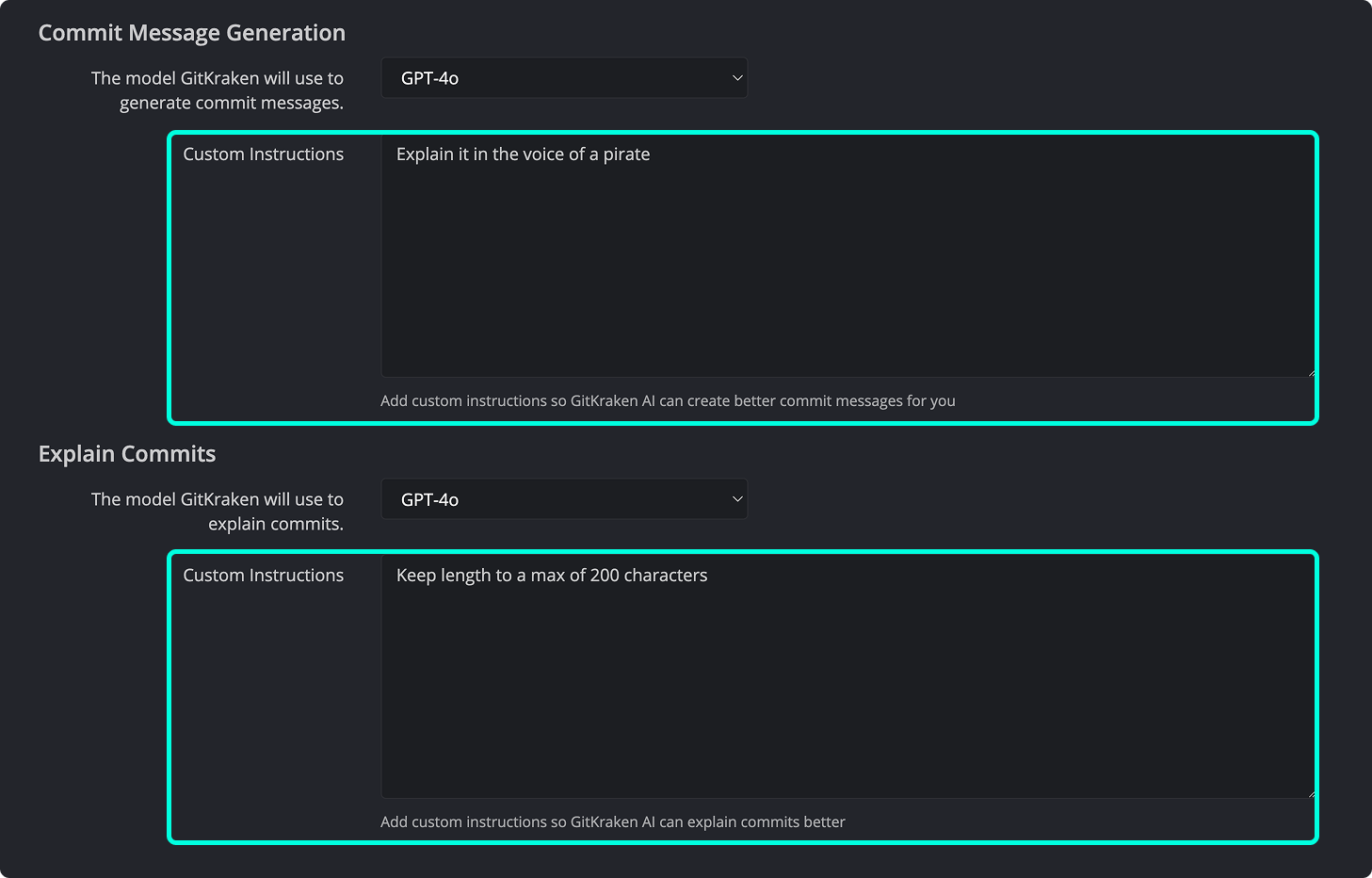
Commit Prompt Examples
Need help crafting instructions? Try these examples:
Prompt for brevity
Keep the summary short, but informativePrompt to add conventional commit prefix
Format the summary as:

<type>: <summary>

Where <type> is one of:
  feat, fix, docs, style, refactor, perf, test, chore

<summary> should be a short, 72-character max imperative phrase.
Only return the final commit message—no extra formatting.
How to manage GitKraken AI for an organization
To disable GitKraken AI, restrict which AI models are available, or set up organization-wide API keys and custom URLs, see the GitKraken Dev Security Controls.
You can disable GitKraken AI locally via Preferences > GitKraken AI. Keep in mind this setting is not enforced at the organization level and can be re-enabled by individual users.
What’s Next?
Additional AI-powered features are in development to further streamline your workflow. GitKraken AI is built to reduce friction while keeping you in control.
Have more questions about GitKraken AI? Visit our GitKraken AI FAQ page for details.
