
Last updated: August 2026
Welcome to the GitLens Support Documentation site!
GitLens is the #1 most downloaded Visual Studio Code Git extension that supercharges your developer workflows. You can download GitLens from the VS Code marketplace:
GitLens is known for its blame, hover, and annotations, but there’s much more to the extension. Users are leveraging its rich features to increase their developer productivity, which you can learn more about in the popular workflows below.
GitLens brings your repository context and development workflows directly into your IDE. Start in the Commit Graph to understand what’s happening across your repository, keep human and agent work visible, and move changes forward without rebuilding context across tools.
Start in the Commit Graph
The Commit Graph is your central development workbench in GitLens. It brings commits, branches, working changes, worktrees, upstream state, and supported coding agent activity together in one connected view.
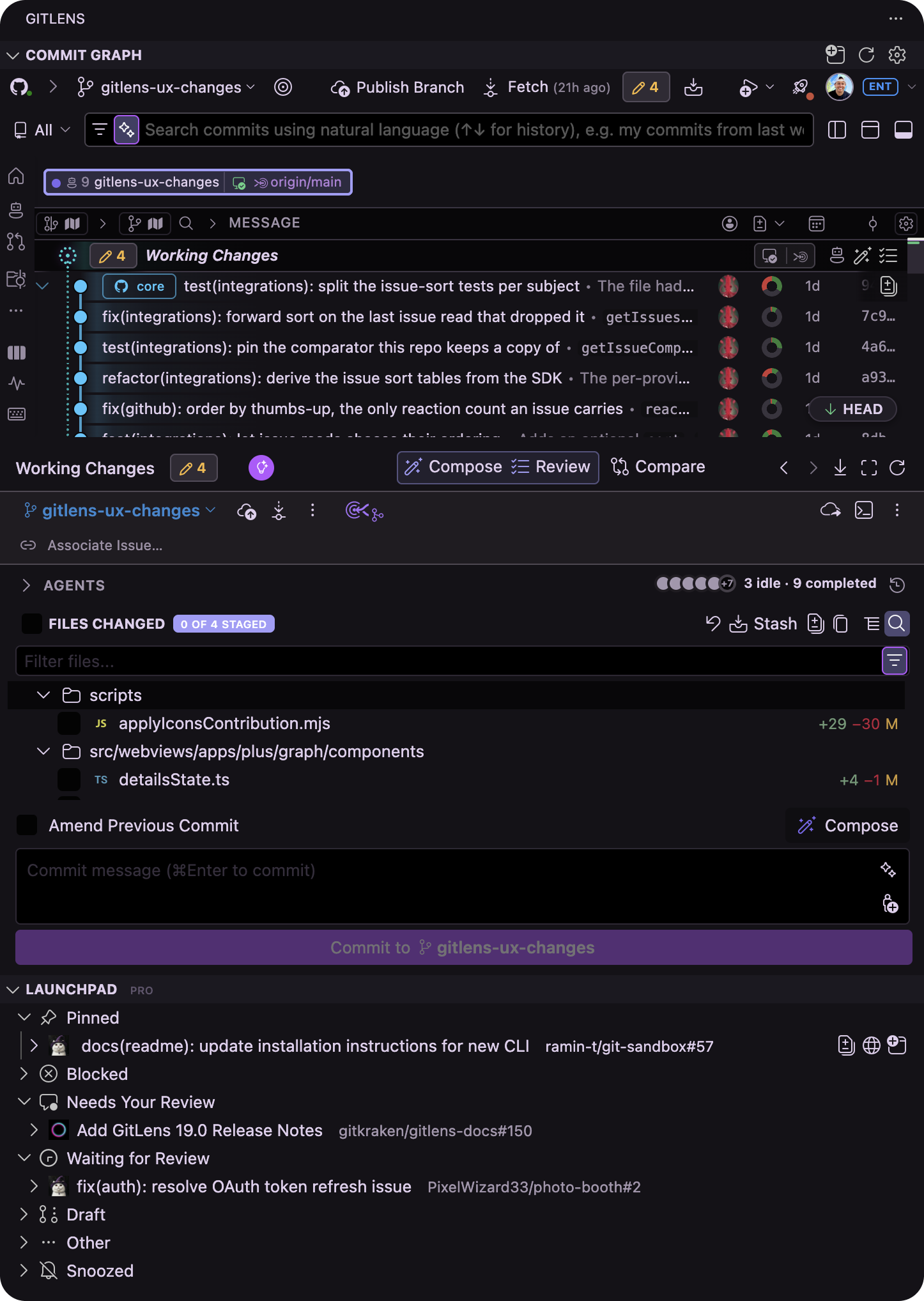
Use the Commit Graph to quickly understand:
- What’s changing across your repository
- Where work is happening across branches and worktrees
- What’s ahead, behind, or incoming
- Which supported coding agents are actively working
- Which work or agent sessions need your attention
- How changes relate before you move them forward
From there, you can move directly into the workflow you need.
One Workbench for Your Development Workflow
Development work is often spread across source control views, terminal sessions, editor windows, pull requests, and separate tools. As more work happens in parallel across developers and coding agents, rebuilding that context can slow you down.
The Commit Graph brings those workflows together. Instead of jumping between views and windows to understand and move work forward, you can stay connected to the repository context behind the work from start to finish.
From the Commit Graph, you can monitor parallel work, review changes, compose commits, compare revisions, rebase with AI, resolve conflicts, and prepare work for merge. Each step stays connected to the branches, worktrees, commits, and changes involved.
See the work, understand it, shape it, and get it ready to merge from one connected workbench.
Move Work Forward from the Commit Graph
The Commit Graph gives you more than visibility into your repository. It brings the workflows you use to understand, shape, and prepare work for merge into the same workbench.
- Monitor: Keep parallel human and agent work visible across branches and worktrees.
- Review: Review changes with AI, investigate findings, and send feedback back to your coding agent.
- Compose: Organize working changes into clean, logical commits with Commit Composer.
- Compare: Compare commits, branches, revisions, and working changes to understand exactly what changed.
- Rebase: Use AI-powered Rebase to automate tedious rebasing while staying in control.
- Resolve: Resolve merge conflicts with AI assistance while keeping the surrounding repository context in view.
Whether you’re working on a single branch or coordinating development across multiple worktrees and coding agents, GitLens keeps the work and its context connected.
Working with Coding Agents
GitLens connects supported coding agent activity to the branches, worktrees, and changes where that work is happening.
From the Commit Graph, you can monitor supported agent sessions, see their status, understand where agents are working, and identify sessions that need your attention. Multi-worktree WIP keeps changes across parallel worktrees visible, helping you stay oriented as human and agent work progresses at the same time.
GitLens supports agent-driven development across VS Code, Cursor, Windsurf, Trae, and Kiro, so you can bring Git context and parallel development workflows into the IDE where you already work.
Where to Go Next
Start with the Commit Graph to get familiar with your development workbench, then explore GitLens workflows and features as you need them:
- Commit Graph for understanding and acting on repository activity
- Agent Sessions for monitoring supported coding agents
- Worktrees for parallel development
- Review for understanding and validating changes
- Commit Composer for shaping clean, logical commits
- Launchpad for prioritizing pull requests and review work
Or follow a complete workflow from start to finish:
- Manage Parallel Development from the Commit Graph
- Prepare Your Branch to Ship
- Take Agent-Generated Work from Change to Merge
Interactive Code History
Understanding your repository’s history is easier with GitLens. Whether you’re navigating complex branches or reviewing past changes, GitLens offers intuitive tools to reveal who changed what and why.
View the Commit Graph
The Commit Graph provides an interactive visual history of your branches and commits. It helps you:
- Follow the development of features and bug fixes over time
- Quickly search and jump to specific commits or branches
- Understand commit context through messages and structure
To open the Commit Graph:
- Open the Command Palette (
Ctrl+Shift+PorCmd+Shift+P) and run GitLens: Show Commit Graph View, or - Click the Commit Graph icon in the sidebar
Open the Commit Graph in GitLens
Use GitLens Inspect
GitLens Inspect helps you dive deeper into a specific commit. It shows:
- Modified files and changed lines
- Related Jira issues or pull requests via autolinks
- File or line history for better context
To open Inspect View:
- Right-click any commit and select Inspect Details
Open the Inspect View in GitLens
Explore Inline Blame and Hovers
Inline Blame reveals who last modified each line and why. Hover over any line to:
- View commit details
- Navigate to the previous revision
- Open the associated pull request
- See the commit in the Commit Graph
These insights help you trace decisions and collaborate more effectively.
Accelerate PR Reviews
Manually switching between browser tabs, emails, and PR tools can interrupt your development flow. GitLens helps you stay focused in Visual Studio Code by organizing pull request tasks and supporting multiple workspaces with worktrees.
Launchpad PRO
This feature is only available for Pro subscription tiers or higher.
Launchpad provides a centralized view of your pull requests. You can:
- Connect your GitHub Integration
- View PRs by action status: needs review, follow-up, blocked, draft, and more
- Open pull requests in a new worktree or switch branches directly
To access Launchpad:
- Open the Command Palette (
Ctrl+Shift+PorCmd+Shift+P) and run GitLens: Open Launchpad
Worktrees
The Community plan supports only public and local repositories.
Worktrees let you check out multiple branches at once without stashing or committing changes in progress. This allows you to:
- Review pull requests without leaving your current work
- Keep separate working directories for isolated tasks
- Open a worktree and inspect file diffs, commit history, and changed files directly from the Pull Request sidebar
To open Worktree View:
Open the Worktree View in GitLens
Streamline Team Collaboration
GitLens enables flexible collaboration without needing to commit or push unfinished code. Use Cloud Patches to share changes privately and Code Suggest to offer improvements across a pull request—even for unmodified files.
Cloud Patches PRO
This feature is only available for Pro subscription tiers or higher.
Cloud Patches are sharable Git patches that can be applied across your GitKraken organization:
- Make and save changes to any file
- Open the Command Palette and run GitLens: Share as Cloud Patch…
- Select collaborators to notify via the Cloud Patch sidebar
Open the Cloud Patches View in GitLens
Code Suggest PRO
This feature is only available for Pro subscription tiers or higher.
Suggest code edits to any file—even those not changed in the original PR:
- Check out a branch with an open pull request
- Make and save your proposed changes
- Open the Command Palette and run GitLens: Show Inspect View, then choose Suggest Changes for PR
The pull request owner can apply, modify, and commit these suggestions to streamline reviews and collaboration.
Connect GitLens to External Services
Boost your productivity by integrating GitLens with platforms like GitHub, GitLab, Azure DevOps, Bitbucket, Jira, and Trello. Reduce context switching and bring external issue tracking directly into your Git workflows.
Integrations
Connect GitLens to your code host and issue tracker to:
- Sync and manage repositories inside Launchpad
- Automatically show pull requests and issues related to your branch
- Avoid switching between your editor and browser
To set up an integration, go to Settings > Integrations or visit the GitLens Integrations Settings.
Autolinks
Autolinks let you automatically link external issues—like Jira tickets or Trello cards—directly in commit messages, file annotations, and code lenses.
You can also create custom autolinks by defining pattern-matching rules for external references like Zendesk or Linear. This helps keep your codebase traceable and well-documented.
Other Resources
- 📌 GitHub Repository — Submit feature requests or bug reports
- 💬 Join GitKraken Slack — Connect with the GitLens community
- 🛠️ Contact Support — Paid users can get direct help from our support team
