

Last updated: February 2026
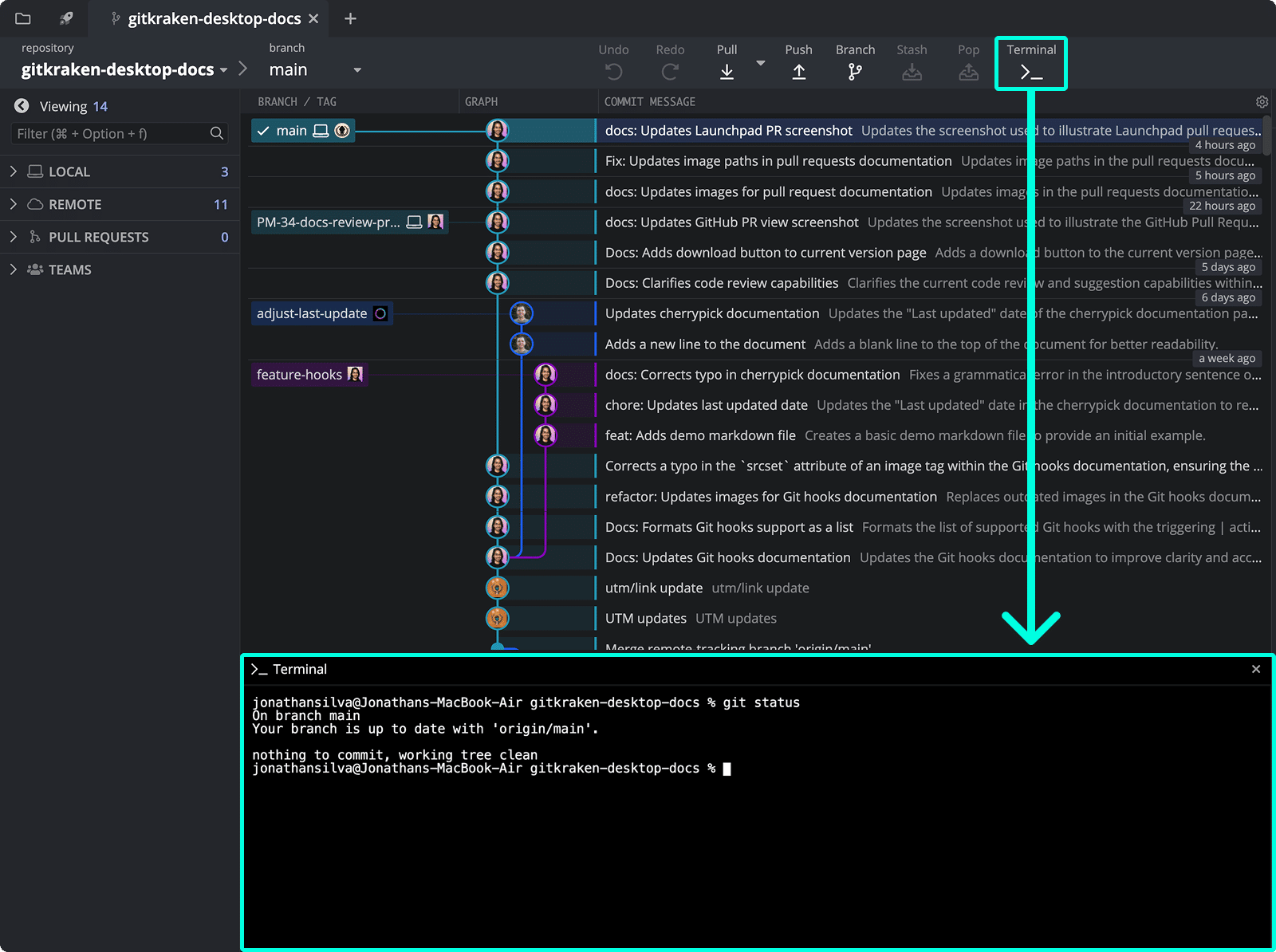
Open the Terminal to run Git CLI commands while viewing the Commit Graph.
To get started, open a repository and click the Terminal button in the toolbar, or search for “terminal” using the Command Palette.
Quick Start
Use the GitKraken Desktop terminal to run Git commands alongside the visual commit graph.
To open the terminal: Click the Terminal icon in the toolbar or search for “terminal” in the Command Palette.
To run commands: Type any Git command such as git status, git commit -m "message", or git log --oneline. Auto-complete suggestions appear as you type, including flag suggestions for each command.
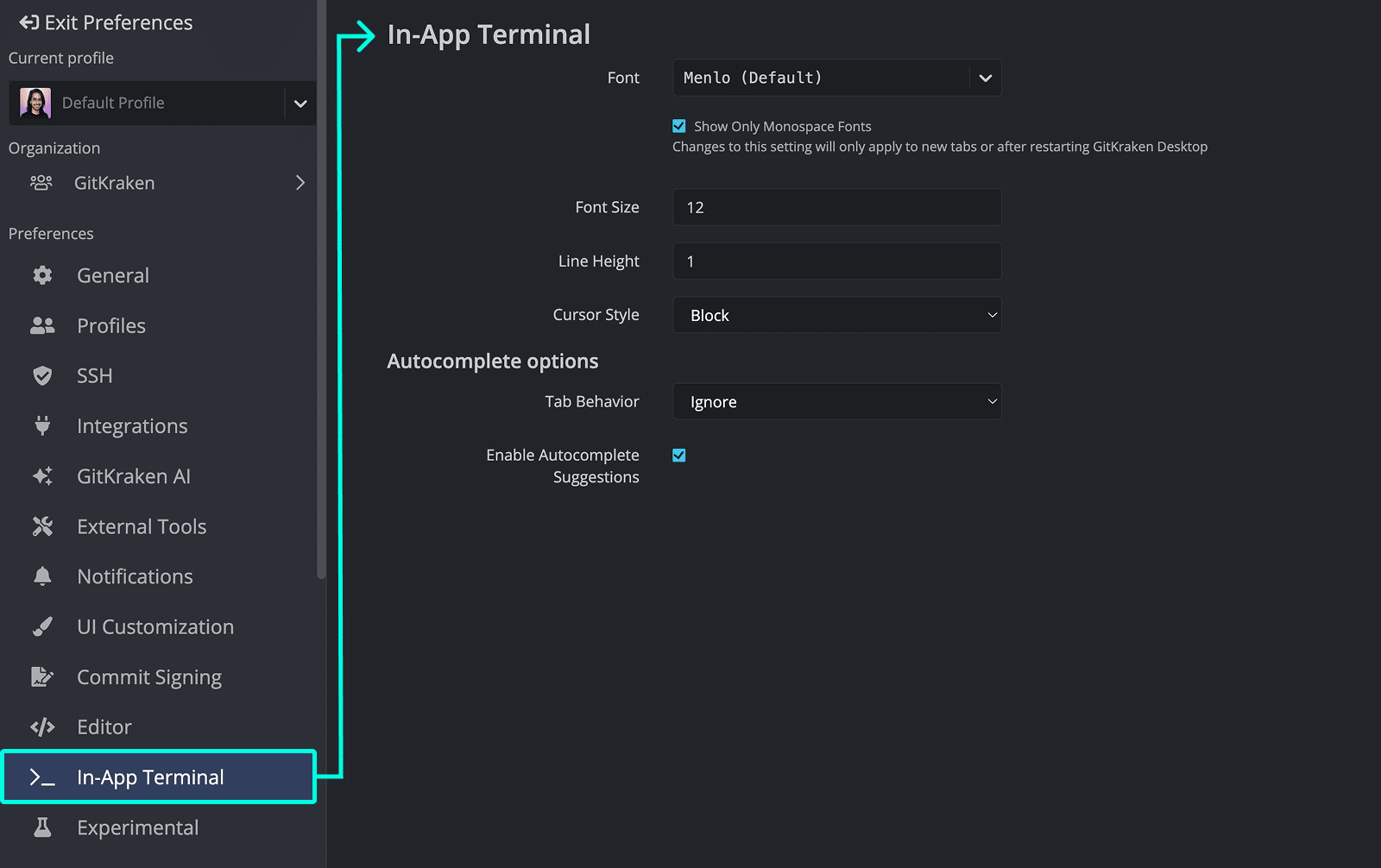
To customize terminal appearance: Go to Preferences > In-App Terminal to change font, size, line height, cursor style, and autocomplete behavior.
To set your default shell:
- macOS/Linux: Set ZSH or Bash as the default shell in your OS settings and restart your machine.
- Windows: Open Preferences > Terminal and select PowerShell or Bash.
The terminal shares context with the open repository, so commands run against the correct working directory automatically.
Git Commands and Auto-complete
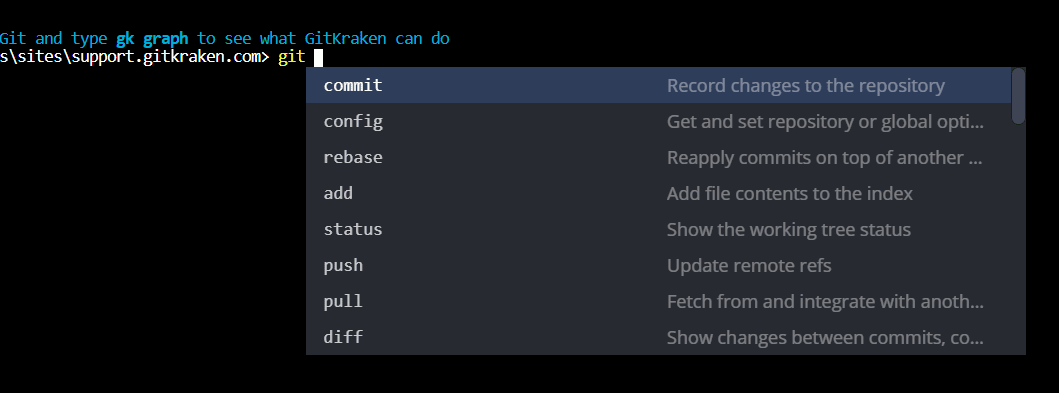
The GitKraken Terminal supports most Git commands. Start typing git to see command suggestions via auto-complete.
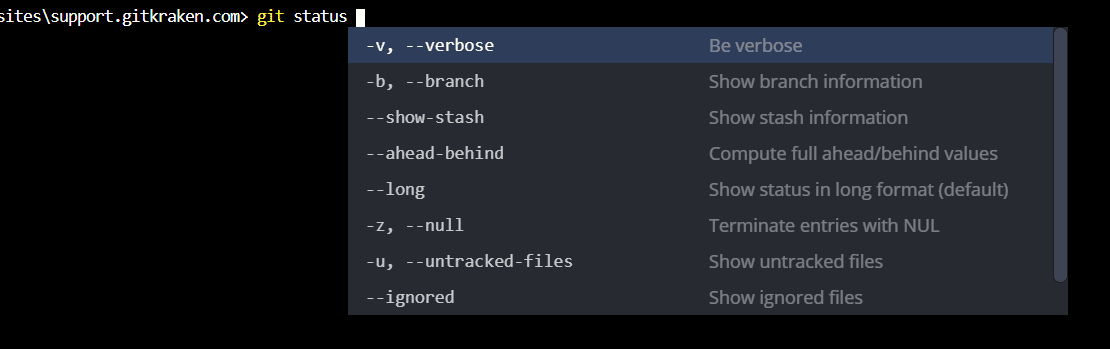
Flag suggestions are also supported:
Note: Conflicting auto-complete programs may disable suggestions. You may need to uninstall or disable such programs for GitKraken’s suggestions to work correctly.
Customize Terminal Preferences
Visit Preferences > In-app Terminal to modify your terminal settings.
Default Terminal on macOS and Linux
GitKraken supports ZSH and Bash. To switch shells:
- Set the preferred shell as default in your OS settings.
- Restart your machine to apply changes.
Default Terminal on Windows
PowerShell and Bash are currently supported. To change the shell:
- Open Preferences > Terminal.
- Set the Default Terminal to your desired shell.
Tip: Try Common Git Commands
Use the terminal to quickly execute common Git operations:
git status– View working directory and staging statusgit commit -m "message"– Commit changes with a messagegit log --oneline– View a condensed commit history
These commands complement GitKraken’s visual graph for a comprehensive Git experience.
