

Last updated: March 2026
This page explains how to view recent GitKraken Desktop error logs so you can troubleshoot problems and share diagnostics with support. Use it when you see red error toasts in the app, need the underlying log text for a ticket, or want to capture recent failure details before reproducing an issue again.
Requirements and limits
- Error logs contain the most recent GitKraken Desktop error toasts, not a full application log history.
- You can open error logs from the Help menu or the Command Palette.
- Include the log contents when contacting support so the issue can be investigated faster.
- Use this page for error toasts specifically; other diagnostics may live in separate log views.
How to open error logs in GitKraken Desktop
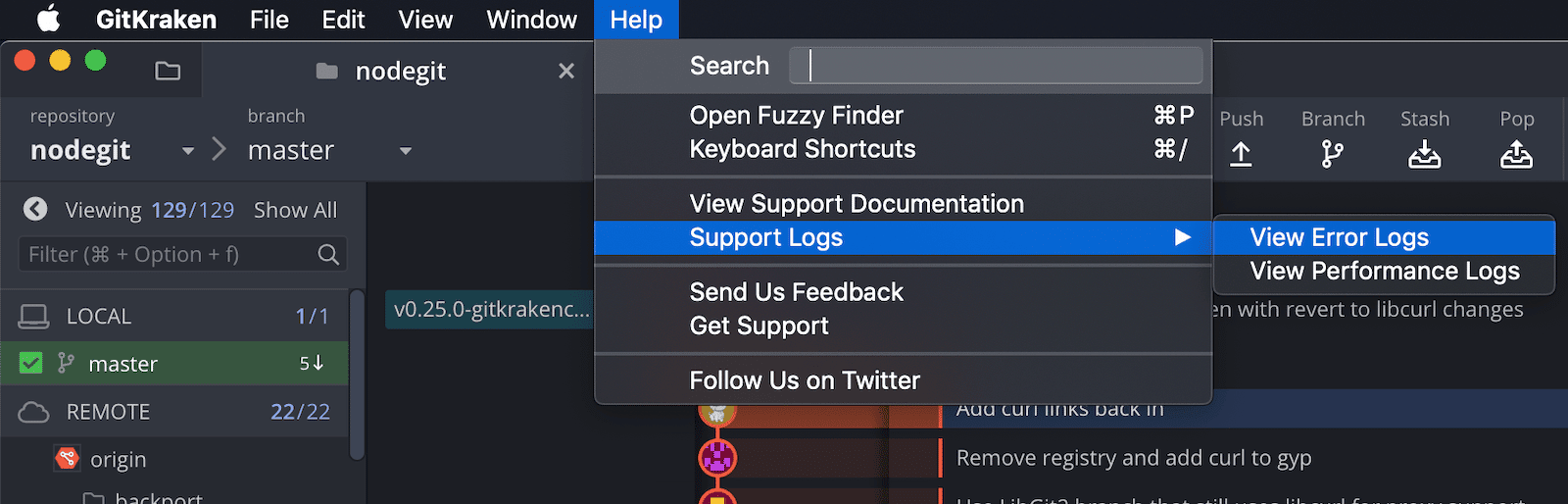
You can access error logs via:
- Help > Support > View Error Logs
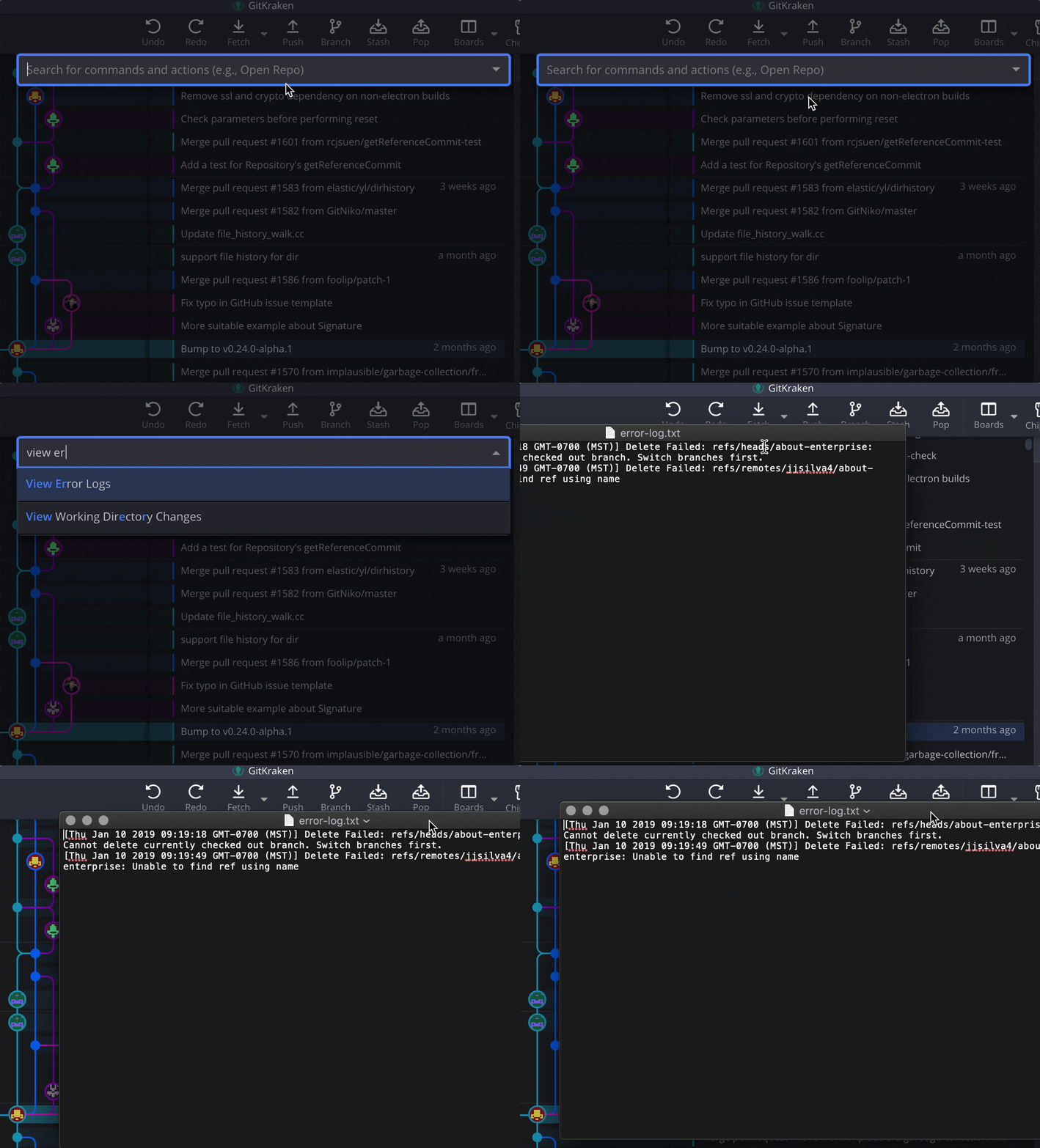
- The Command Palette
What the error log contains
This will open a text file with a list of the most recent error toasts, which are the red notifications that appear in the upper-right corner of GitKraken Desktop.
How to send error logs to support
Include a copy of your error log when submitting a support ticket. This helps our team identify and resolve issues faster.
