

Last updated: March 2026
Use this page to enter, work in, and recover from detached HEAD state in GitKraken Desktop when you need to inspect or test a specific commit without switching a branch pointer. It explains how to preserve commits created in detached HEAD state and how to recover lost work if you switch branches too early.
Requirements and limits
- Entry point: Check out a specific commit instead of a branch
- HEAD behavior: The checked-out commit is labeled
HEAD - Commit-preservation rule: Commits made in detached HEAD state are not attached to any branch until you create one
- Exit behavior: Checking out another branch removes the detached
HEADstate - Recovery options: Use GitKraken Desktop Undo if available, or use
git reflogfrom the terminal to recover lost commit SHAs - Risk: Unpreserved commits can be lost from normal branch history when you switch branches
Quick Start
To enter detached HEAD state:
- Right-click any commit in the Commit Graph.
- Select Checkout this commit. The commit will display a
HEADlabel.
To preserve commits made in detached HEAD state:
- Right-click the commit labeled
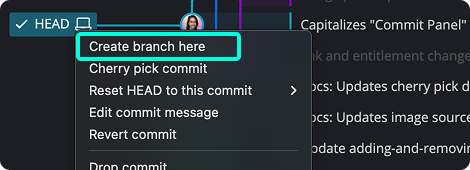
HEAD. - Select Create branch here and name the new branch.
To exit detached HEAD state:
- Double-click any local branch in the graph or Left Panel to check it out.
Any commits made in detached HEAD state that were not saved to a branch will be removed when you switch branches. If you switch branches before creating a branch, use the Undo button if available, or run git reflog in the terminal to find the lost commit SHA and re-check it out with git checkout <SHA>.
How to enter detached HEAD state
- Right-click the commit you want to inspect.
- Select Checkout this commit.
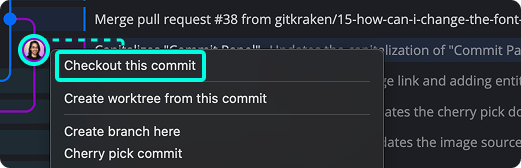
The checked-out commit will display a HEAD label, indicating you’re in detached HEAD state.
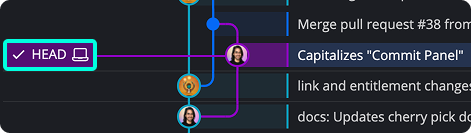
You can now review the full history and diffs, or create a branch from this state.
How to commit in detached HEAD state
You can make changes and commit them while in this state. However, these commits won’t belong to any branch.
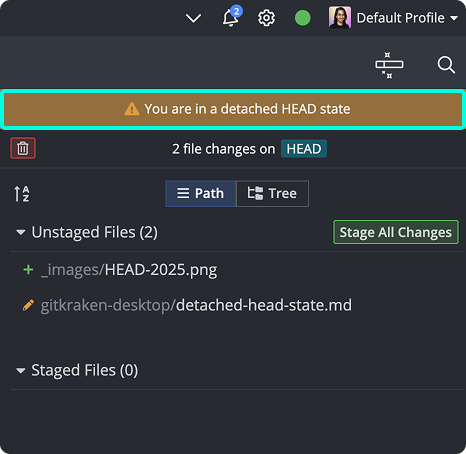
To preserve your work, create a branch from the current commit:
- Right-click the commit tagged as HEAD.
- Select Create branch here.
How to exit detached HEAD state
To exit detached HEAD state:
- Check out any local branch.
This will remove the HEAD label and discard any unpreserved commits.
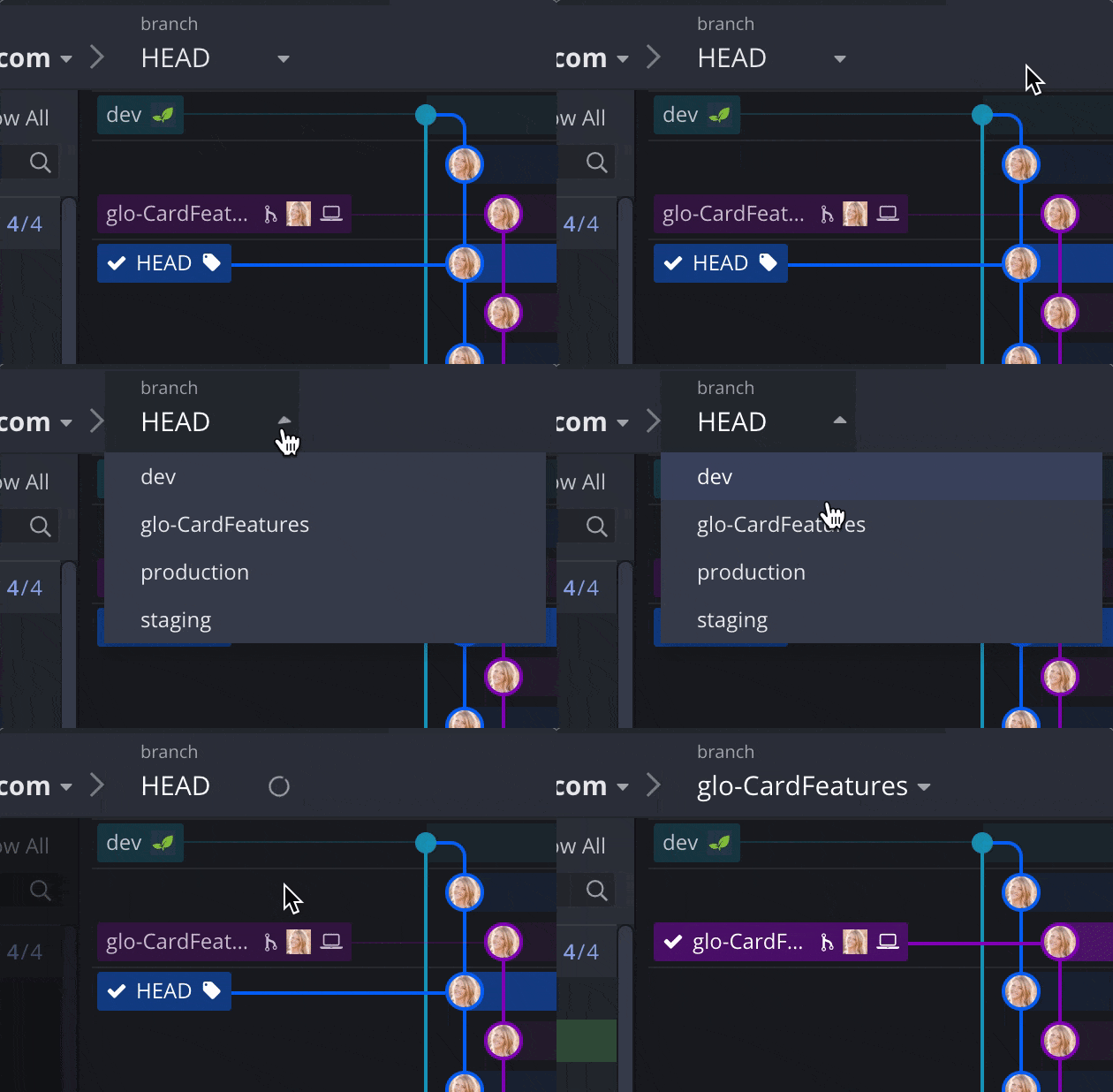
Important: Commits made in detached HEAD state will be lost unless you create a branch. You may be able to recover them manually.
How to recover lost commits
If you accidentally switch branches before saving your changes:
- Click Undo in GitKraken if available.
- Use the CLI and run
git reflogto find the lost commit SHA. - Then use
git checkout <SHA>to re-enter that state.
