

Last updated: March 2026
Use this page to enable and evaluate GitKraken Desktop experimental features such as Git Executable and Cloud Patches. Experimental features are optional previews, so this page focuses on where to enable them, what they currently do, and which workflows depend on them.
Requirements and limits
- Scope: Optional preview features in GitKraken Desktop
- Settings location: Preferences > Experimental
- Stability note: Experimental features can be enabled or disabled at any time and may change behavior across releases
- Git Executable scope: Uses a Git executable instead of NodeGit for supported operations
- Cloud Patch dependency: Cloud Patches require Git Executable to be enabled
- Cloud Patch sharing modes: Anyone with the link, anyone in your org, or selected collaborators
- Self-hosting note: Cloud Patch data can be self-hosted on AWS S3 instead of GitKraken servers
Quick Start
To enable experimental features:
- Go to Preferences > Experimental and toggle the features you want to use.
To use the Git Executable:
- Enable Use Git Executable under Preferences > Experimental. This lets GitKraken Desktop use your system’s Git binary for core operations instead of the built-in library.
To create a Cloud Patch:
- Stage files in the Commit Panel.
- Click the Cloud Patch icon to create the patch.
- Copy the generated link and share it with your team.
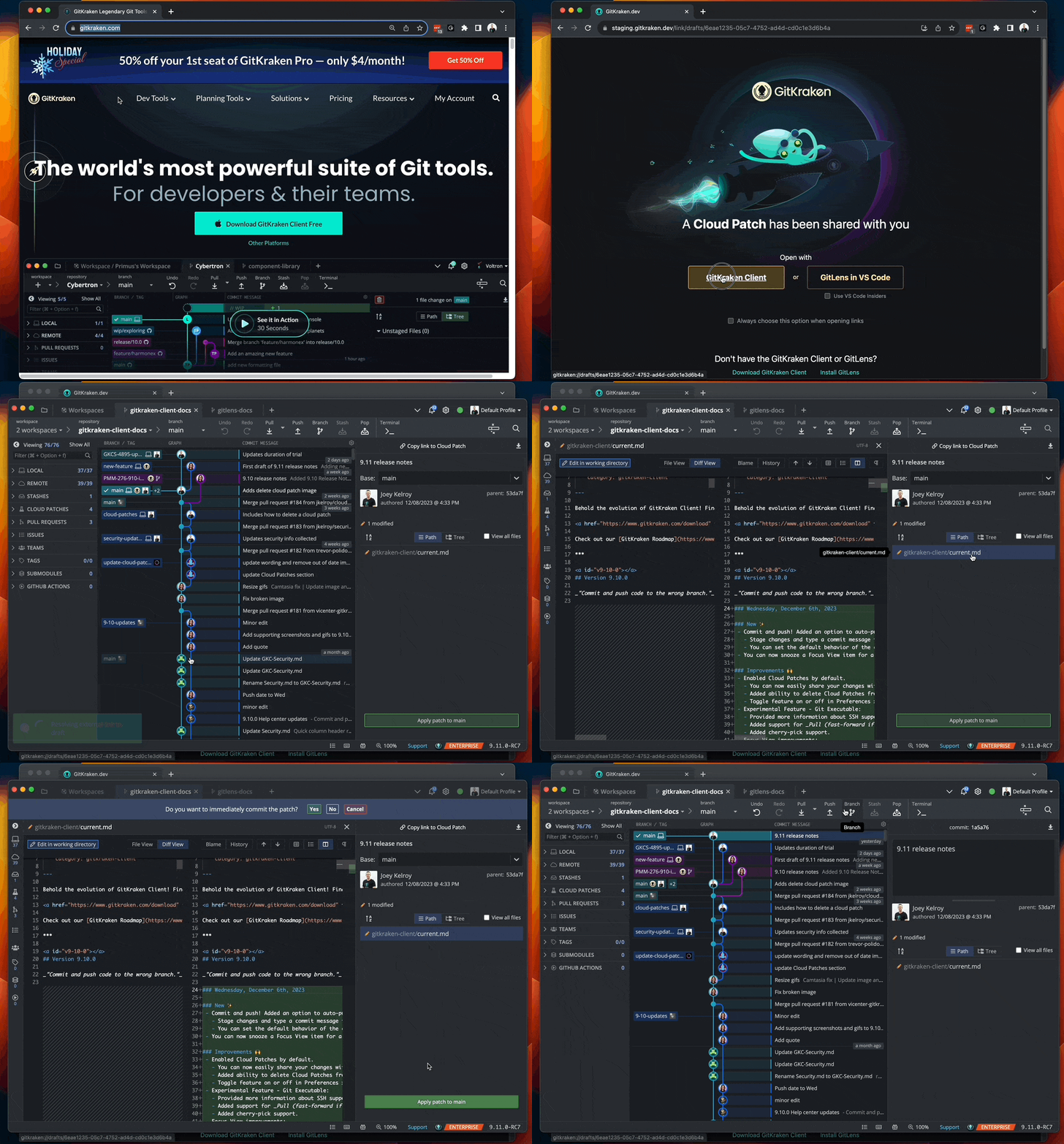
To apply a Cloud Patch:
- Open the link in GitKraken Desktop, or find the patch in the Left Panel.
- Select a target branch and apply the patch.
To share a commit as a Cloud Patch:
- Right-click any commit in the graph and select Share commit as Cloud Patch.
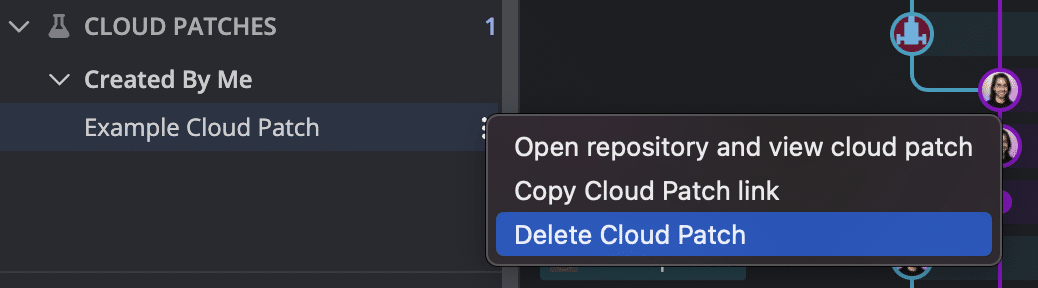
Cloud Patches are stored securely and can be shared with anyone who has the link, with your GitKraken organization, or with selected collaborators. To delete a patch, right-click it in the Left Panel and choose Delete Cloud Patch.
How to access experimental features
To access experimental settings:
- Go to Preferences Experimental
Experimental features are optional and can be enabled or disabled at any time. If you experience issues or have feedback, contact support.
How Git Executable works
This setting allows GitKraken Desktop to use your system’s Git executable instead of NodeGit for core Git operations. It can enhance compatibility and performance.
Enable it from: Preferences > Experimental > Use Git Executable
GitKraken ships with Git built-in, or you can select a system Git path.
Which features use Git Executable
Git actions that currently use the Git executable (by version):
v9.4.0–11.6.0:
- Commit, fetch, push, pull
- Branch rename/delete, merge base
- Tag creation/deletion, revert commits
- Cherry-pick, rebase, checkout, clone
- Staging, unstaging, stash support
- SSH signing, Git Credential Manager
- Discard changes, undo/redo, hooks output
- Reset to commit (mixed, hard, soft)
- Undo checkout
- Submodules
See full details per release in the GitKraken Desktop release notes.
How Cloud Patches work
What Cloud Patches are
A Cloud Patch is a Git patch that GitKraken securely stores so you can share it across GitKraken Desktop, GitLens, and CLI. Use them to:
- Share work-in-progress with teammates before a pull request
- Apply changes across machines or collaborators securely
How to enable Cloud Patches
Cloud Patches require the Git Executable to be enabled (it is by default).
How to create a Cloud Patch
- Stage files in the Commit Panel.
- Click the Cloud Patch icon.
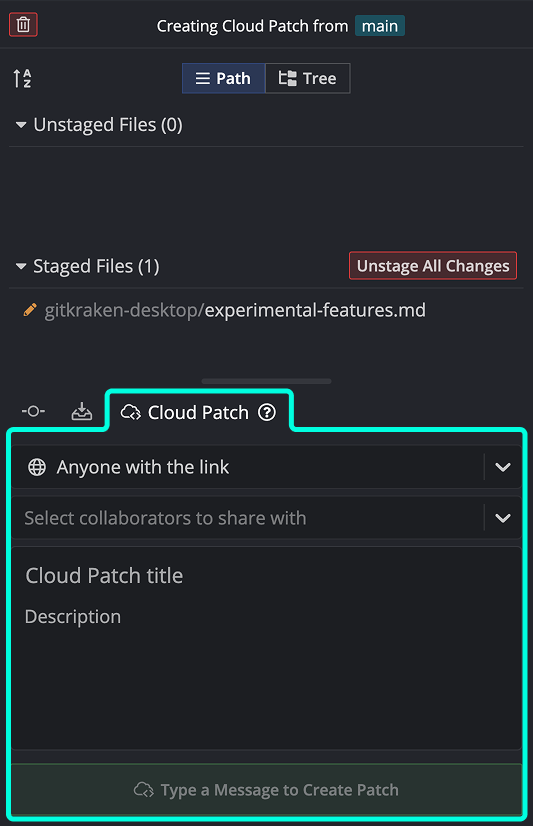
You can also right-click any commit in the graph and select Share commit as Cloud Patch.
How to share and apply Cloud Patches
- Copy the link from the toast or Left Panel
- Options:
- Anyone with the link
- Anyone in my org (requires GitKraken login)
- Only selected collaborators (requires login)
Recipients can open the patch and apply it to a selected branch.
How to manage Cloud Patches
To delete a patch, right-click it in the Left Panel and choose Delete Cloud Patch.
How to self-host Cloud Patches
You can self-host Cloud Patch data on an AWS S3 instance instead of GitKraken servers. See Security Controls for setup instructions.
