

Last updated: March 2026
This collection of troubleshooting guides provides workarounds and solutions for common issues with Git Integration for Jira Cloud.
| Problem area | Check first | Primary audience | Related topic |
|---|---|---|---|
| Missing commits or Git activity | License, permissions, repository connection, issue key | Jira Administrator | Commit visibility troubleshooting |
| Licensing and installation errors | App subscription and install state | Jira Administrator | License renewal or reinstall |
| Self-hosted connection problems | Network allowlist and integration connectivity | Jira Administrator | Firewall and allowlist setup |
| Azure DevOps issues | OAuth, PAT scope, repository visibility | Jira Administrator | Azure integration troubleshooting |
| SSH or reindexing issues | Key format, repository size, memory limits | Jira Administrator | SSH and reindexing troubleshooting |
On this page:
- Why don’t I see commits?
- License expiration shows as session error
- Licensing error – installCheck failed
- Missing Create branch or pull request features
- Connection error for self-hosted git servers
- Repositories missing from Azure DevOps integration
- SSH key file format is invalid
- Error while reindexing – Java heap space
- OAuth connection error with Azure DevOps
- OAuth connection error with Azure DevOps Active Directory
- Empty list of repositories after Azure Repos integration
- Reconnecting Azure DevOps OAuth integrations
How to troubleshoot missing commits in Git Integration for Jira Cloud

Follow this troubleshooting checklist to resolve missing commits.
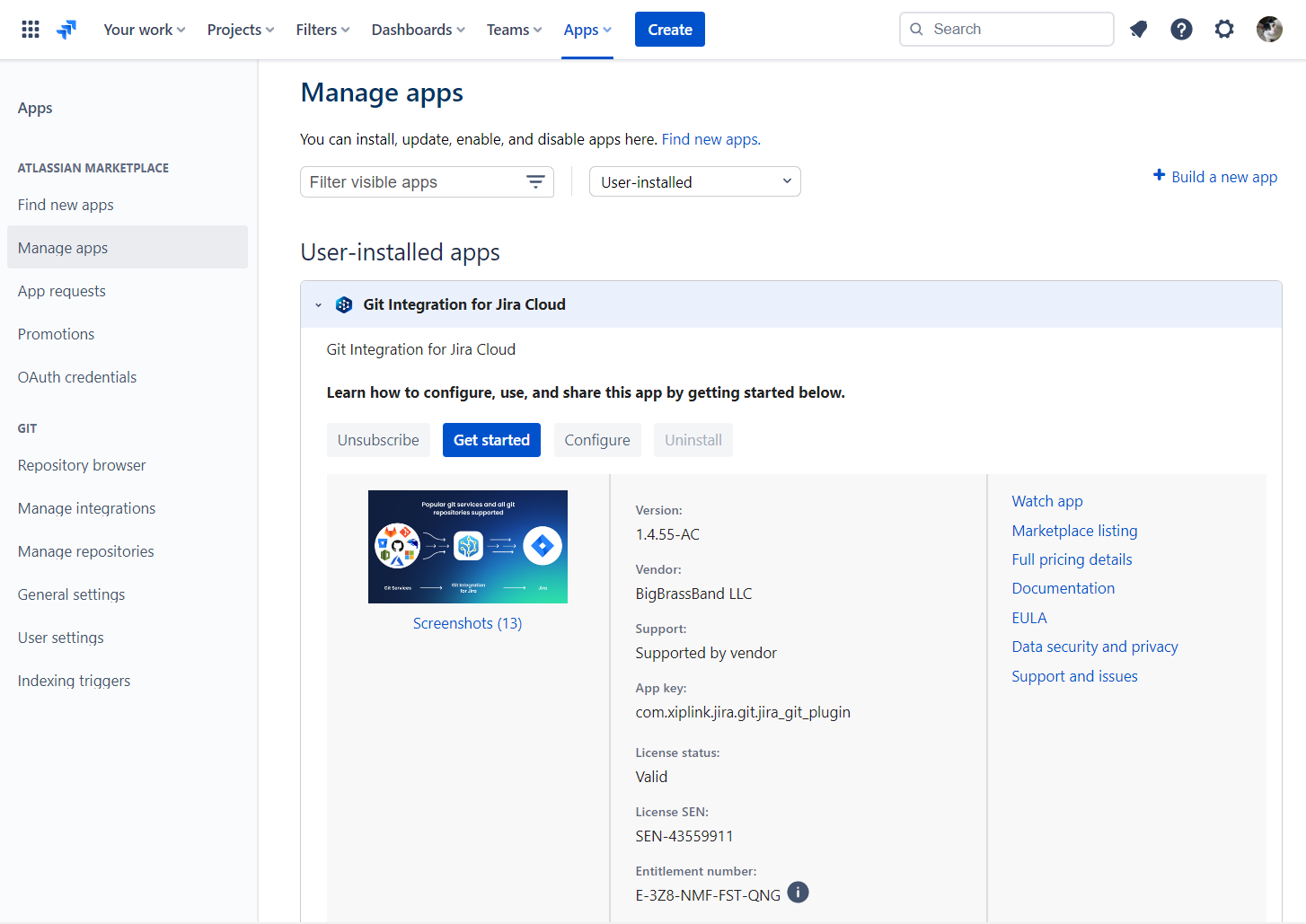
Step 1: Verify app installation and license
JIRA ADMIN
- Install from Atlassian Marketplace.
- Go to
 Jira Settings ➜ Apps ➜ Manage apps.
 - Verify the license is valid and the application is active.
Step 2: Check user permissions
JIRA ADMIN
Use the Permission Helper to verify the user has Development Tools permission:
Go to Jira settings ➜ System ➜ Permission Helper.
Step 3: Verify repository connection
JIRA ADMIN
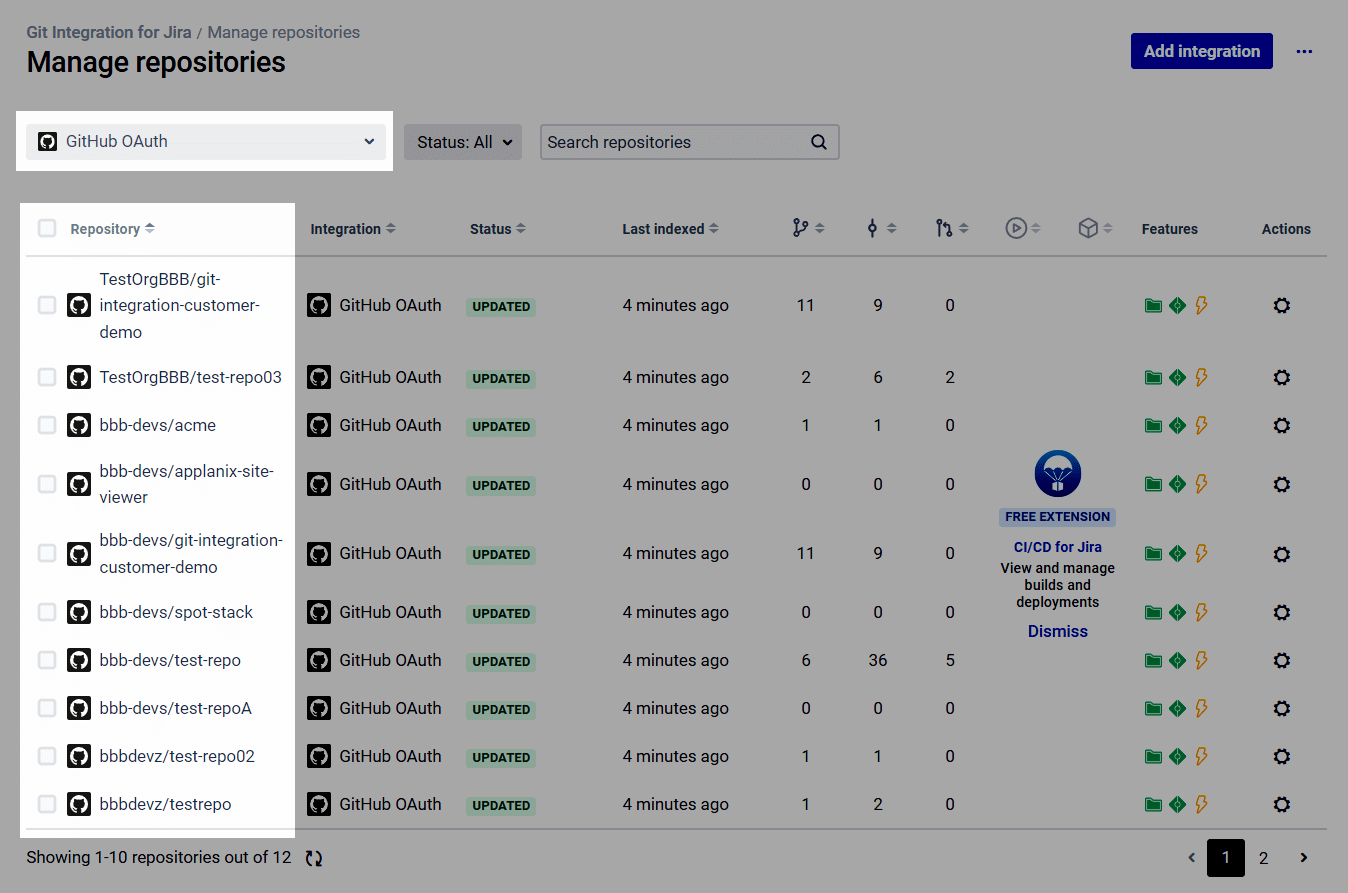
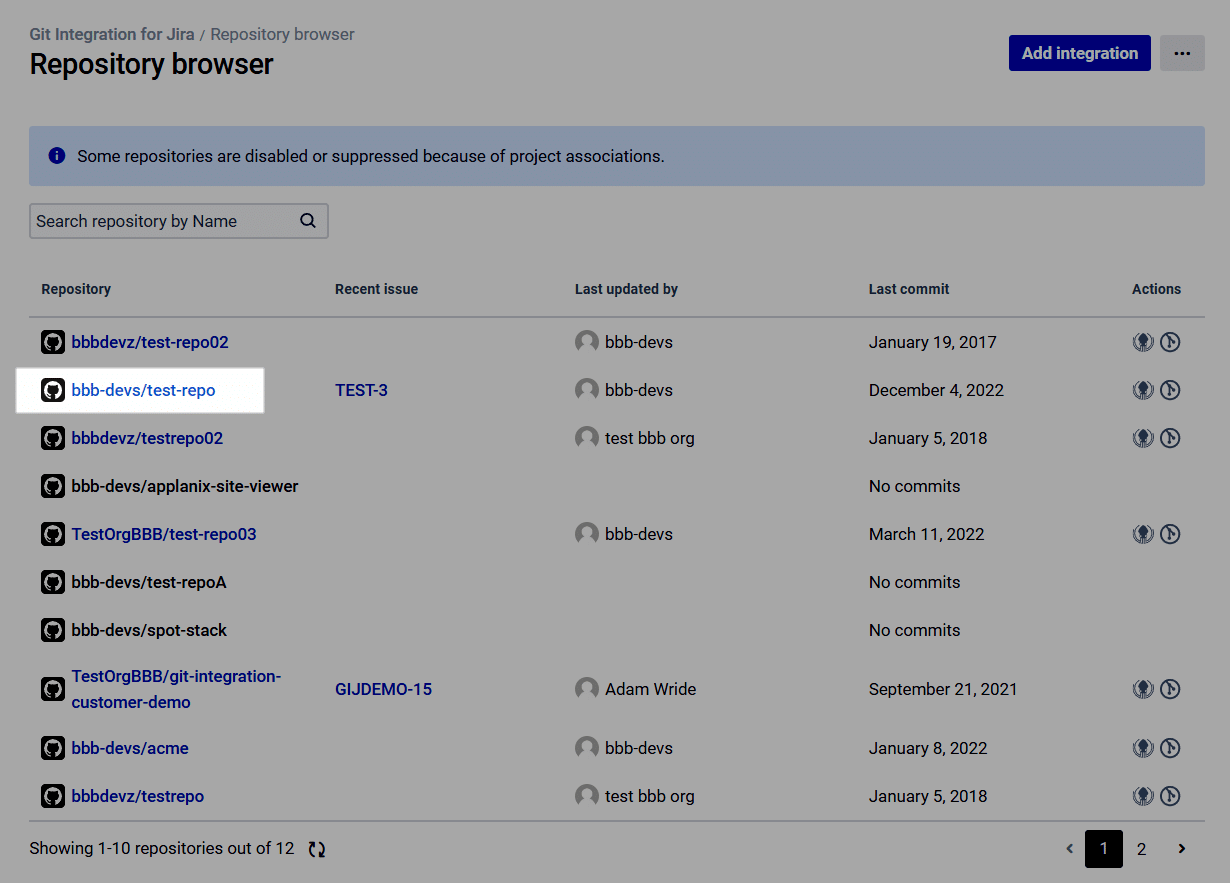
Check repository connection using either method:
Via Manage Repositories:
Via Repository Browser:
Step 4: Check reindex status
JIRA ADMIN
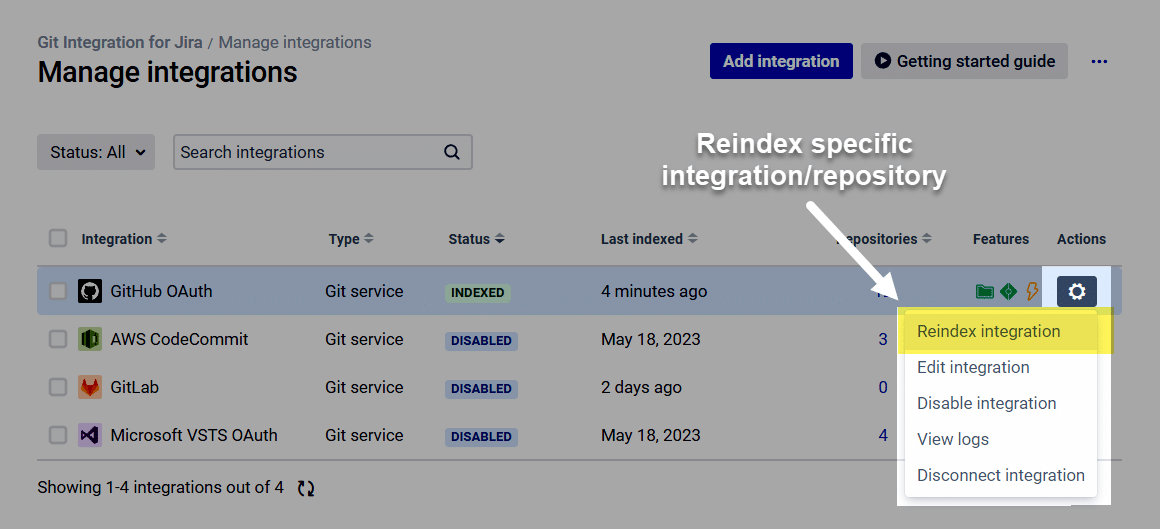
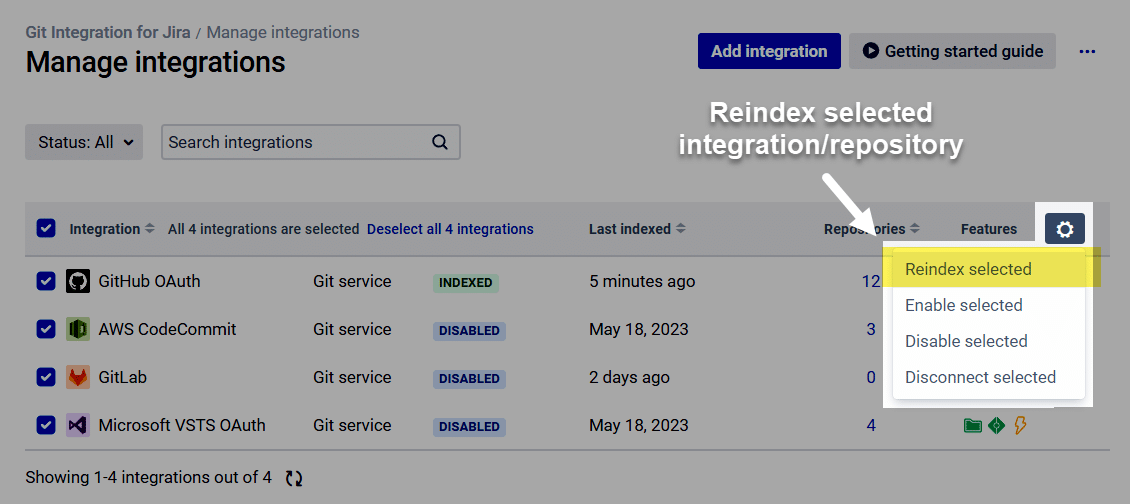
Repositories update automatically every 8-15 minutes. To reindex manually:
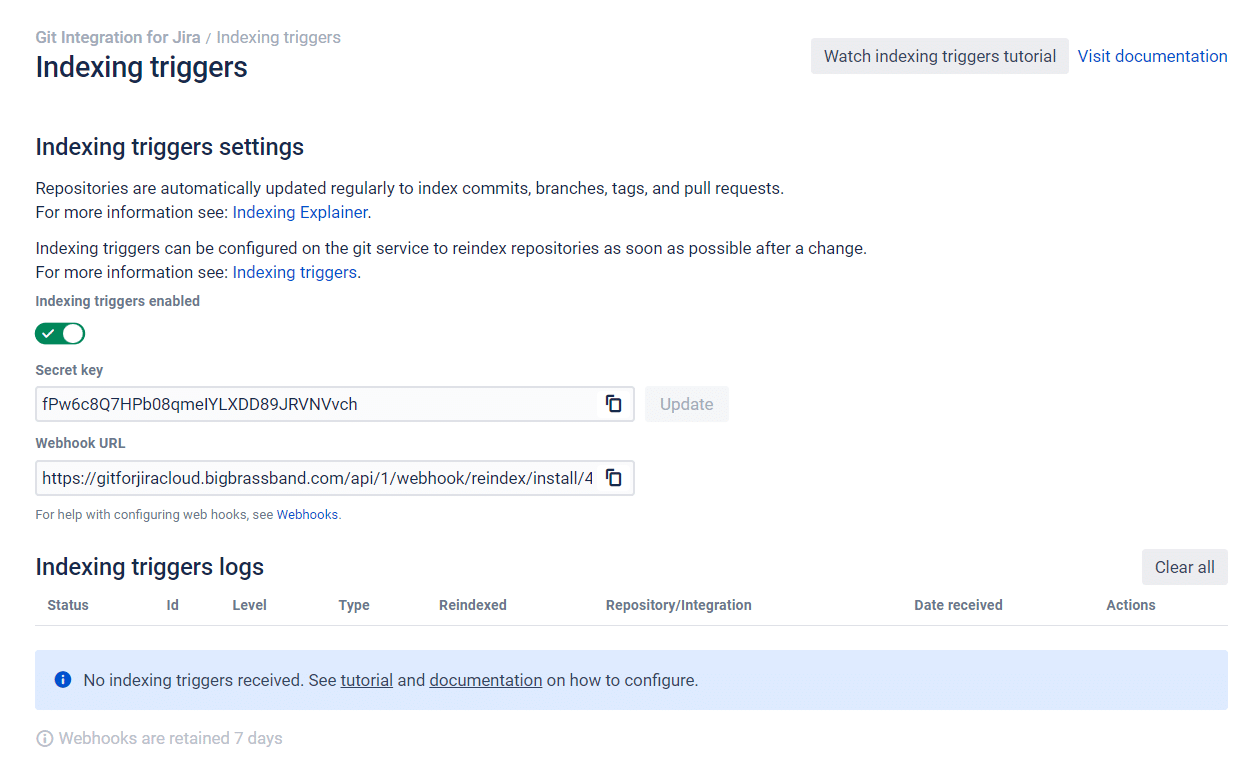
For faster indexing: Configure webhooks to index commits immediately.
Step 5: Check project association
JIRA ADMIN
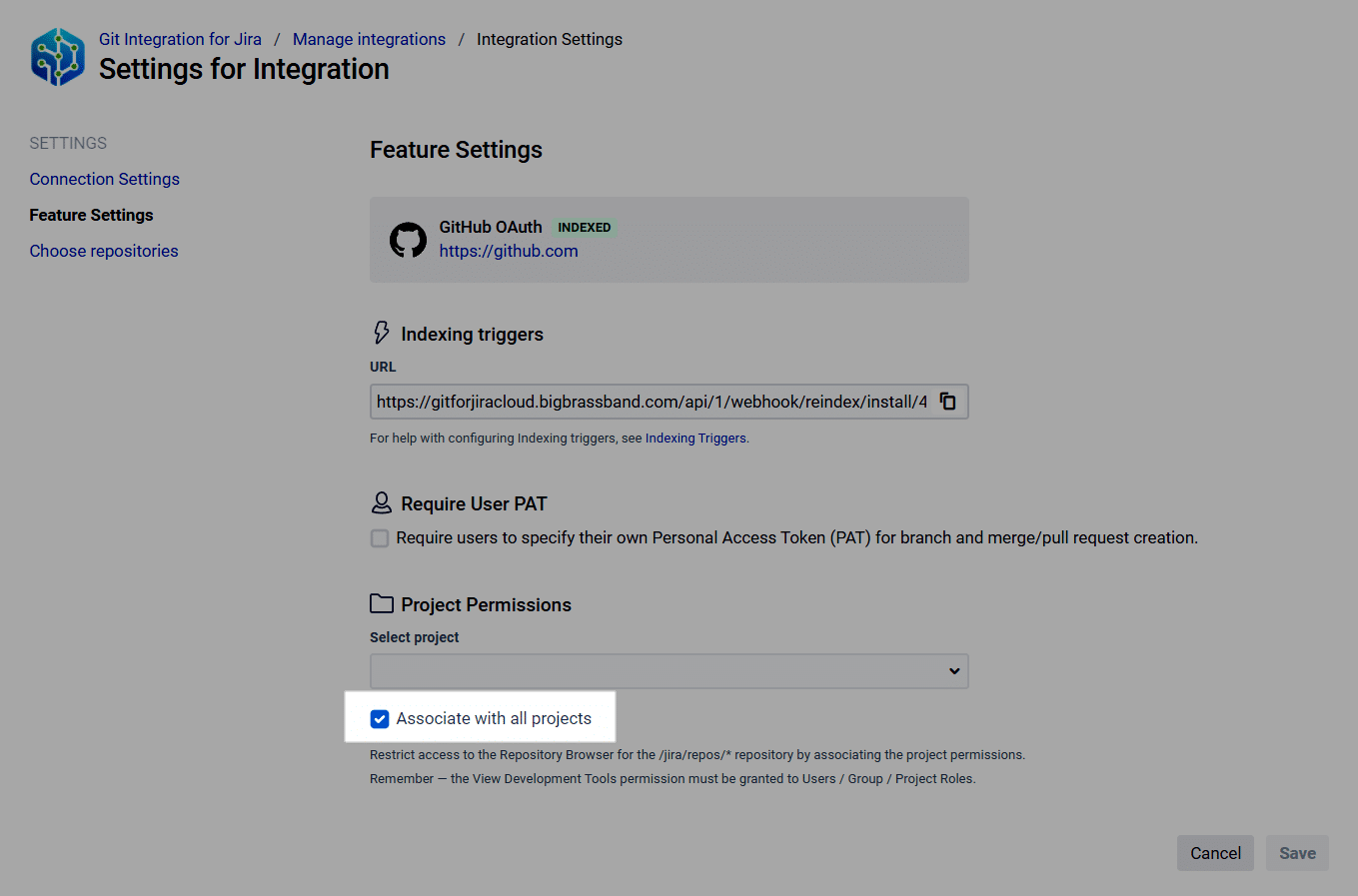
- Go to Manage integrations.
- Click Actions ➜ Edit integration.
- Scroll to Project Permissions.
- Set project associations or check Associate all projects.
Step 6: Verify commit message contains issue key
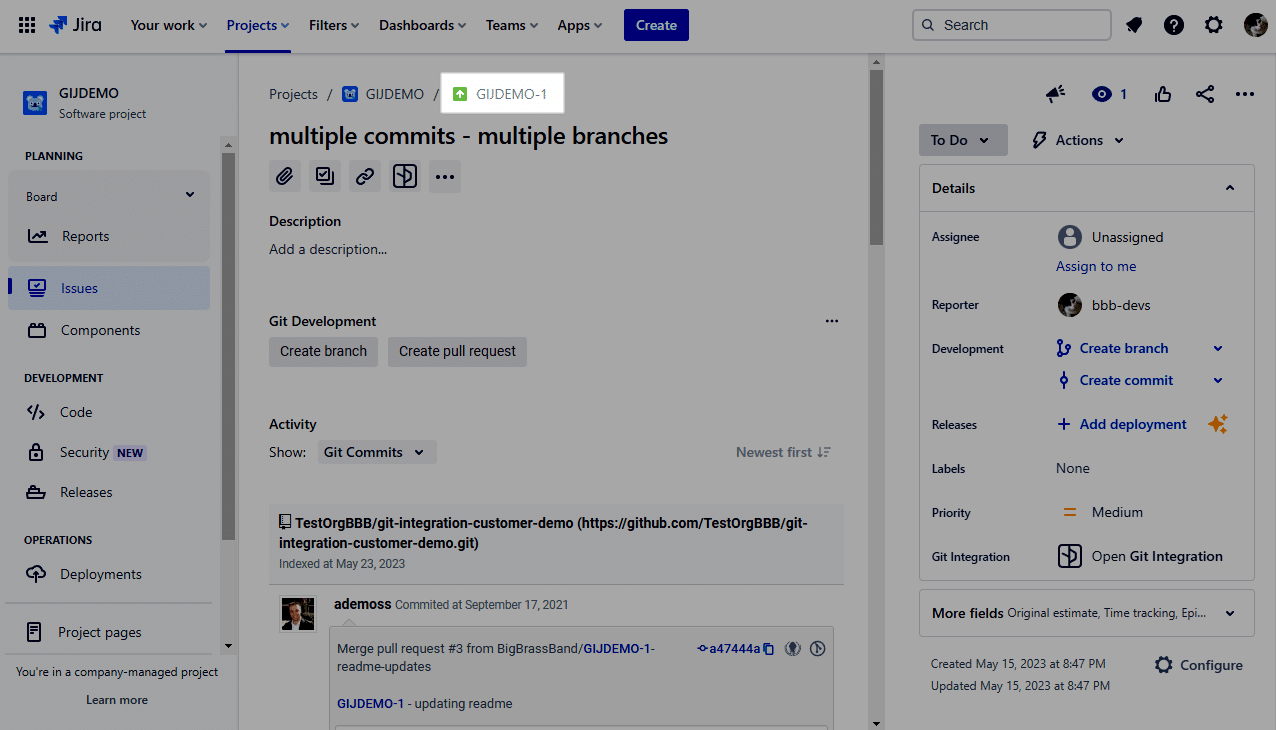
Include the Jira issue key in your commit message:
Valid examples:
ABC-123 added a bug fixMAIN-345 adding important new feature
GitLab commit example:
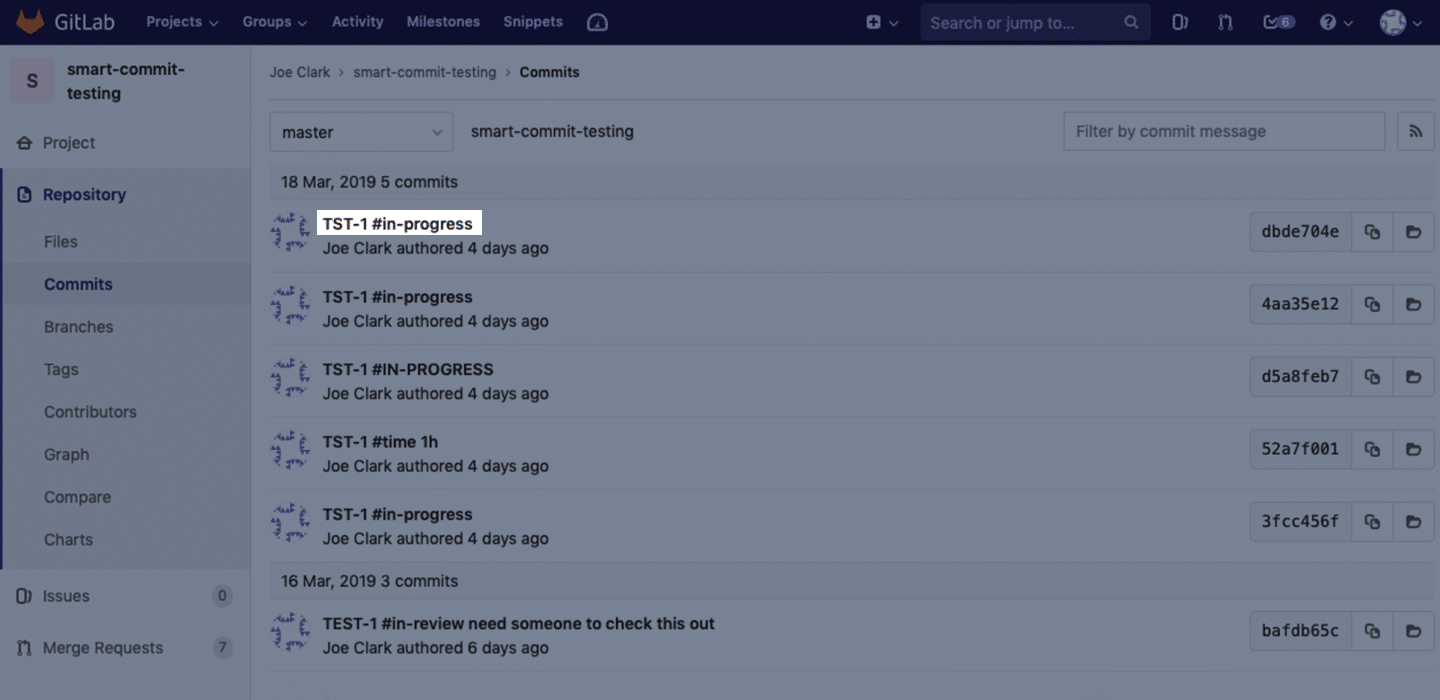
Step 7: Find indexed commits in Repository browser
The commit may be indexed but not associated with any Jira issues:
- Navigate to Repository browser.
- Find the repository and commit (select the branch if needed).
- Click Change to fix commit association.
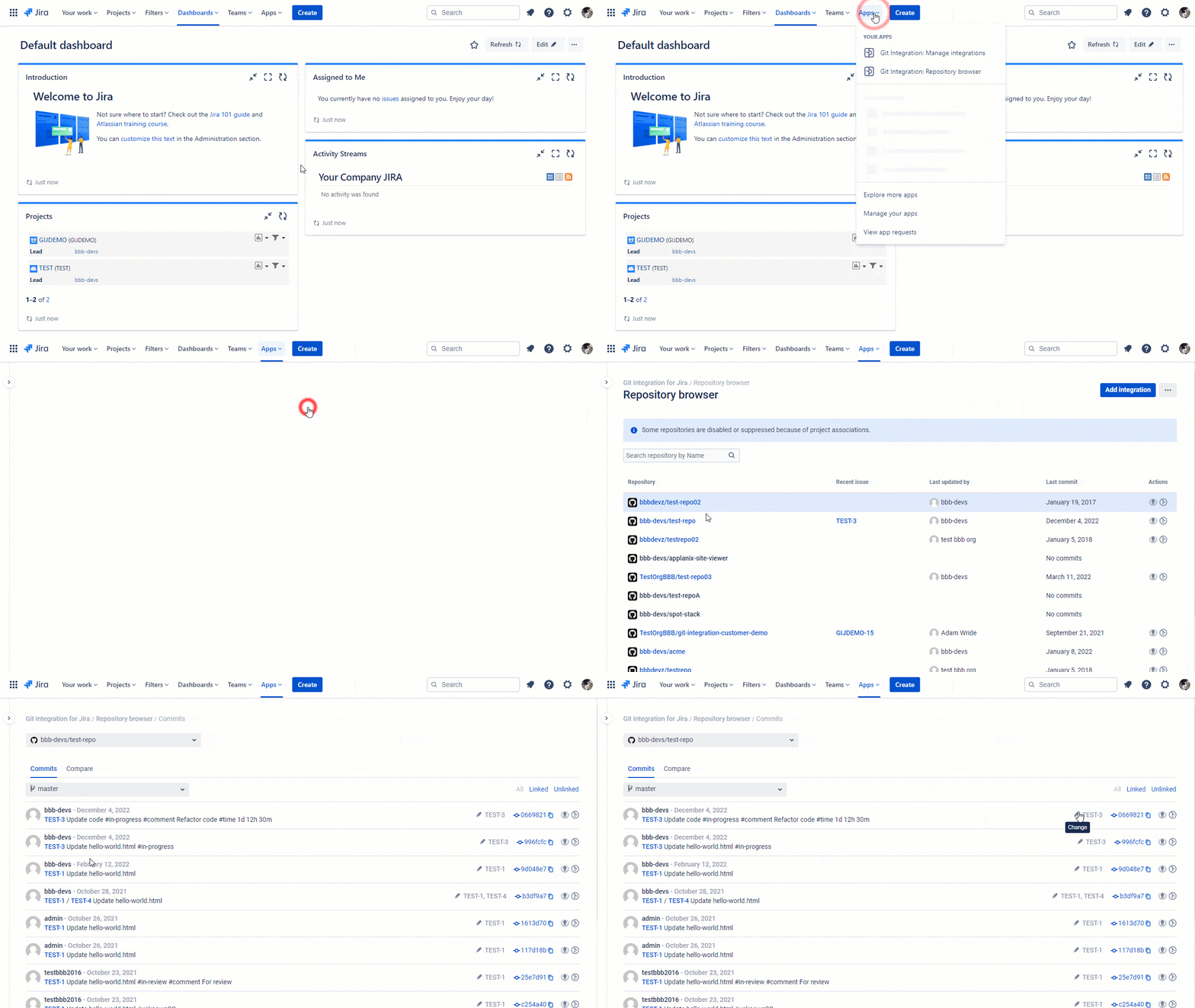
Step 8: Verify commits display
Commits appear in the Jira issue view:
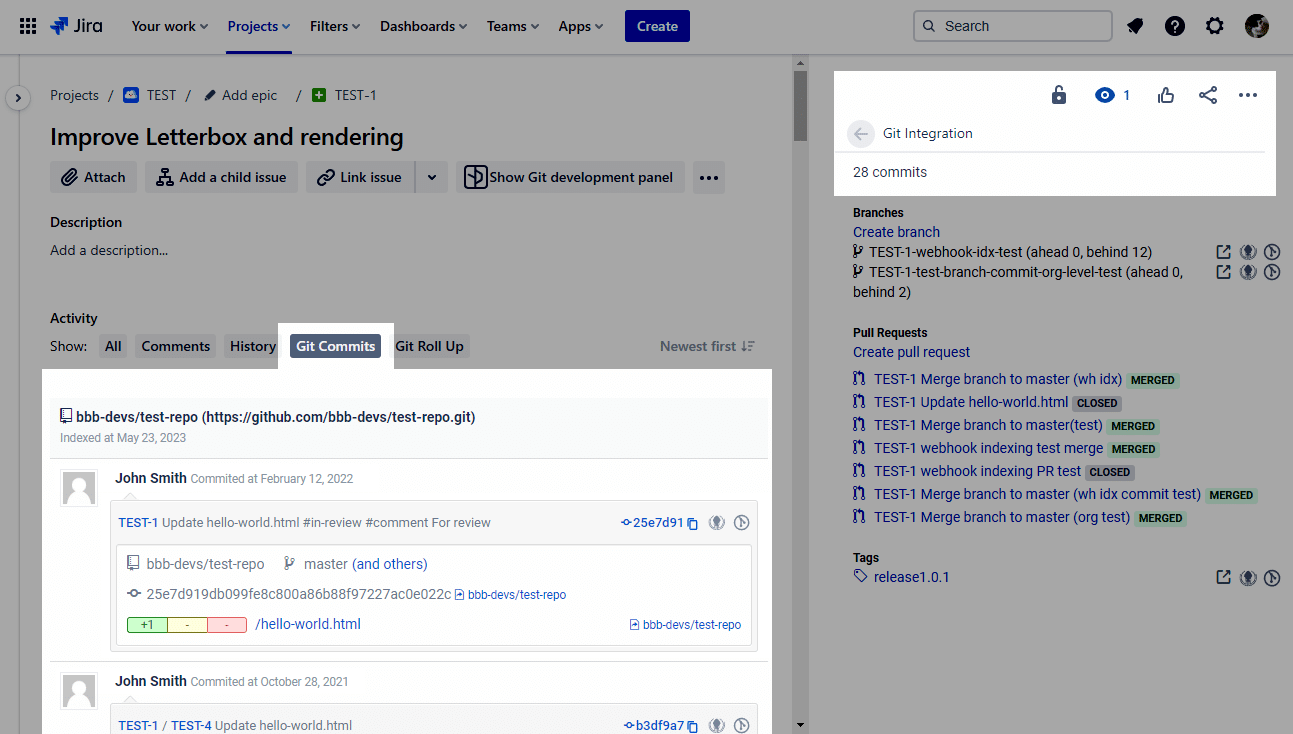
Still not seeing commits? Contact [email protected] or use the GIJ Cloud Support Portal.
How to fix the session error caused by an expired GIJ license
Problem
You receive a SessionTokenNotFoundException error and cannot use GIJ features.
Diagnosis
The session error persists after page reload:
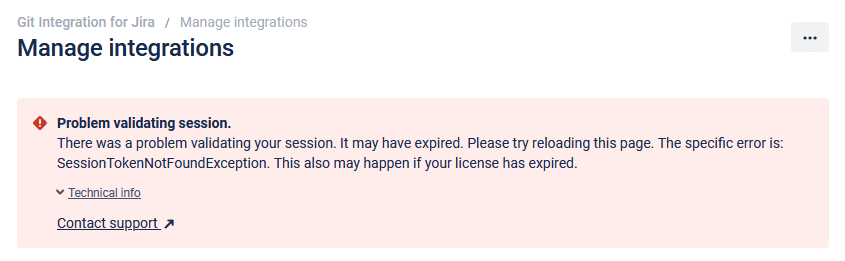
Solution
This error indicates an expired trial or license. Renew your Git Integration for Jira app license to resolve the error.
If the license expired for an extended period, you may see “There is no Enabled installID” after renewal. Submit a support request for manual enablement.
How to fix the licensing error installCheck failed
Problem
The Git Integration for Jira Cloud app licensing fails to fully provision during installation.
Diagnosis
You see a message similar to:

Solution
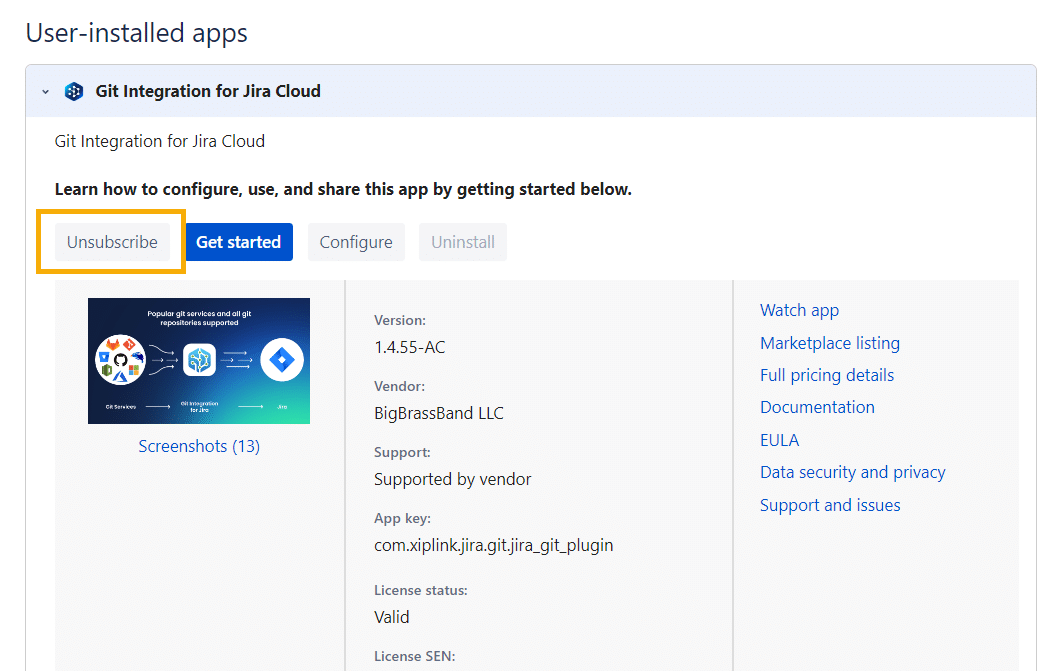
Reinstall the app:
- Navigate to Manage Apps.
- Locate and expand Git Integration for Jira Cloud.
- Click Unsubscribe (required before uninstalling).
- Click Uninstall.
- Install Git Integration for Jira again.
How to troubleshoot missing Create branch or pull request features
Check that your integration supports these features and that you have the required permissions. See the Feature matrix for supported features by git service.
How to troubleshoot connection errors for self-hosted git servers
Problem
Cannot connect Jira Cloud to self-hosted git servers behind a firewall.
Diagnosis
You see an error similar to:
TrackedGitLabRepoException: Can not connect to GitLab serverSolution
Add the Git Integration for Jira Cloud indexing service to your allowlist. See Whitelist GIJ Cloud.
How to troubleshoot missing repositories in Azure DevOps or VSTS integrations
Problem
Some or all repositories in Azure DevOps integrations are not visible.
Diagnosis
Check these three areas:
| Issue | Requirement |
|---|---|
| Permissions | Connecting user must have repository access |
| Access Level | Minimum Basic or Visual Studio Professional (Code access required) |
| Repository format | Only git format repositories supported (not TFVC) |
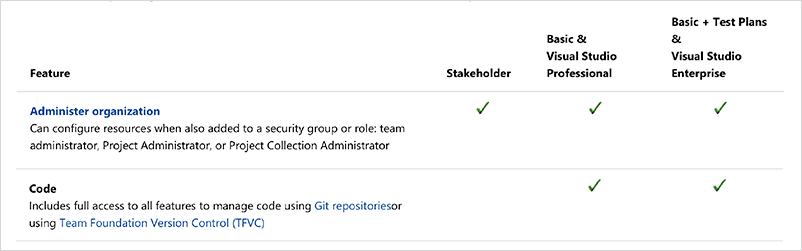
See Azure DevOps Access Levels.
Solutions
- Permissions: Assign appropriate repository access.
- Access level: Grant at least
Basicaccess. - Repository format: Convert TFVC to git format:
SSH key file format is invalid
Problem
SSH key is rejected when connecting a repository.
Requirements
SSH keys for Git Integration for Jira must:
- Not use OpenSSH format
- Be the private key (not public)
- Use RSA certificate format
- Use OpenSSL PEM storage format
Diagnosis
You see: “The key format is invalid. Please check your private key.”

Solution
Create a new SSH key:
On Linux and macOS:
ssh-keygen -t rsa -b 4096 -m pem -C [email protected]On Windows (using PuTTY):
- Download PuTTY.
- Open PuTTYgen.
- Set Type of key to RSA.
- Set Number of bits to 4096.
- Click Generate and move your mouse as instructed.
- Optionally enter a passphrase.
- Save public and private keys.
- Convert to PEM: Conversions ➜ Export OpenSSH key.
- Upload the PEM file to Git Integration for Jira ➜ SSH Keys.
Error while reindexing – Java heap space / Object too large
Problem
Git Integration for Jira uses the JGit library, which does not support objects over 2GB.
Diagnosis
Error in Jira logs:
Object too large (2,271,263,009 bytes), rejecting the pack.
Max object size limit is 2,147,483,639 bytes.
Solutions
Option 1: Remove objects larger than 2GB from repository history:
- Removing large files from Git without losing history
- GitHub: Removing files from repository history
- GitLab: Reducing repository size using Git
- BFG Repo-Cleaner
Option 2: Move large files to Git LFS.
Option 3: Filter out the repository using Custom API Path or JMESPath Filters.
OAuth connection error or error 401 page with Azure DevOps integration
Problem
OAuth connection error or 401 page when integrating Azure DevOps.
Cause
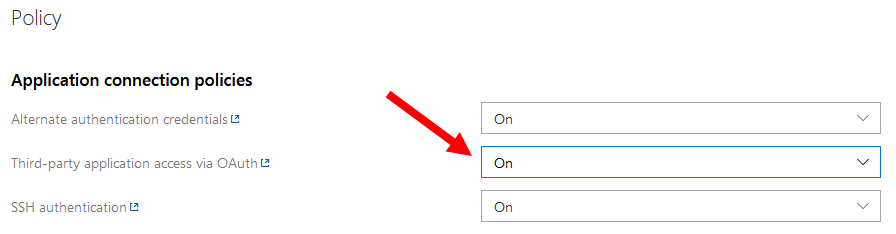
Third-party OAuth access is disabled in Azure DevOps security settings.
Solution
- Go to your Azure DevOps portal home page.
- Click an organization ➜ Organization Settings.
- Under Security, click Policies.
- Set Third-party application access via OAuth to ON.
OAuth connection error or error 401 page with Azure DevOps with Active Directory integration
Problem
OAuth connection error or 401 page with Azure DevOps connected to Active Directory.
Cause
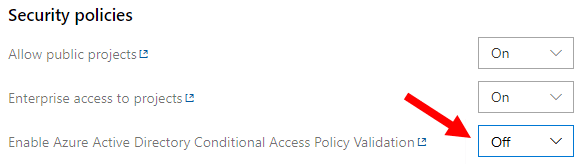
Conditional access policy requires MFA for untrusted locations.
Solution
- Enable Third-party application access via OAuth (see above).
- Set conditional access policy validation to OFF:
Empty list of repositories after integration of Azure Repos
Problem
Azure repository list is empty after integration, but status shows INDEXED.
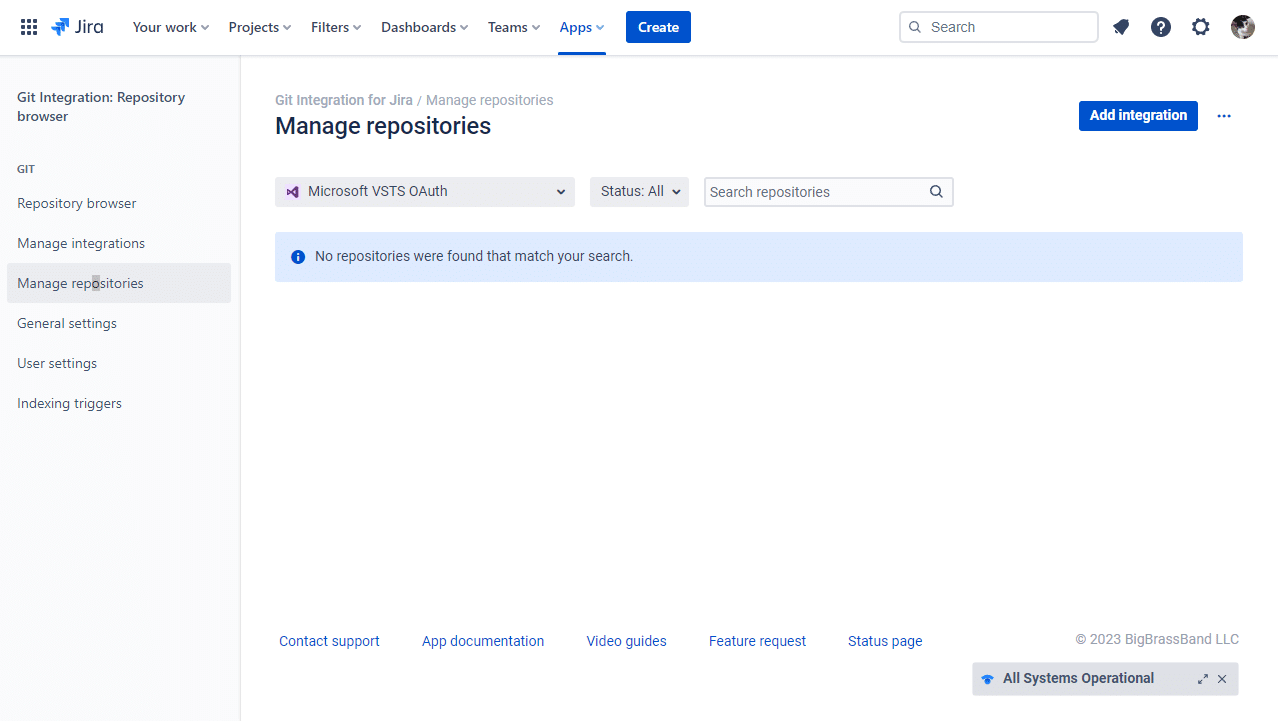
Solution
- Switch from OAuth to personal access token authentication.
- Verify PAT configuration per Creating Personal Access Tokens.
If the problem persists, see the Azure DevOps OAuth troubleshooting sections above.
Reconnecting Azure DevOps and VSTS OAuth integrations
WORKAROUND
Microsoft OAuth app client secrets expire after 5 years. All customers must reconnect their integrations.
Requirements
- Jira administrator permissions
- Azure DevOps / VSTS account
Steps
- Go to Manage integrations in Git Integration for Jira.
- Click the integration name.
- Click Reconnect.
- Log in to Azure DevOps / VSTS with your account.
