

Last updated: March 2026
Use this page to connect GitKraken Desktop to Bitbucket.org for repository discovery, SSH setup, clone and remote workflows, and pull request activity. It also covers multi-account usage through profiles and the reviewer visibility requirement for Bitbucket pull requests.
Requirements and limits
- Integration covered here: Bitbucket.org
- Authentication options: Browser-based Bitbucket connection or manual OAuth token entry
- Account limit: One Bitbucket account per profile; multiple accounts require multiple profiles and a GitKraken Pro subscription
- SSH behavior: GitKraken uses the key in Preferences > SSH unless you configure a Bitbucket-specific key or use your system SSH Agent
- Pull request reviewer visibility depends on having Project Admin permissions on the repository
| Workflow | Supported | Notes |
|---|---|---|
| Connect Bitbucket account | Yes | Browser-based connection or manual OAuth token entry |
| Clone and browse repositories | Yes | Uses the integrated repository list |
| SSH key generation and upload | Yes | Uses GitKraken SSH settings unless overridden |
| Create and view pull requests | Yes | Supported directly in GitKraken Desktop |
| Add reviewers to pull requests | Partial | Reviewer visibility depends on Project Admin permissions |
| Multiple Bitbucket accounts | Yes | Requires separate profiles and a Pro subscription |
Quick Start
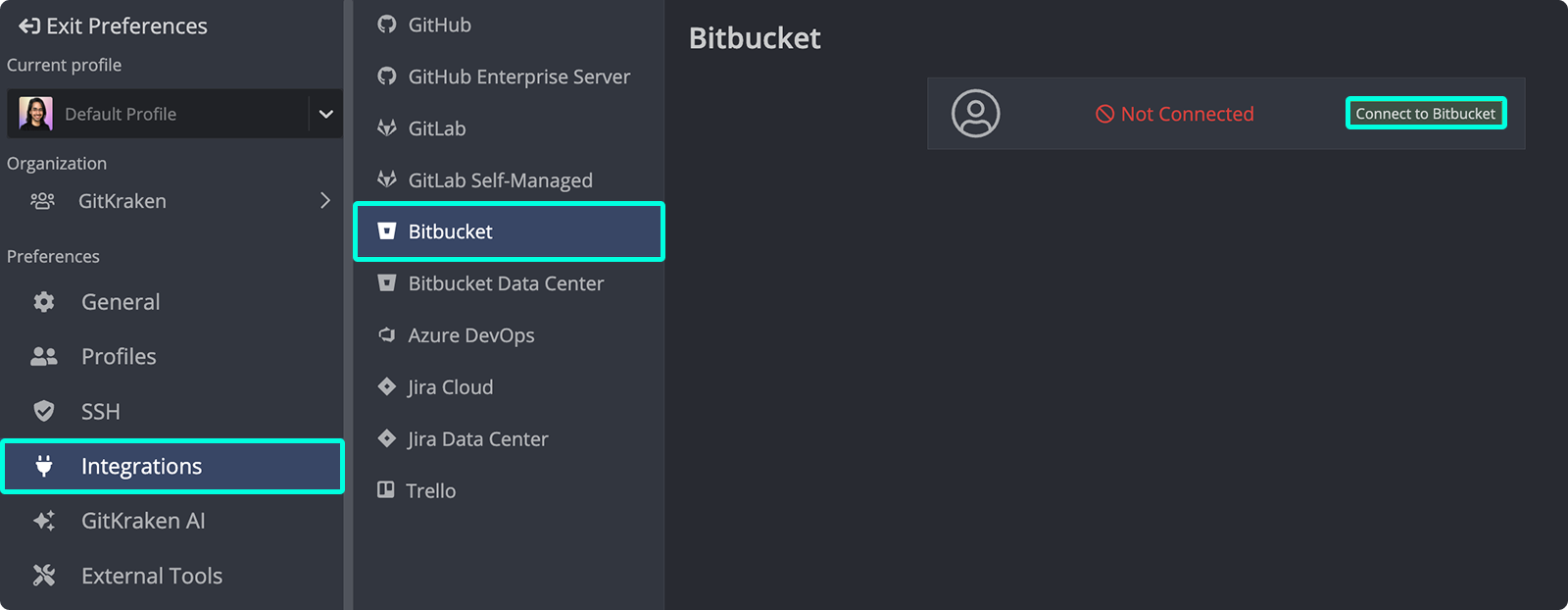
- Go to Preferences > Integrations in GitKraken Desktop.
- Select Bitbucket.org and click Connect to Bitbucket.
- Log in to your Bitbucket account in the browser window that opens.
- Select Open GitKraken to complete the connection.
To configure SSH access after connecting:
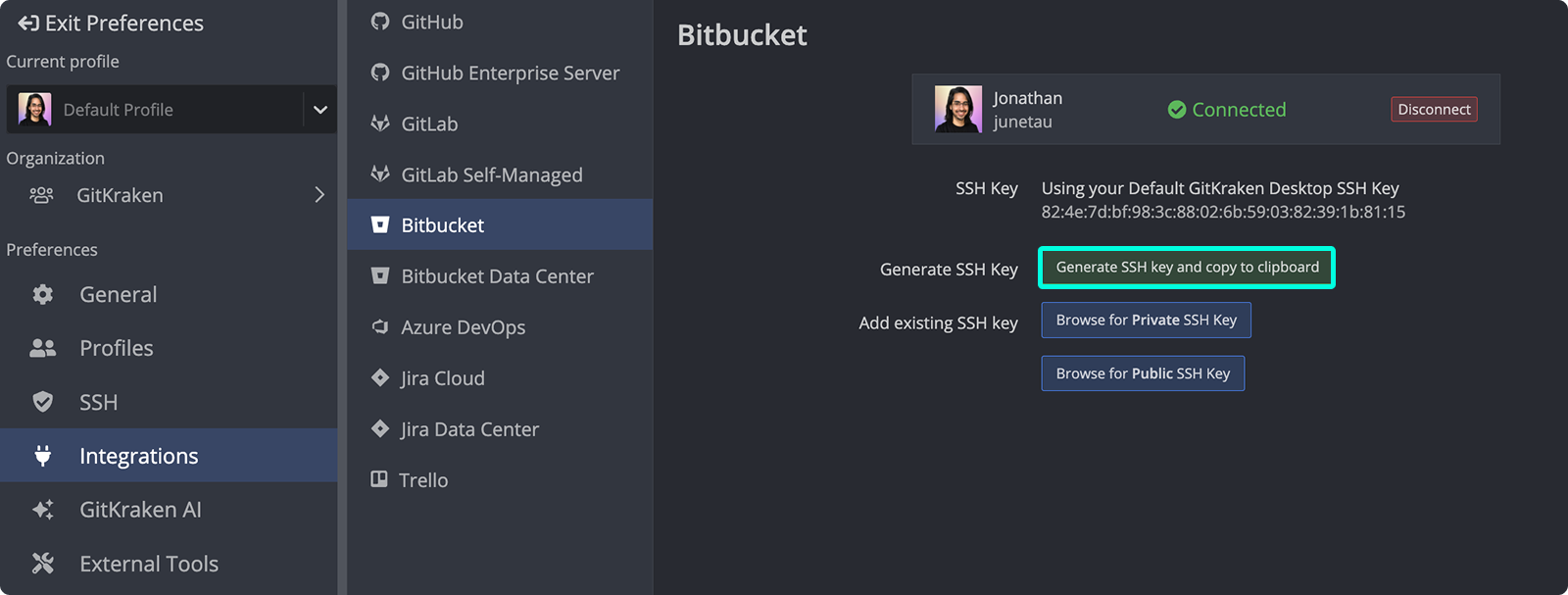
- In Preferences > Integrations, click Generate SSH key and copy to clipboard.
- Paste the key into your Bitbucket account SSH settings.
Once connected, GitKraken Desktop displays your Bitbucket repositories when cloning, lists forks when adding remotes, and supports creating and viewing pull requests within the application. If you need to manage more than one Bitbucket account, use multiple profiles with a GitKraken Pro plan.
What the Bitbucket integration lets you do
- Create new repositories on your Bitbucket account with .gitignore and license templates.
- Easily generate and copy an SSH key pair for Bitbucket.
- Save authentication in reusable profiles.
- Clone from a personalized Bitbucket repository list.
- Add and manage remotes from Bitbucket.
- Create and view pull requests within GitKraken.
How to connect Bitbucket
To authenticate with Bitbucket:
Use the browser-based Bitbucket connection when: standard OAuth access is available and you want the simplest setup. Use a manual OAuth token when: your environment requires token entry or you want to control the credential you paste into GitKraken Desktop.
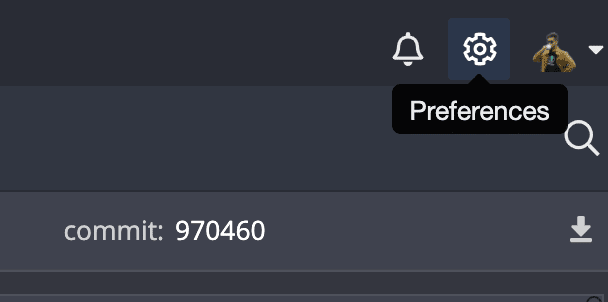
- Navigate to Preferences > Integrations in the upper-right corner.
- Select Bitbucket.org and click .
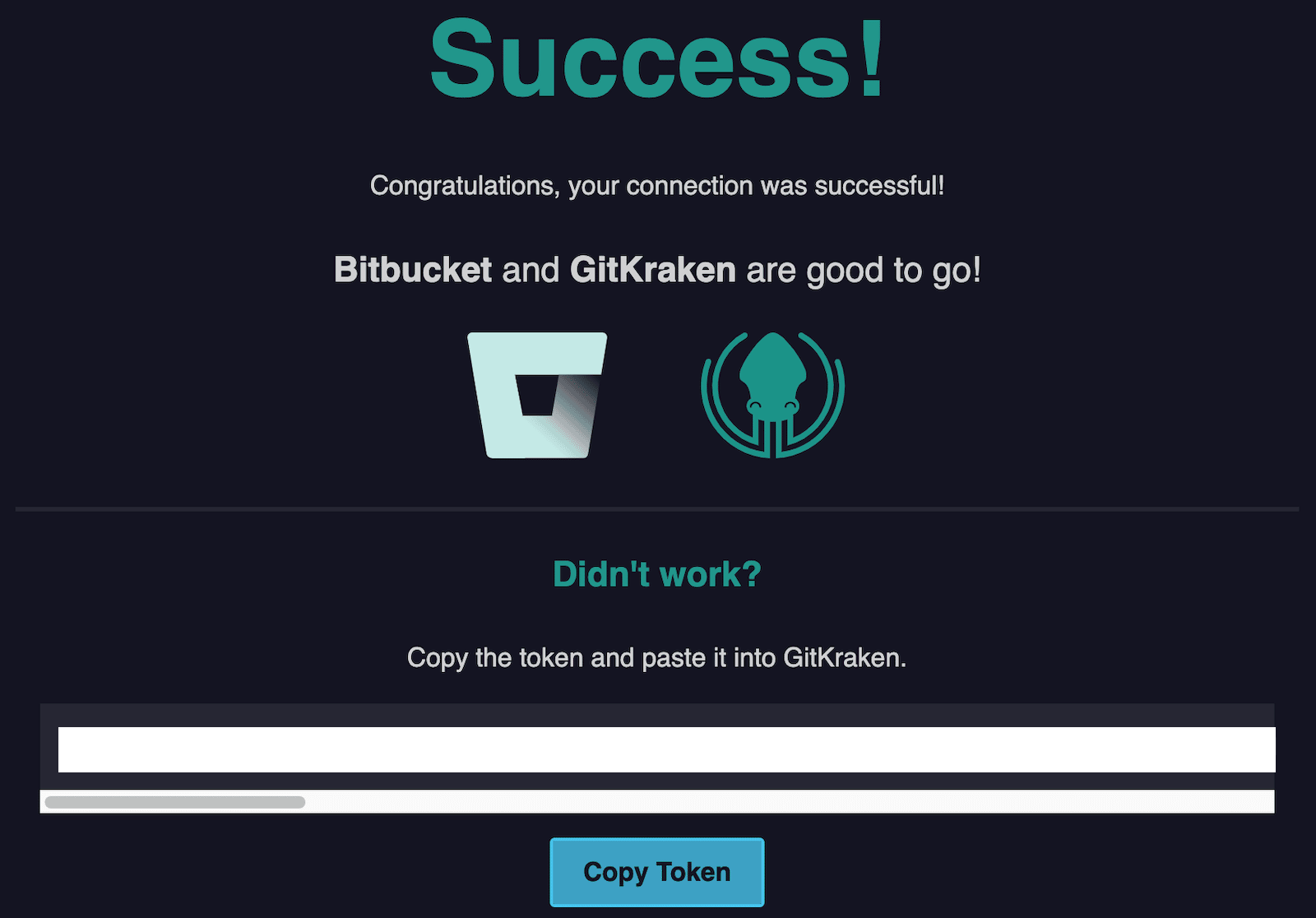
- A browser window opens prompting you to log in. Upon success, confirm by selecting Open GitKraken.
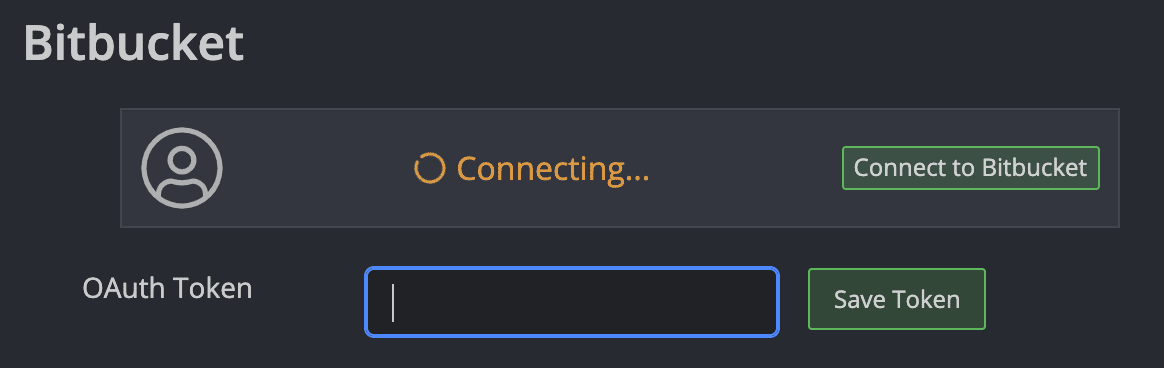
Alternatively, you may authenticate manually using an OAuth token:
How to generate SSH keys for Bitbucket
Note: GitKraken uses your SSH key from Preferences > SSH unless a Bitbucket-specific key is configured or your system SSH Agent is enabled.
After connecting Bitbucket:
- Go to Preferences > Integrations.
- Click .
- Paste the key into your Bitbucket account settings.
What Bitbucket OAuth enables in GitKraken Desktop
GitKraken enhances your workflow with:
Use the Bitbucket integration when: you want repo discovery, remotes, and pull request workflows tied to Bitbucket.org inside GitKraken Desktop. Don’t use this page when: you need self-hosted Bitbucket guidance, which belongs on the Bitbucket Data Center page.
- A searchable list of Bitbucket repositories when cloning:

- A list of forks when adding remotes:

Manual repo URLs are still supported.
How to connect multiple Bitbucket accounts
GitKraken supports one Bitbucket account per profile. With GitKraken Pro, use multiple profiles to manage several Bitbucket identities.
Use multiple profiles when: you need separate Bitbucket identities or workspaces in the same GitKraken Desktop install. Don’t use multiple profiles when: one Bitbucket account already covers the repositories you work with.
How Bitbucket pull request reviewers work
Bitbucket supports pull request reviewers. GitKraken will show reviewer details if you have Project Admin permissions on the repository.
