

Last updated: March 2026
Use profiles in GitKraken Desktop to keep separate Git identities, integrations, app preferences, and tab sets for different projects or environments. This page explains how to create and switch profiles, what a profile stores, how avatar behavior works, and when a paid GitKraken subscription is required for multiple profiles.
Requirements and limits
- Purpose: Separate Git identities, integrations, preferences, and tab sets by work context
- Multiple profiles: Require a paid GitKraken subscription
- Profile data: General, Integrations, and UI Preferences are stored per profile
- Tab behavior: Open tabs are profile-specific; new profiles duplicate tabs from the active profile when created
- Git config option: You can sync profile name and email into the global
.gitconfig - Avatar behavior: Connected integrations use provider avatars; otherwise GitKraken Desktop uses the Gravatar tied to the profile email
| Profile data | Stored per profile? | Notes |
|---|---|---|
| General preferences | Yes | Saved separately for each profile |
| Integrations | Yes | Keeps different service accounts isolated |
| UI Preferences | Yes | Theme and other UI settings are profile-specific |
| Open tabs | Yes | New profiles duplicate tabs from the active profile when created |
Global .gitconfig sync |
Optional | Can keep profile name and email in sync with Git |
| Avatar | Yes | Uses provider avatar when connected, otherwise Gravatar from the profile email |
Quick Start
To create a profile:
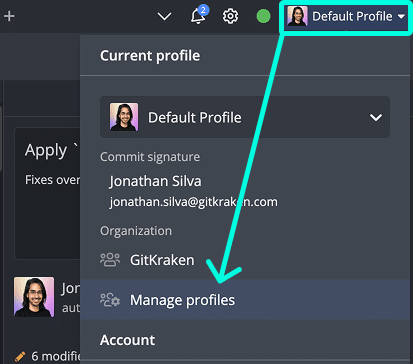
- Click the profile icon in the top-right corner.
- Select Manage Profiles, then click the option to add a new profile.
- Enter a profile name, author name, and email address.
To switch profiles:
- Click the profile icon and select the profile you want to use.
What each profile stores:
- Preferences from General, Integrations, and UI Preferences
- Open tabs (duplicated from the active profile when a new profile is created)
- Integration connections (for example, connect one profile to a personal GitHub account and another to a work account)
To sync your profile email with Git’s global config: Enable the option “Keep my .gitconfig updated with my profile info” in Preferences > Profiles.
Multiple profiles require a paid GitKraken subscription. Profiles are accessible from Preferences > Profiles.
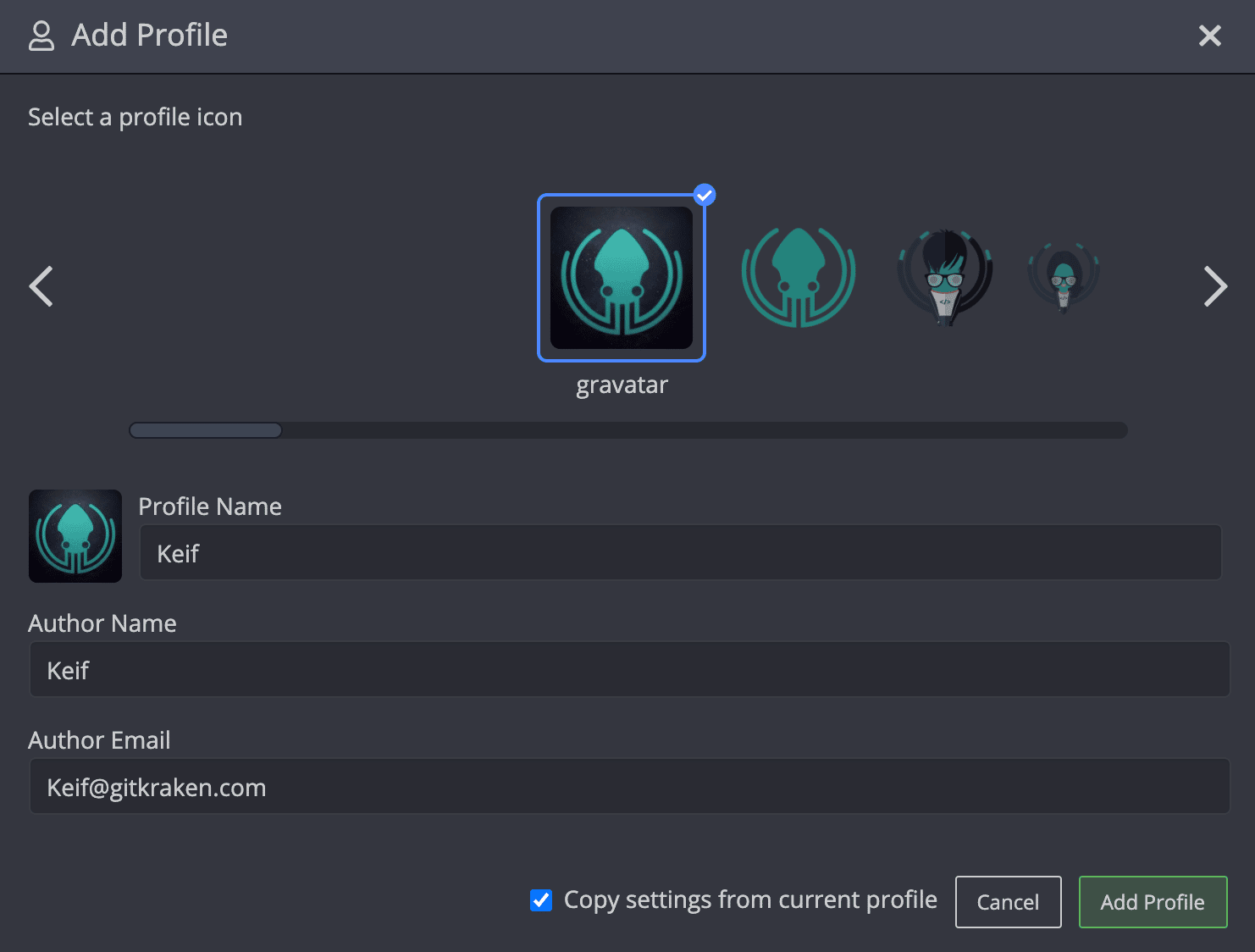
Create and switch between multiple profiles with a GitKraken subscription.
How to manage profiles
Use profiles when: you need clean separation between work and personal Git identities, integrations, and tabs. Don’t use multiple profiles when: one identity and one integration set already cover your workflow.
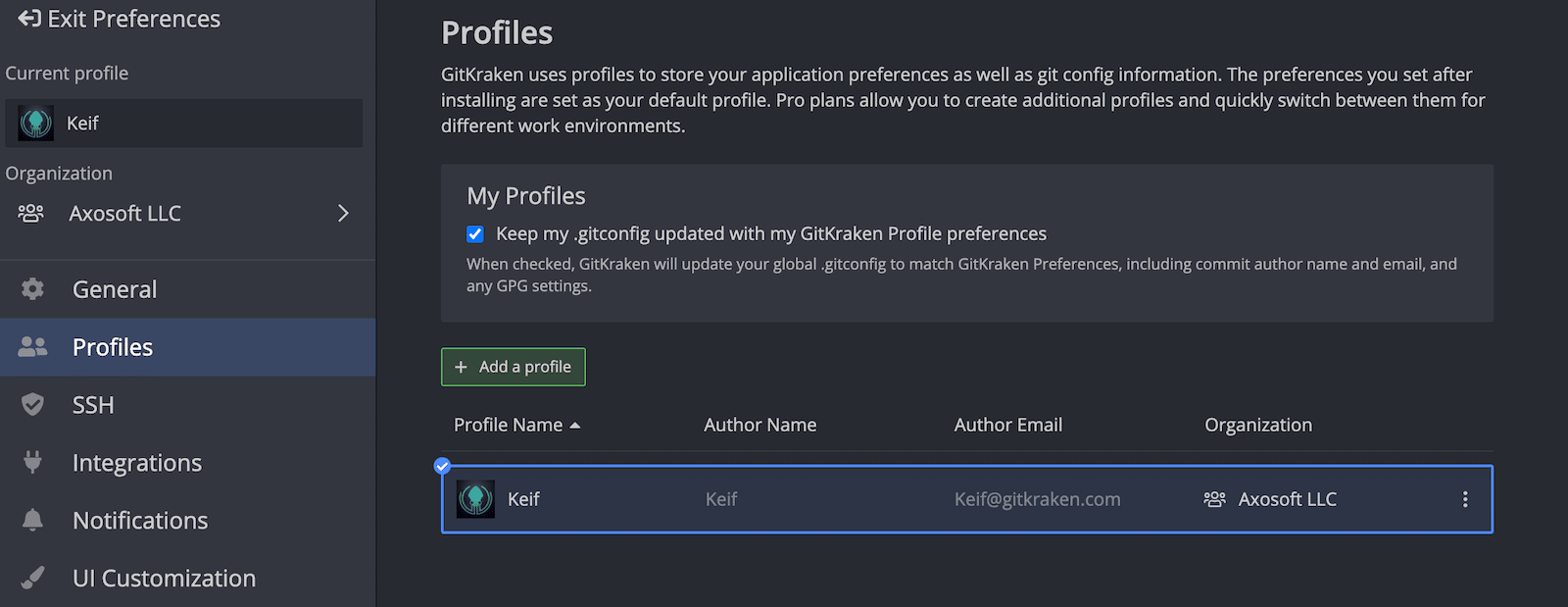
Enable Keep my .gitconfig updated with my profile info to sync your name and email with Git’s global .gitconfig.
What a profile stores
Each profile retains settings under:
- Preferences > General
- Preferences > Integrations
- Preferences > UI Preferences
Tabs are also profile-specific. When you create a new profile, GitKraken Desktop will duplicate the tabs open in your current one.
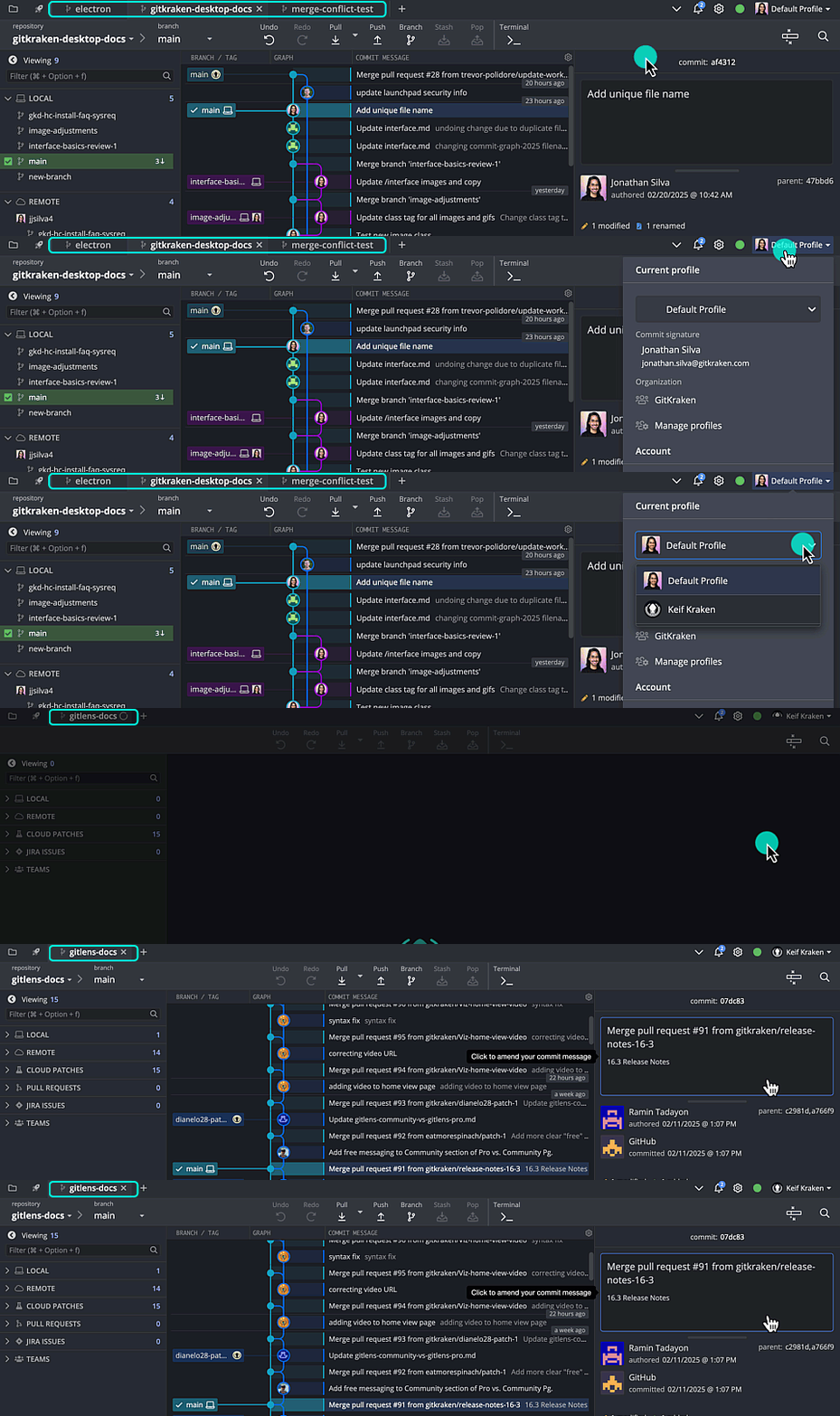
Profiles support unique integration connections. For example, use separate profiles to connect different GitHub accounts.
Use separate profiles when: you want integrations, UI settings, and open tabs isolated by context. Don’t expect profiles to be lightweight if: constantly duplicating and switching tabs would slow down your workflow more than it helps.
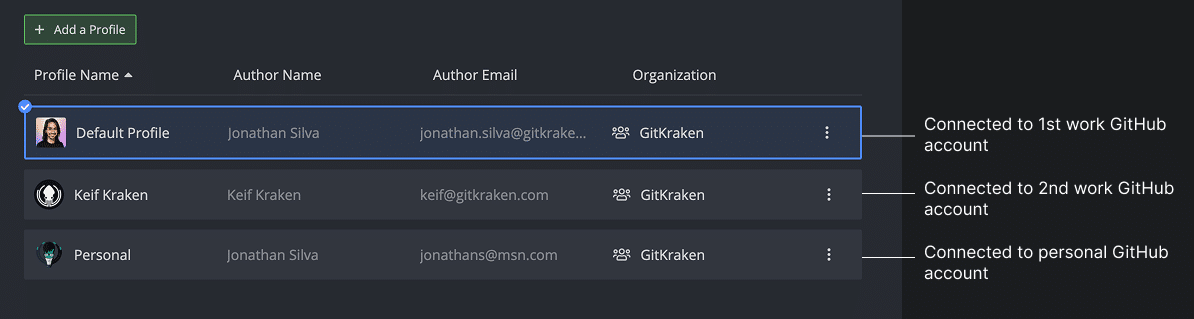
How to change profile avatars
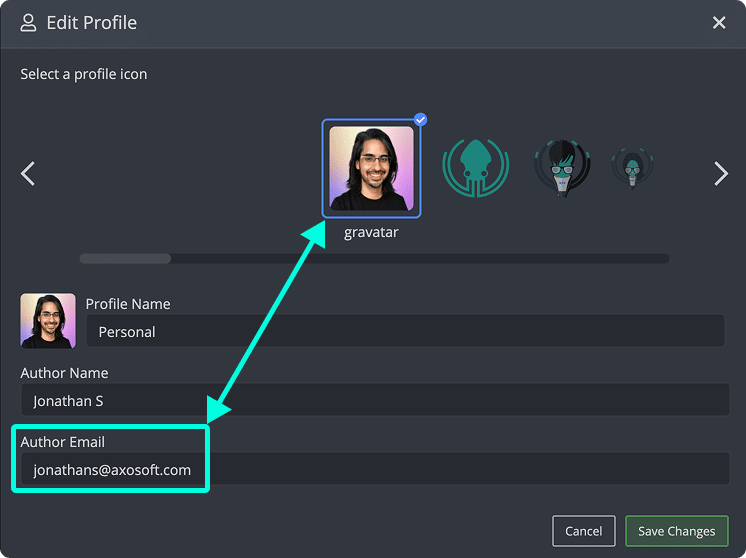
If connected to GitHub, GitHub Enterprise Server,GitLab, GitLab Self-Managed, Azure DevOps, or Bitbucket your avatar will match your GitHub profile. Otherwise, GitKraken Desktop uses the Gravatar linked to your profile’s email address.
Use provider avatars when: the profile is connected to a supported integration and you want that service’s identity reflected in GitKraken Desktop. Use separate Gravatar-backed emails when: you need profiles to display different non-provider avatars.
To change your profile avatar:
- Click the profile icon in the top-right corner.
- Select Manage Profiles
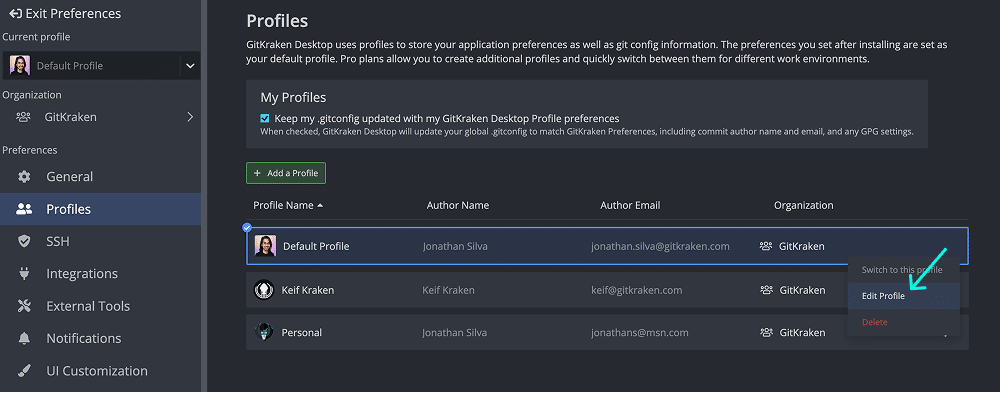
Choose an icon or change the email address to use a different Gravatar image.
How to show author initials in the graph
Instead of avatars, display commit author initials in the commit graph:
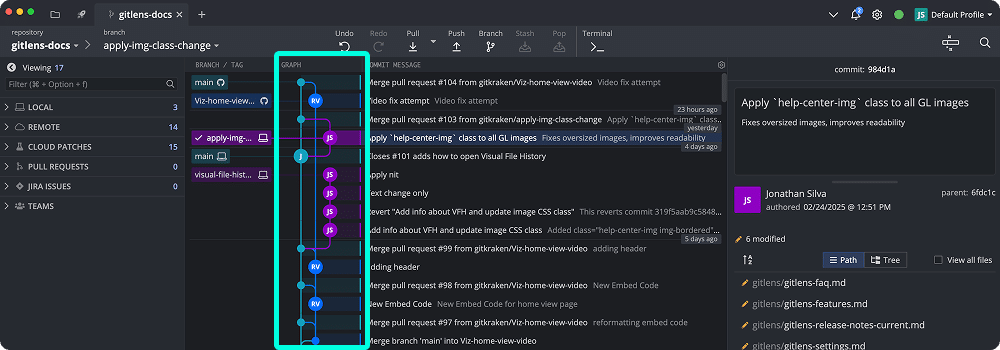
To enable, go to Preferences > UI Preferences > Display author initials and generic remote icons instead of avatars.
Which initials GitKraken Desktop uses
GitKraken Desktop uses initials based on the commit’s author name:
- Commits made in GitKraken use profile name initials.
- Commits from the CLI use initials from
.git/configor.gitconfig.
Can profiles use different avatars?
Yes it can, if each profile has a unique email address linked to a different Gravatar. GitKraken currently does not support custom image uploads.
