

Last updated: March 2026
Use this page to understand what each major Preferences section controls in GitKraken Desktop, including profiles, integrations, AI settings, external tools, commit signing, terminal behavior, and repository-specific options. Start here when you need to know where a setting lives before changing your workflow or environment.
Requirements and limits
- Scope: Preferences overview for app-wide, profile-specific, and repository-specific settings
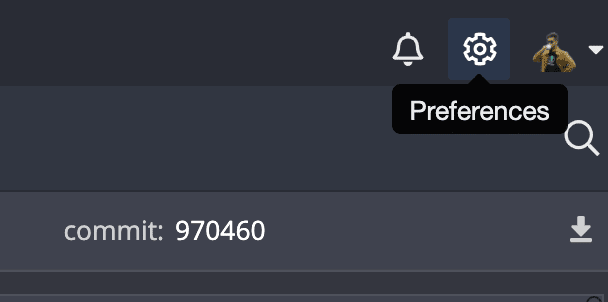
- Access point: Gear icon in the top-right corner of GitKraken Desktop
- Profile behavior: Preferences are stored per profile, so switching profiles changes integrations and UI configuration
- Repo-specific settings: Some settings apply only to the currently open repository
- Plan-gated sections: Organization settings, GitKraken AI, and some notification controls depend on plan level
- Use this page for setting location and scope; follow linked feature pages for detailed workflow constraints
Quick Start
- General: Set auto-fetch intervals, conflict detection behavior, commit graph limits, and tab retention.
- Profiles: Create and switch between profiles to separate Git identities, integrations, and tab sets.
- SSH and Integrations: Connect to GitHub, GitLab, Bitbucket, Azure DevOps, Jira, Trello, and more.
- GitKraken AI: Enable AI-assisted commit messages and PR descriptions (Pro plan and above).
- External Tools: Set your preferred editor, diff tool, merge tool, and default terminal.
- UI Customization: Change themes, date formats, avatar display, and commit graph metadata.
- Commit Signing: Enable GPG signing for verified commits.
- Experimental: Try preview features such as the Git binary executor.
- Repo-Specific Preferences: Configure encoding, Gitflow, hooks, LFS, issues, and Team View per repository.
Preferences are stored per profile, so switching profiles resets integrations and UI options to that profile’s configuration.
How organization settings work
This section is labeled with your organization’s name. It shows members and teams, and allows Owners and Admins to:
- Manage member roles
- Invite users and assign licenses
- Create and manage teams
Note: Organization settings are available on the Pro plan and above.
How General preferences work
Configure app-wide behavior like auto-fetch, conflict detection, and commit graph settings.
- Auto-Fetch: Set an interval (0–60 minutes); 0 disables auto-fetch.
- Auto-Prune: Removes stale remote-tracking references.
- Automatic Conflict Detection: GitKraken monitors for base branch conflicts.
- Keep Submodules Up to Date: Auto-update submodules after Git actions.
- Default Branch Name: Used when initializing new repos (default is
main). - Delete “.orig” Files: Control cleanup of merge backup files.
- Show All Commits in Graph: May affect performance on large repos.
- Initial Commits in Graph: Define max visible commits (minimum: 500).
- Lazy Load Commits: Loads more commits only as needed.
- Remember Tabs: Saves open tabs and profile context between sessions.
- Longpaths / AutoCRLF: Windows-only settings tied to global
.gitconfig. - Extended Logging: Toggle detailed activity logs from Help > Support Logs.
- Forget All Credentials: Clears stored usernames and passwords.
- Share Work-in-Progress: Enables visibility for teammates via the Team View.
How profile preferences work
Store unique settings, tabs, and integrations per context. Useful for multi-account workflows.
How SSH and integration preferences work
Control access and connections to remote repositories:
- SSH settings
- Git hosting integrations for GitHub, GitLab, Bitbucket, Azure DevOps, etc.
- Issue tracker integrations like Jira and Trello
How GitKraken AI preferences work
This feature is available for Pro plans or higher.
Let GitKraken AI automate repetitive Git tasks to improve your efficiency.
See the GitKraken AI FAQ for common questions.
How external tool preferences work
Configure your preferred editors, terminals, and diff/merge tools.
- External Merge Tool: View supported tools
- External Diff Tool: View supported tools
- External Editor: Choose from VS Code, Atom, Sublime, IntelliJ, or custom path
- Default Terminal: Launch from File > Open Terminal or Alt/Option + T
- Use Custom Terminal Command: Example for PowerShell:
start "" "C:Program FilesPowerShell7pwsh.exe" -noexit -command "cd %d"
macOS Note: Use the executable file, not the .app, when selecting a custom editor.
How notification preferences work
Control product and marketing messages:
- Enable Desktop Notifications
- Receive Marketing and Help Notifications
Note: Marketing notifications can be disabled only by Pro, Advanced, Business, and Enterprise users.
How UI customization preferences work
Visual preferences for theming and commit graph display:
- Themes
- Notification location
- Date/time locale and formatting
- Author initials vs. avatars
- Graph metadata: branches, tags, author, commit message, SHA, etc.
- Hide Launchpad from the status bar
How commit signing preferences work
Enable and configure GPG signing for commit verification.
How editor preferences work
Customize code and diff viewer:
- Font, size, tab spacing
- EOL characters
- Syntax highlighting
- Line numbers and word wrap
How in-app terminal preferences work
Adjust the appearance and behavior of GitKraken’s terminal:
- Font, size, line height, cursor
- Autocomplete behavior
- Default terminal for Windows
How experimental preferences work
Preview Experimental Features:
- Switch from NodeGit to Git binary (limited support)
- AI commit message generation
How repo-specific preferences work
These apply only to the open repository:
You can configure these uniquely per repository.
