

Last updated: May 2026
Use this page to understand the main areas of the GitKraken Desktop interface so you can navigate repository actions, history, staging, coding agent workflows, and collaboration features more efficiently. It covers the toolbar, Left Panel, Commit Panel, Commit Graph, and tabs, with links to deeper task-specific guides when you need more than a UI overview.
Requirements and limits
- Scope: Interface overview, not full task-specific workflows
- Main areas covered: Toolbar, Left Panel, Commit Graph, Commit Panel, Status Bar, and tabs
- Repository context: Most controls described here appear only when a repository is open
- Left Panel modes: The Left Panel can show either List view or Agent Sessions View, depending on the selected mode
- Left Panel behavior: Sections can be toggled, resized, collapsed, or expanded from the UI
- Toolbar behavior: Some buttons appear only when the relevant feature or repo state is available, such as LFS
- Status bar zoom: The status bar exposes preset zoom levels including 100%, 110%, 125%, 140%, 150%, 175%, and 200%
- Deeper actions: Use linked feature pages for task-specific limits and workflows beyond this interface overview
Quick Start
- Left Panel: Shows repository references, worktrees, and integrations. In
List | Agents, click List for the traditional reference-based view or Agents for Agent Sessions View, which organizes worktrees around coding agent sessions. - Commit Graph: Displays the visual commit history of the current repository. Click any commit to view its details in the Commit Panel. Click the WIP node at the top to view and stage pending changes.
- Commit Panel: Shows file changes for the selected commit or WIP. Displays diffs, staged/unstaged files, and co-author information. Use it to stage files and write commit messages.
- Toolbar: Located at the top of the window. Provides one-click access to Undo, Redo, Pull, Push, Branch, Stash, and Pop. Use the adjacent dropdowns to customize pull behavior or branch options.
- Status Bar: Located at the bottom of the window. Surfaces the Launchpad summary, your current plan, and a zoom selector with standard levels including 100%, 110%, 125%, 140%, 150%, 175%, and 200%.
To open the Command Palette at any time, press Cmd/Ctrl + P. To toggle the Left Panel, use Cmd/Ctrl + K or the toggle in the toolbar. Preferences and integrations are accessible from the gear icon in the upper-right corner.
From left to right, GitKraken Desktop displays the Left Panel, Commit Graph, and Commit Panel when working with a repository. The Left Panel can show either List view or Agent Sessions View.
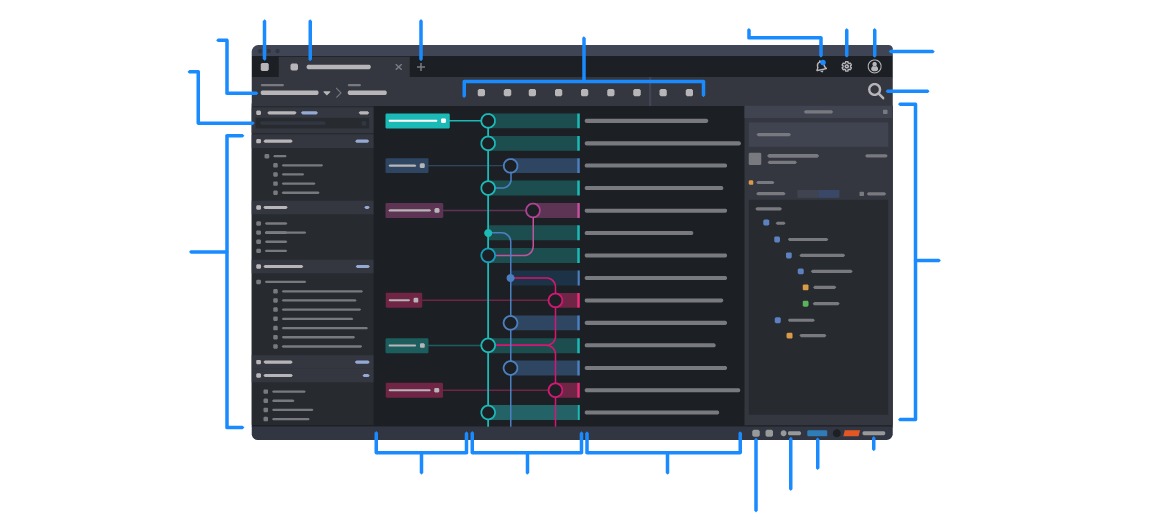
How the toolbar works
The main toolbar provides quick access to common repository actions, including Undo, Redo, Pull, Push, Branching, and more.
History actions
| Icon | Button | What it does |
|---|---|---|
 |
Undo | If an action can be undone, the Undo button is activated. Click to reverse the last undoable action. |
 |
Redo | Click Redo to reverse the last undo command. |
Sync actions
| Icon | Button | What it does |
|---|---|---|
 |
Pull | Click to pull changes from the remote repository. Use the adjacent dropdown to choose pull behavior: |
 |
Push | Push changes to the upstream remote repository. |
- Fetch All
- Pull (fast-forward if possible)
- Pull (fast-forward only): same as
git fetch && git merge --ff-only - Pull (rebase): same as
git fetch && git rebase
Tip: Click the next to a pull type to make it the default. The selected default displays a .
Branch actions
| Icon | Button | What it does |
|---|---|---|
 |
Branch | Create a new branch from your current HEAD. |
Work-in-progress actions
| Icon | Button | What it does |
|---|---|---|
 |
Stash | Temporarily save your changes without committing using a stash. |
 |
Pop Stash | Restore changes from the most recent stash. |
Conditional actions
| Icon | Button | What it does |
|---|---|---|
 |
LFS | This button appears if LFS is enabled for your repository. |
Note: To toggle toolbar labels, go to Preferences > UI Preferences and enable Show toolbar icon labels.
How the Left Panel works
The Left Panel provides access to repository references, such as local branches, remotes, and tags. You can:
- Collapse or expand sections
- Resize the panel and sections
- Toggle visibility via the context menu
- Maximize a section by double-clicking the header
- Switch the Left Panel mode with the
List | Agentssegmented control at the top - Use List for the traditional reference-based view described below
- Use Agents to open Agent Sessions View, which organizes the same underlying worktrees around coding agent sessions, status, and quick actions
- See Coding Agents in GitKraken Desktop for agent session setup and workflows
- See Manage Git Worktrees in GitKraken Desktop for general worktree management
- The segmented control can be hidden from Preferences > UI Customization
List view and Agent Sessions View use the same underlying worktrees. Use List view for general branch and worktree management. Use Agent Sessions View for coding agent sessions, agent status, and related quick actions.
For in-app terminal behavior, worktree-specific terminal sessions, and manual coding agent workflows, see GitKraken Terminal Guide.
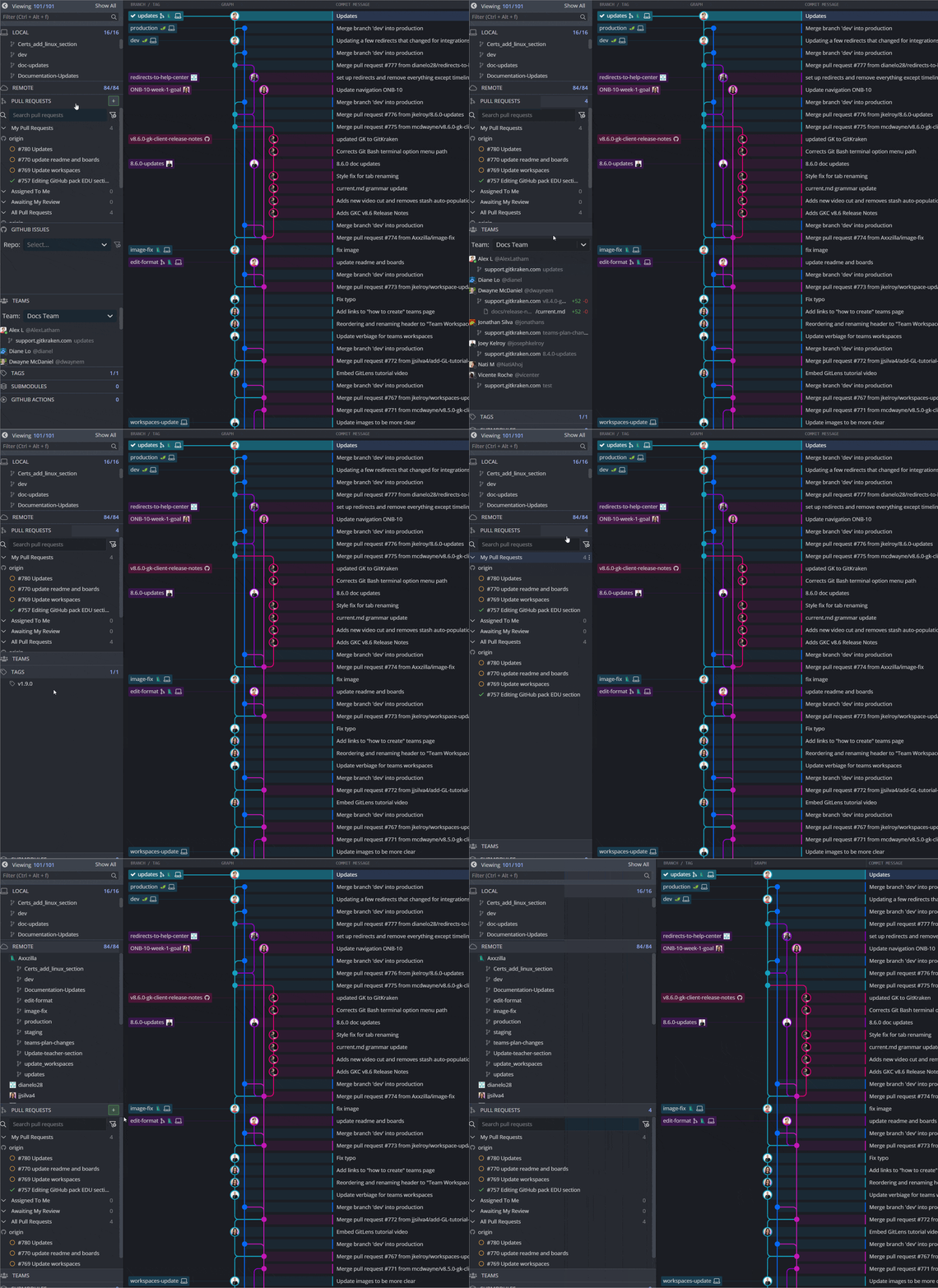
| Icon | Section | What it does |
|---|---|---|
 |
Local |
References to local branches that point to specific commits. If you need help with branches, visit our Branching and Merging page. |
 |
Remote |
References to remote branches. For more information, see Pushing and Pulling. |
 |
Pull Requests |
Shows active pull requests for merging one branch into another. With a supported integration, you can create pull requests directly from GitKraken Desktop. For more information, see Pull Requests. |
| Issues |
Shows issues connected to your repository integrations. For more information, see Jira, GitHub Issues, GitLab Issues, or Trello. |
|
| Teams |
Easily see what your Team members are working on. |
|
 |
Tags |
References that point to specific commits and do not move. For more information, see Tags. |
|
Stashes |
Stored file changes from the working copy. For more information, see Stashing. |
 |
Submodules |
A Git repository in a subdirectory of the current repository. For more information, see Submodules. |
How the Commit Panel works
The Commit Panel is where files and changes from your working directory are staged and committed.
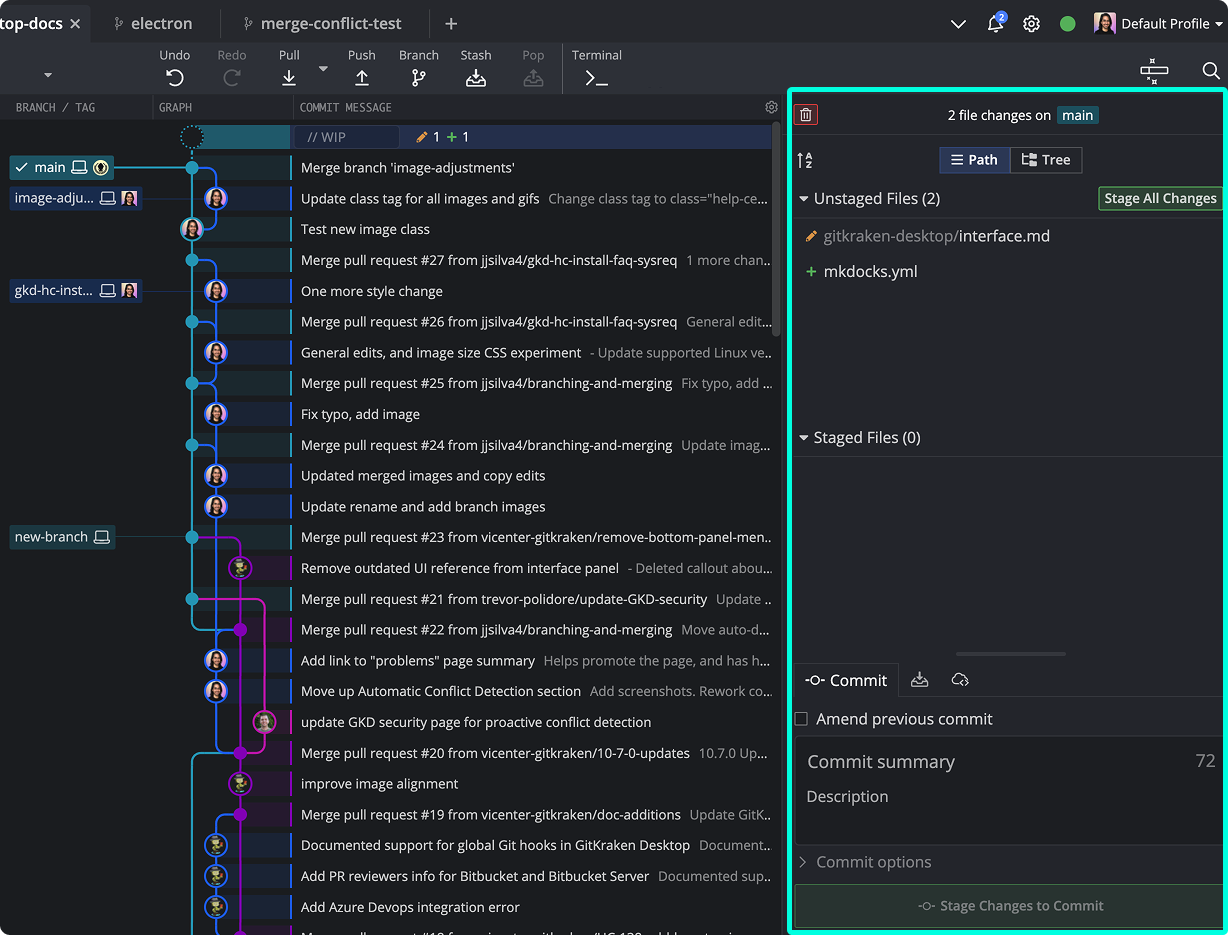
The three sections in order of operations are:
- Unstaged Files – Modified files not yet added to the index.
- Staged Files – Files staged for the next commit.
- Commit Message – A two-part message interface:
- Summary: A brief, informative message shown in the graph.
- Description: Additional details to support the summary.
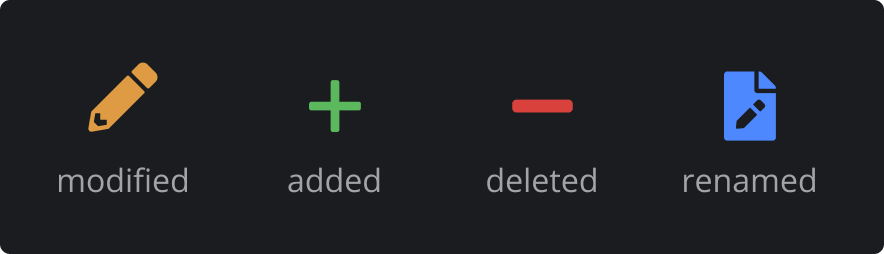
To explore more about staging and committing, visit committing work.
How the Commit Graph works
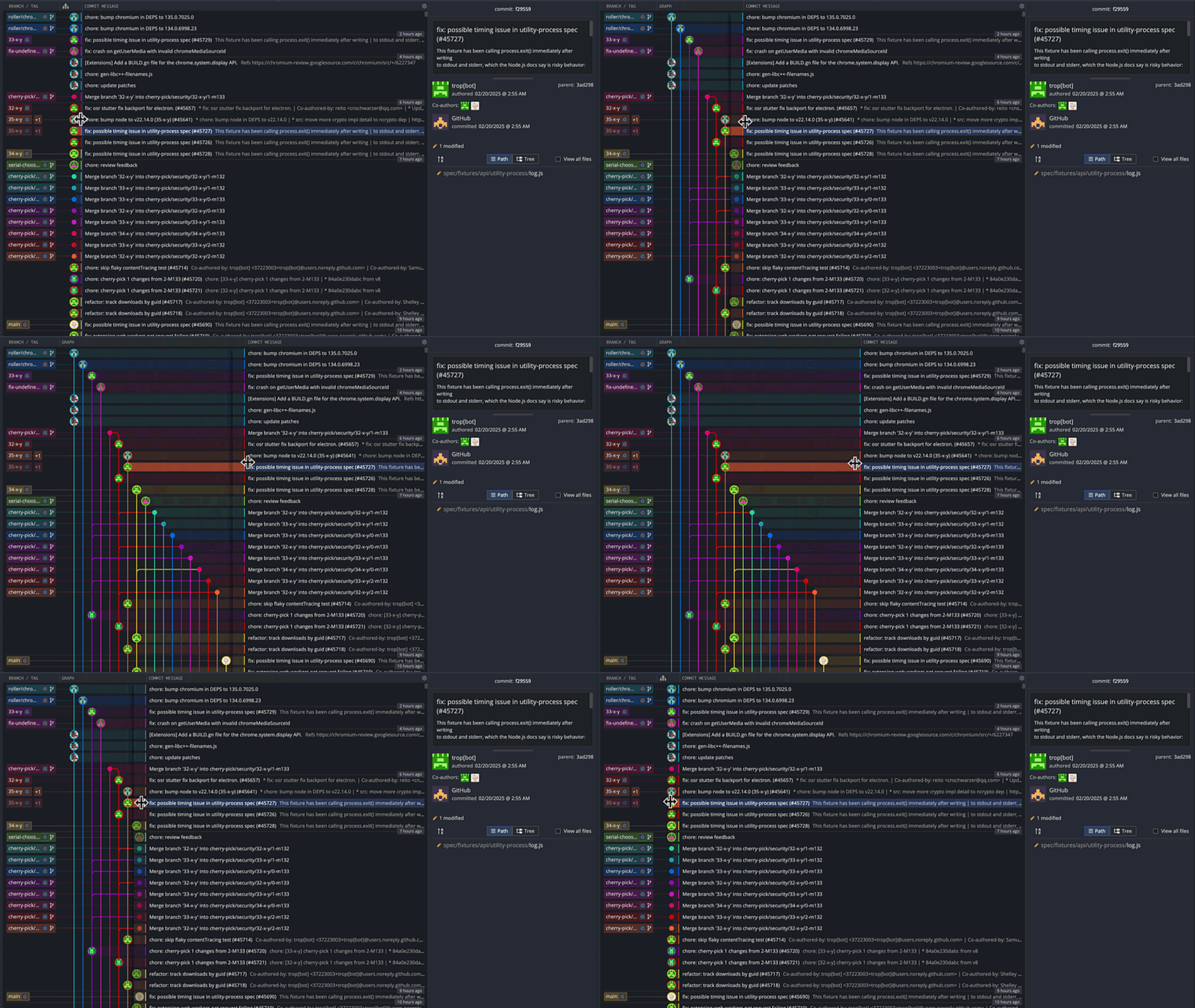
The Commit Graph is a visual representation of your repo’s Directed Acyclic Graph (DAG), showing each commit and its relationships.
Each row is a commit, with the most recent at the top. Columns represent branches; lines indicate merges and relationships.
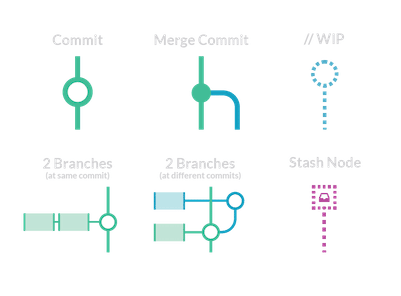
You can trace branch history from bottom to top and right to left.
How ghost branches work
Hover over or select a commit to see its nearest containing branch (“ghost” branch). Double-click to check out its head.
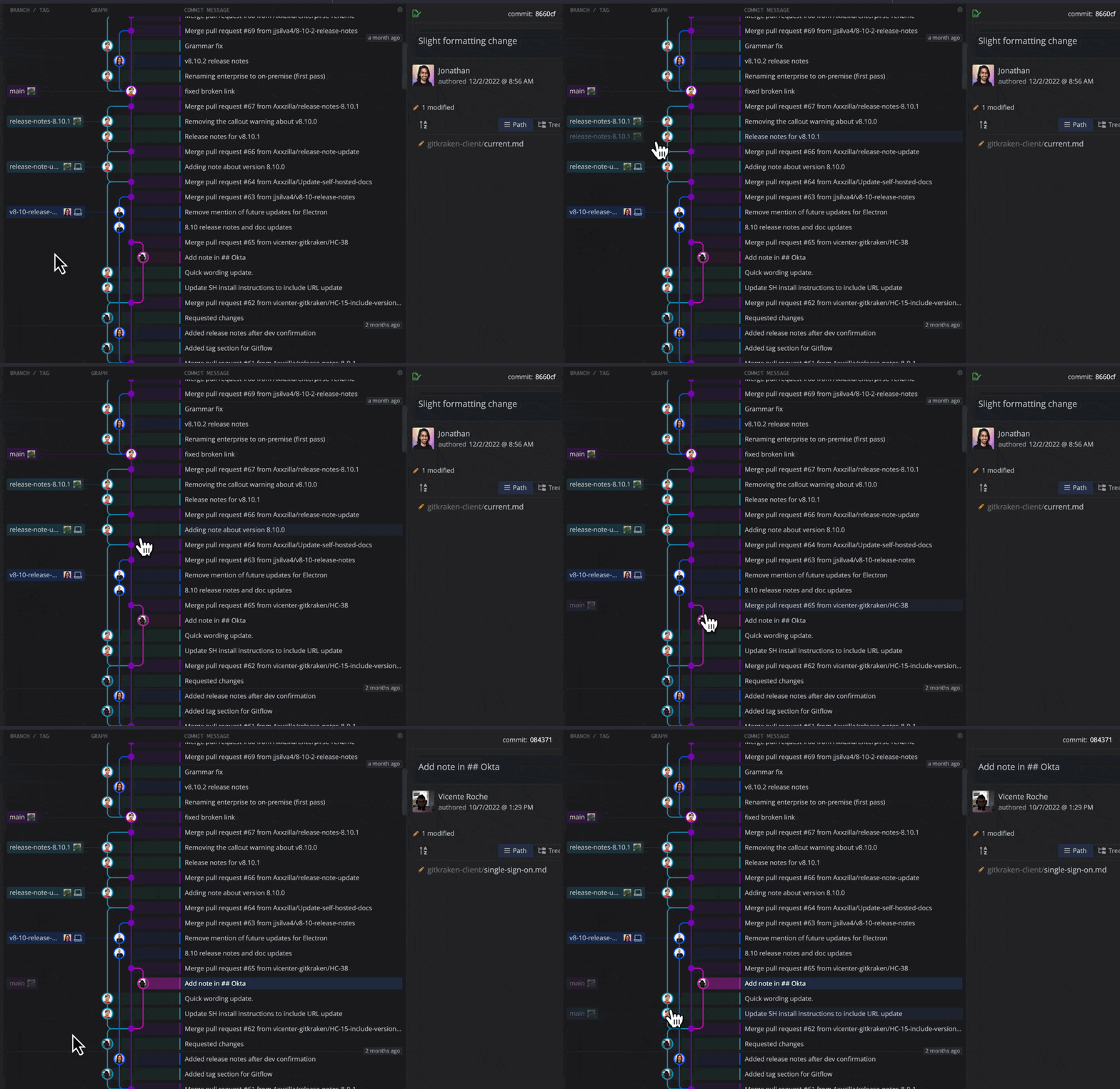
How commit highlighting works
Hovering over a branch highlights all related commits.
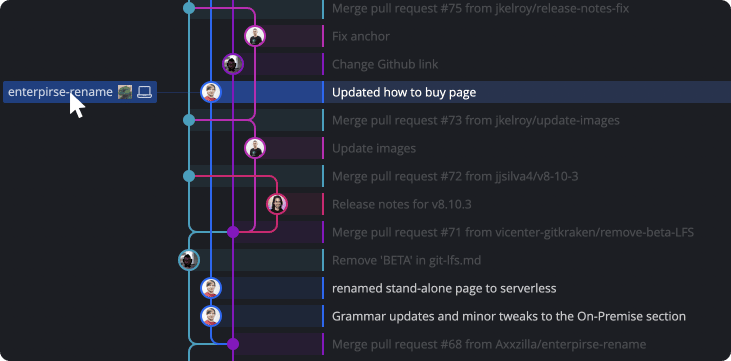
Toggle this behavior from Preferences > UI Customization.
How tabs work
Switch between multiple repositories using tabs.
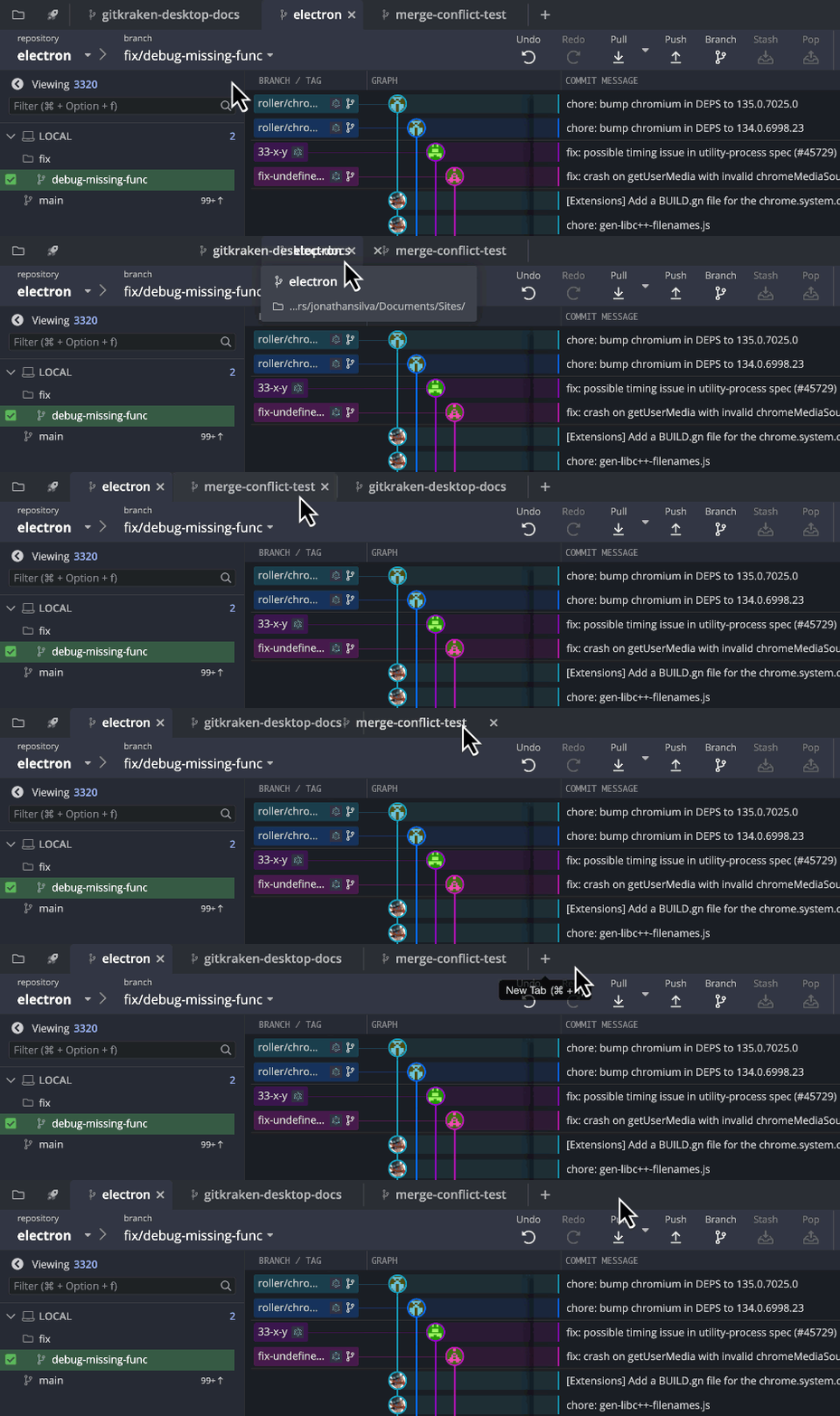
Use shortcuts cmd/ctrl+1-9 to switch tabs. Open new tabs with + or cmd/ctrl+T, and close tabs with middle-click or cmd/ctrl+W.
Tabs persist per profile.
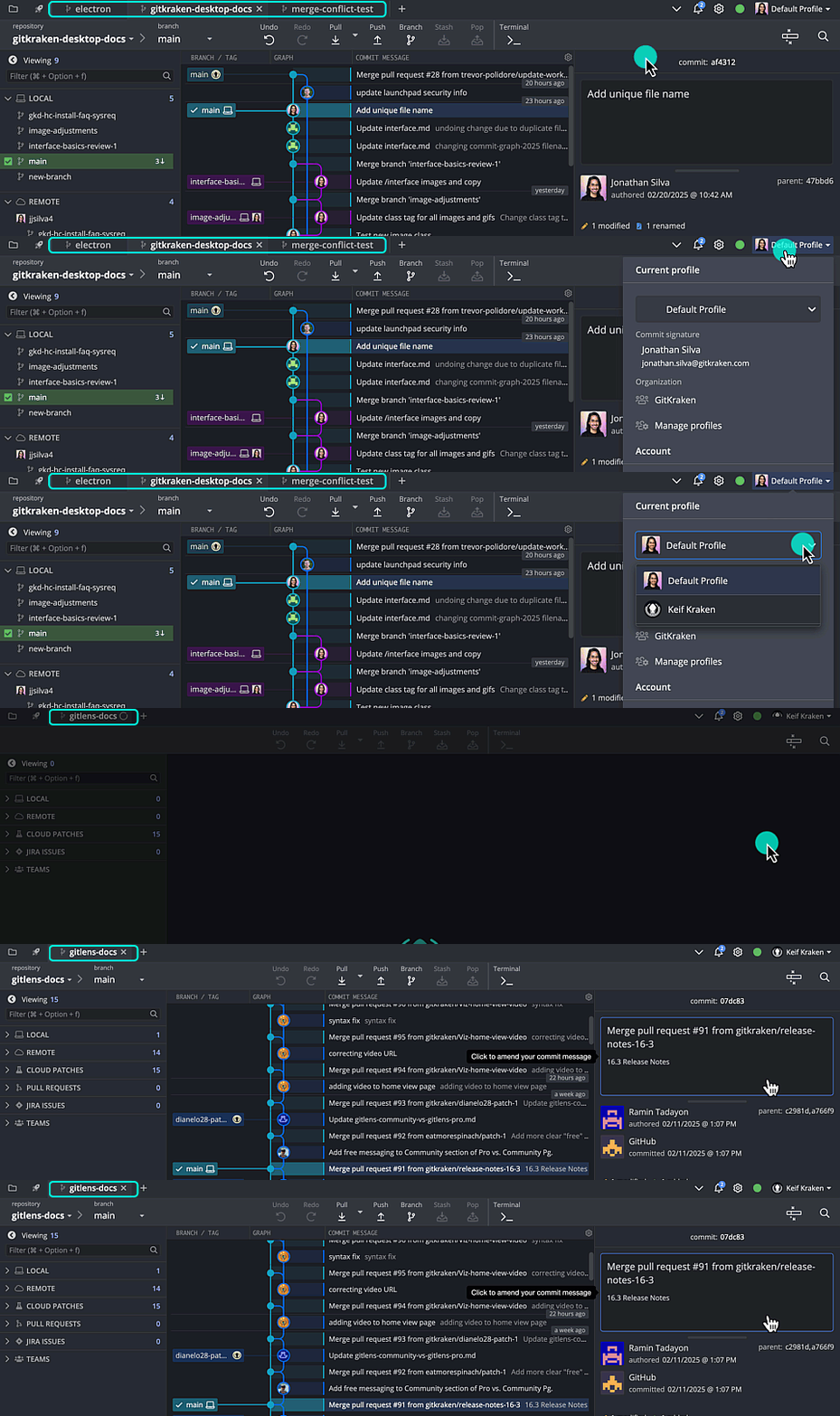
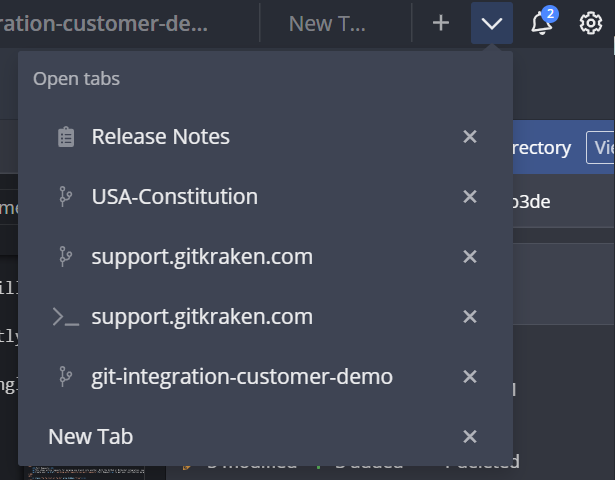
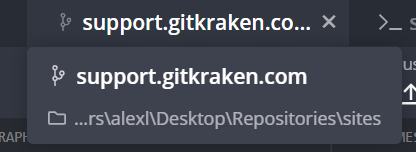
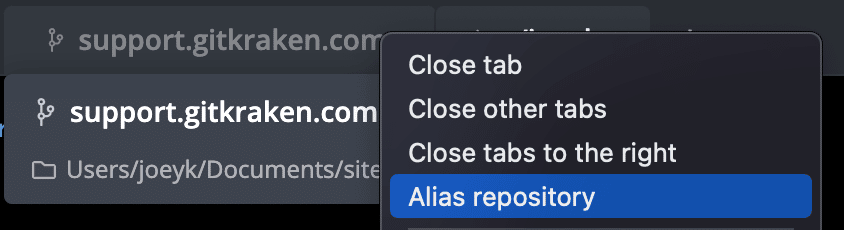
Tab alias and name
Right-click a tab and select Alias repository to assign a custom name.
Columns
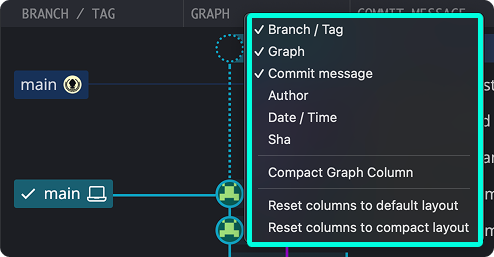
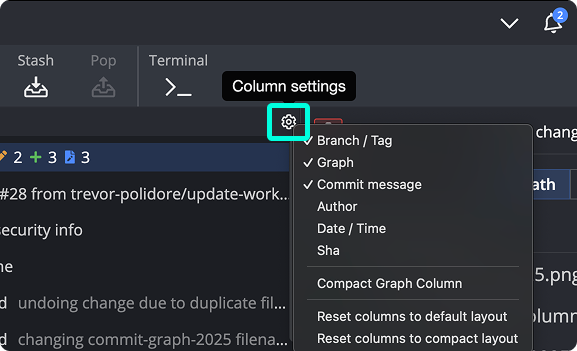
GitKraken Desktop displays these default columns: Branch/Tag, Graph, Commit Message. Columns are rearrangeable.
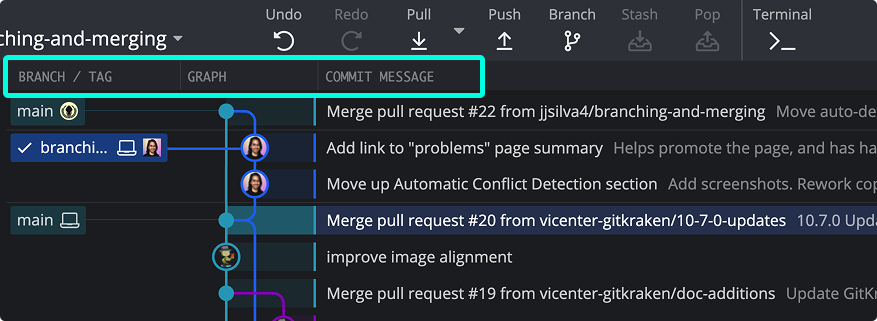
Right-click headers to toggle columns like Author, Date/Time, or Sha. You can also use the gear icon.
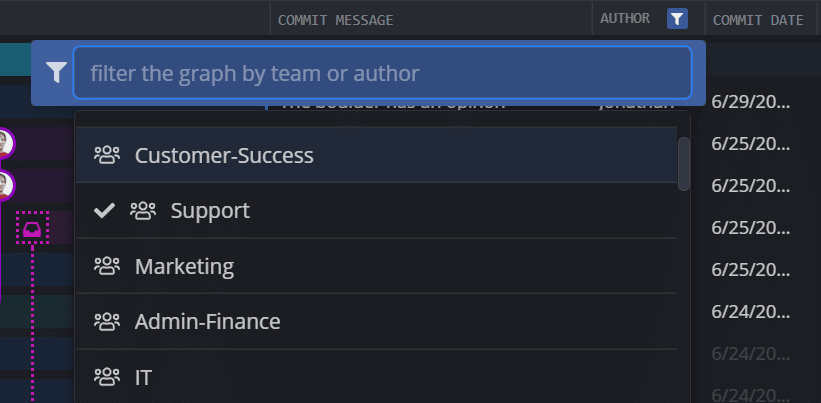
Filter commits by author via the in the AUTHOR column.
GitKraken Desktop saves column selections, widths, and order per repo. Columns are also configurable from Preferences > UI Customization.
For more advanced views, see Hiding and Soloing.
